

Event — Routes
What it does
Section titled “What it does”The Routes tab defines the paths that teams follow during the event. Each route groups a set of challenges in a specific order, and teams are assigned to routes. Different teams can follow different itineraries — this prevents crowding when all teams are in the same area and allows custom experiences per group. From here you can create routes, assign challenges with drag-and-drop ordering, edit GPS positions on a live Google Maps widget, copy routes for reuse, and control per-challenge visibility and sequencing.
Requirements
Section titled “Requirements”- Role: Agency or Admin
- Event state: Event must be stopped — routes cannot be created, edited, or deleted while the event is running
How to access
Section titled “How to access”Events list → click event name → Routes tab
Routes tab
Section titled “Routes tab”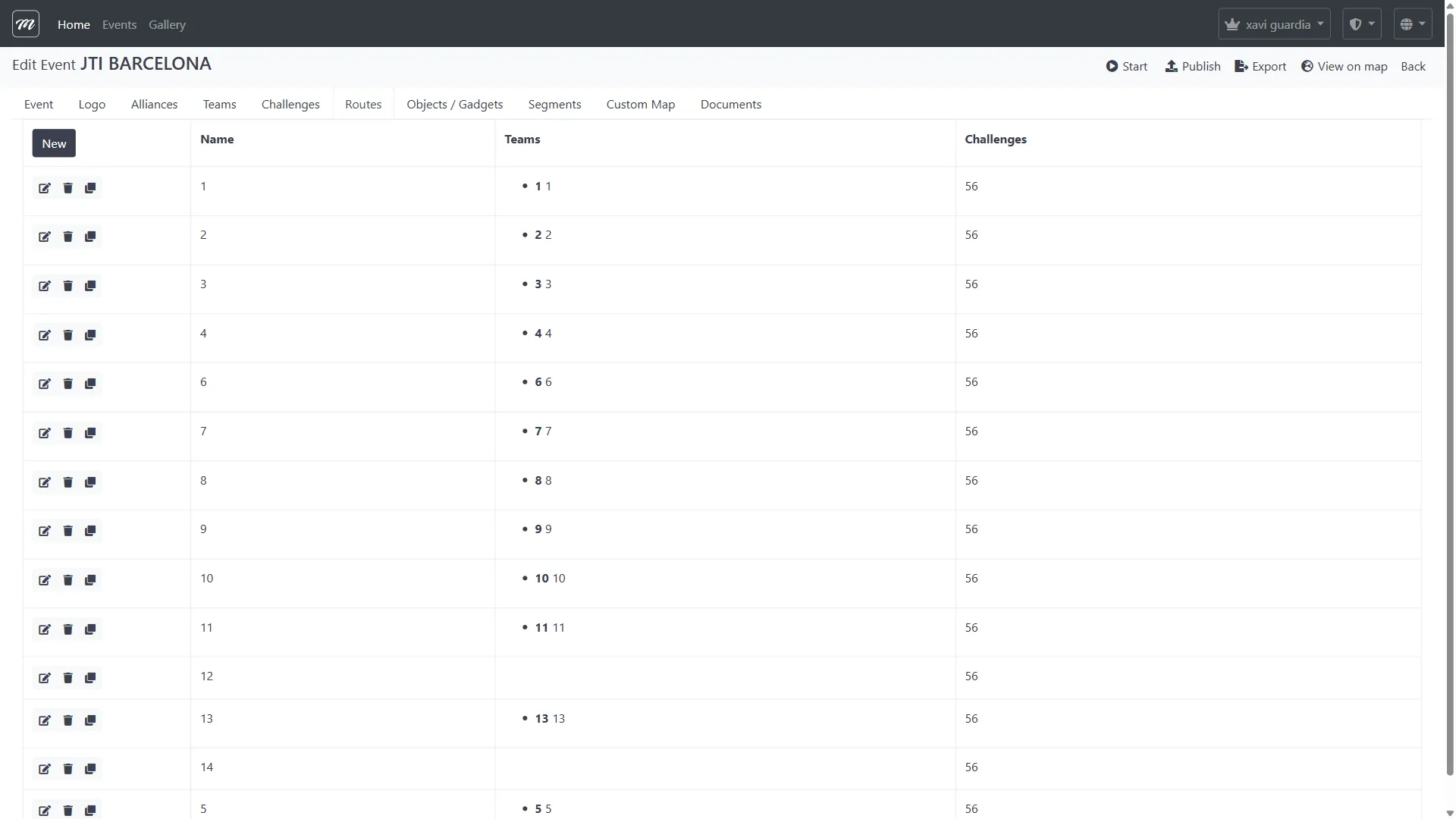
List routes
Section titled “List routes”The Routes tab displays a table of all routes for the event.
Columns
Section titled “Columns”| Column | Type | Description |
|---|---|---|
| (Row actions) | Icons | Edit (pencil), Delete (trash), Copy (share) |
| Name | Display | Route name (clickable — opens route edit) |
| Teams | Display | Bulleted list of team numbers and names assigned to this route. Hidden for MooveGoXR event type. |
| Challenges | Display | Number of challenges included in this route |
Row actions
Section titled “Row actions”| Icon | Action | Description |
|---|---|---|
| Pencil | Edit | Opens the route edit form |
| Trash | Delete | Opens delete confirmation. Hidden when the event is running. |
| Share | Copy | Duplicates the route immediately and redirects back to the list |
Toolbar
Section titled “Toolbar”| Action | Description |
|---|---|
| New | Opens the route creation form. Hidden when the event is running. |
Behavior
Section titled “Behavior”- When the event is running, an info alert is displayed: “Event is running — editing not allowed while active.” The New button and Delete row icons are hidden.
- The Teams column is hidden for MooveGoXR-type events.
Create route
Section titled “Create route”The creation form contains a single field.
Fields
Section titled “Fields”| Field | Type | Description | Required |
|---|---|---|---|
| Name | Text | Route display name. Defaults to the localized default route name. | Yes |
Actions
Section titled “Actions”| Action | Description |
|---|---|
| Save | Creates the route and returns to the Routes tab (or route list). |
| Cancel | Discards the form and returns to the list. |
Behavior
Section titled “Behavior”- Blocked during running event. If the event is active, the create action returns an error: “Editing an event is not allowed while it is active.”
- The route is created empty — challenges are assigned later via the edit form.
Edit route
Section titled “Edit route”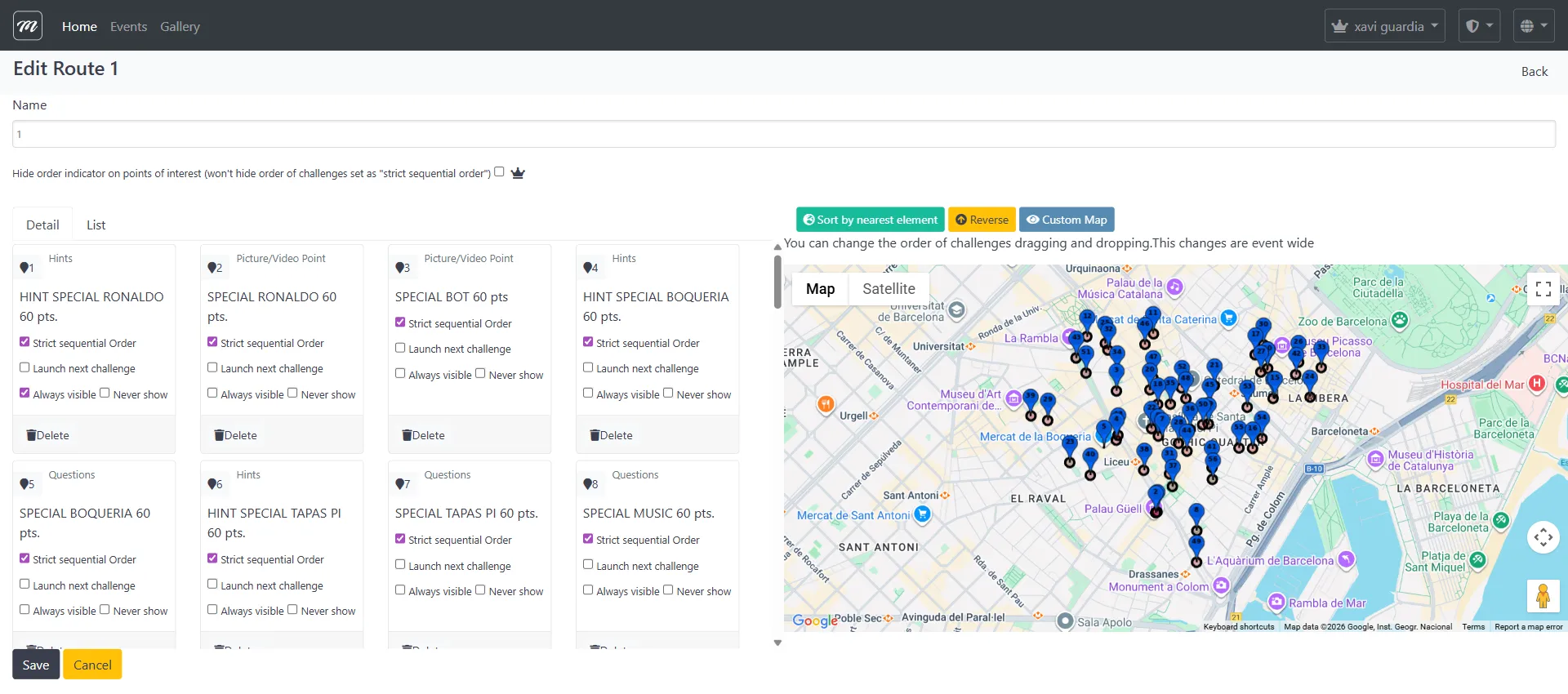
The edit form is the most complex UI in the Routes section. It combines route-level settings, per-challenge configuration, and a live Google Maps widget for positioning and ordering.
Route-level fields
Section titled “Route-level fields”| Field | Type | Description | Required |
|---|---|---|---|
| Name | Text | Route display name | Yes |
Two-tab interface
Section titled “Two-tab interface”The edit form has two sub-tabs for managing the challenge list:
| Sub-tab | Description |
|---|---|
| Detail | Card-based view — draggable challenge cards with all per-challenge controls |
| List | Table view — compact rows with editable numeric position input |
Detail tab (card view)
Section titled “Detail tab (card view)”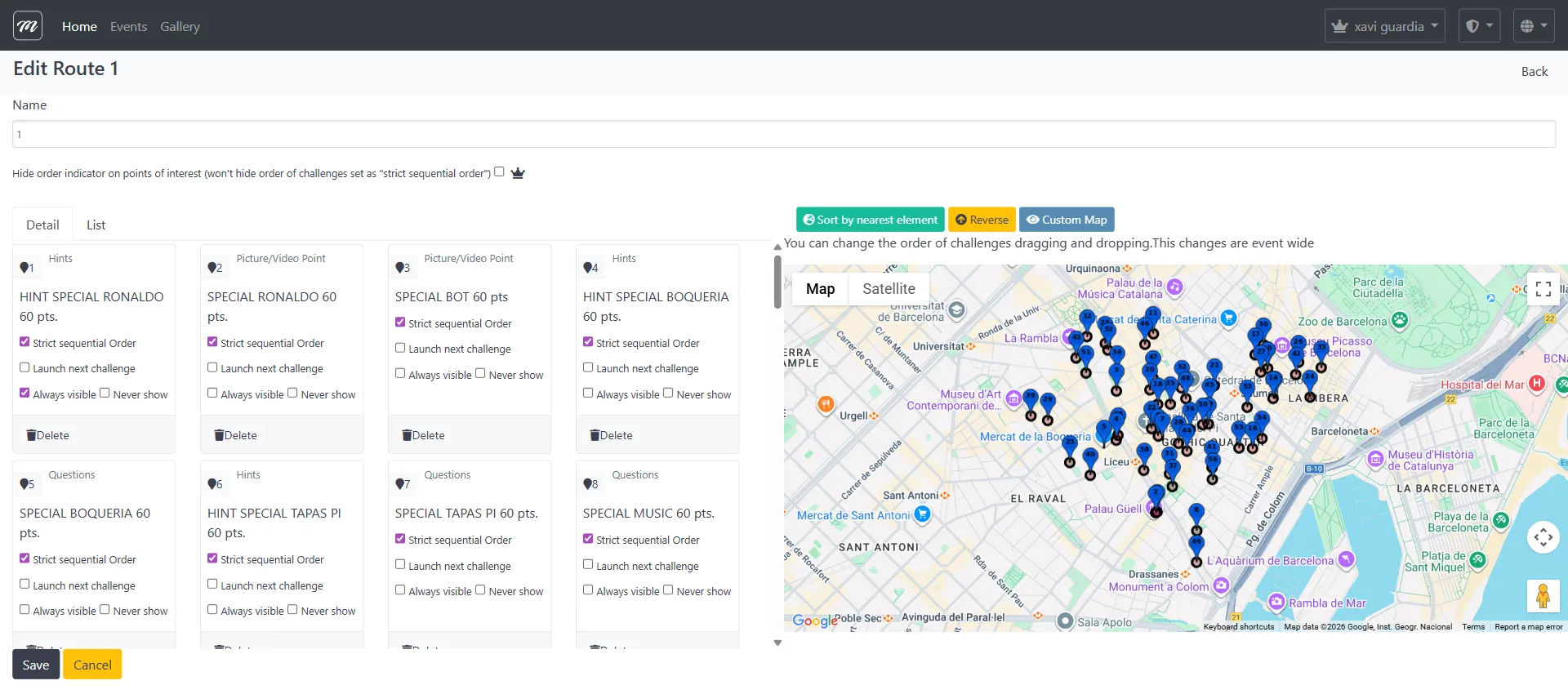
Each challenge is shown as a card with:
| Control | Type | Description |
|---|---|---|
| Challenge name | Display | Name and type of the challenge |
| Position number button | Button | Numbered button (1, 2, 3…) — click to center the map on this challenge’s GPS location |
| Strict sequential order | Checkbox | Force this challenge to be completed before the next one becomes available |
| Activate next challenge | Checkbox | Automatically activate the next challenge when this one is completed |
| Always visible | Checkbox | Always show this challenge pin on the map, regardless of segment or ordering |
| Never show | Checkbox | Do not show this challenge pin on the map |
| Delete | Button | Marks the challenge for removal from the route (soft delete — saved on form submit) |
Cards can be dragged and dropped to reorder. Dropping a card updates the order automatically.
Restricted challenge types: Robot and floating (user-selectable) challenges have their ordering checkboxes disabled. A yellow exclamation icon appears with a tooltip: “Robots and floating challenges are not editable.”
List tab (table view)
Section titled “List tab (table view)”| Column | Type | Description |
|---|---|---|
| Challenge name | Display + Button | Name with a position button to center the map |
| Type | Display | Challenge type description |
| Strict sequential order | Checkbox | Same as in card view |
| Activate next challenge | Checkbox | Same as in card view |
| Always visible | Checkbox | Same as in card view |
| Never show | Checkbox | Same as in card view |
| Position | Text (number) | Editable position number — values use multiples of 10 (10, 20, 30…) |
A Sort button reorders challenges by their position number.
Map widget
Section titled “Map widget”
The right panel contains an interactive Google Maps widget showing all challenges as numbered markers.
Map toolbar
Section titled “Map toolbar”| Button | Description |
|---|---|
| Sort by nearest element | Reorders challenges by geographic proximity — uses Google Maps Geometry library to calculate nearest-neighbor ordering from the first challenge |
| Reverse | Reverses the entire challenge order and renumbers |
| Custom Map | Toggles the custom map overlay on/off (only when the event has a custom map configured) |
Map marker features
Section titled “Map marker features”- Numbered pins: Each challenge gets a numbered marker matching its position in the route (1, 2, 3…)
- Draggable: Markers can be dragged to change the challenge’s GPS coordinates in real time
- Geofence circles: Red circles show the activation radius around each challenge (based on the “distance in meters” field)
- Info window on hover: Shows challenge name, activation distance, and icons for QR/iBeacon/user-selectable activation
- Circle follows marker: When you drag a marker, the geofence circle moves with it
Save behavior
Section titled “Save behavior”Saving the route edit form is a two-step operation:
- Route name — the route name change is saved
- Challenge ordering — all changes are saved: challenge sequence, ordering flags, GPS coordinates, and any challenges marked for deletion are permanently removed
- A green success banner appears: “Route changes saved” (auto-hides after 3 seconds)
Actions
Section titled “Actions”| Action | Description |
|---|---|
| Save | Saves route name and challenge ordering without page reload. Persists coordinate changes, ordering, and deletes marked challenges. |
| Cancel | Discards changes and returns to the Routes tab. |
Delete route
Section titled “Delete route”Click the trash icon on a route row in the list. This opens a confirmation dialog.
Confirmation dialog
Section titled “Confirmation dialog”| Element | Description |
|---|---|
| Title | ”Delete” |
| Confirmation prompt | ”Are you sure?” |
| Route name | Displays the name of the route being deleted |
| Delete button | Confirms deletion (danger/red style) |
| Cancel button | Returns to the route list without deleting |
What gets deleted
Section titled “What gets deleted”Deleting a route also removes all associated data:
- All challenge orderings — the challenge sequence configured for this route
- Team assignments — teams assigned to this route become unassigned (not deleted)
- The route itself
Behavior
Section titled “Behavior”- Blocked during running event. If the event is active, the delete action returns an error page.
- No undo. Deletion is permanent — the ordering configuration is lost.
- Teams are preserved. Teams are not deleted, only unassigned from the route.
- Challenges are preserved. Challenges themselves are not deleted — only their ordering within this route is removed.
Copy route
Section titled “Copy route”Click the share/copy icon on a route row in the list. The copy happens immediately (no confirmation dialog) and redirects back to the route list.
What gets copied
Section titled “What gets copied”| Element | Copied? | Notes |
|---|---|---|
| Route name | Yes | Same name as original |
| Challenge orderings | Yes | All challenge positions, settings, and coordinates are copied |
| Team assignments | No | The duplicate route starts with no teams assigned |
Behavior
Section titled “Behavior”- The system creates an independent copy of the route.
- Useful for creating multiple routes with the same challenge set but potentially different orderings (e.g., each team starts at a different point in the sequence).
Reorder challenges in route
Section titled “Reorder challenges in route”Challenge ordering is managed within the route edit form (see Edit route above). There are four ways to change the order:
1. Drag and drop (Detail tab)
Section titled “1. Drag and drop (Detail tab)”Drag the challenge cards to reorder them visually. The position numbers update automatically.
2. Edit position numbers (List tab)
Section titled “2. Edit position numbers (List tab)”Type new position values in the text fields. Position values use multiples of 10 (10, 20, 30…). Click Sort to apply the new order.
3. Sort by proximity
Section titled “3. Sort by proximity”Click Sort by nearest element in the map toolbar. The algorithm starts from the first challenge and repeatedly picks the geographically closest unvisited challenge — optimizing the walking route.
4. Reverse order
Section titled “4. Reverse order”Click Reverse to flip the challenge sequence end-to-end. Useful when creating mirror routes for different teams.
Per-challenge ordering flags
Section titled “Per-challenge ordering flags”These flags control how challenges appear to teams during gameplay:
| Flag | Effect |
|---|---|
| Strict sequential order | Team must complete this challenge before the next one in the route becomes available |
| Activate next challenge | Upon completing this challenge, the next challenge is automatically activated (pushed to the device) |
| Always visible | Challenge pin is always shown on the map, even if the team hasn’t reached it yet |
| Never show | Challenge pin is never shown on the map — team must discover it via QR scan, iBeacon, or other activation method |
Behavior and rules
Section titled “Behavior and rules”- Challenge ordering uses sequential numeric position values (10, 20, 30…) which can be edited in the List sub-tab or reordered via drag-and-drop in the Detail sub-tab.
- Teams without a route can still participate but see all challenges without a specific ordering.
- Per-challenge visibility controls (Never show, Always visible, Activate next) interact with segments: a challenge can be hidden until its segment activates, then become visible.
- Soft delete from route: Challenges marked for deletion (via the Delete button on each card) are only removed when the form is saved. They appear with an “Undelete” toggle until save.
Related pages
Section titled “Related pages”- Event — Challenges — Previous tab (where challenge content is created)
- Event — Objects / Gadgets — Next tab
- Event — Teams — Teams are assigned to routes
- Event — Segments — Segment-based challenge visibility within routes
- Event — Custom Map — Custom map overlay visible in the route editor
- Event — Live Control — Tracking teams as they follow routes
- Flow 1 — Create a Complete Event — Step 7: route creation