

Event — Objects / Gadgets
What it does
Section titled “What it does”The Objects / Gadgets tab manages two types of interactive items that teams encounter during events: Objects are collectible 3D items placed on the map, and Gadgets are sabotage tools that teams send to rival teams to disrupt their gameplay. Both add strategic depth to the event beyond simple challenge completion. From here you can create, edit, delete, and configure both item types, and auto-generate a full set of gadgets.
Objects vs. Gadgets — when to use each:
- Use Objects when you want teams to collect items during gameplay. Objects are 3D collectibles placed on the map that teams pick up by arriving at their GPS location. They contribute to score.
- Use Gadgets when you want teams to sabotage rivals. Gadgets are one-use effects (screen disruptions, locks, visual pranks) that a team sends to a competing team. They add a competitive, interactive layer to the event.
Requirements
Section titled “Requirements”- Role: Agency or Admin (Viewer can see lists but not create, edit, or delete)
- Event state: Event must be stopped to create, edit, or delete items. Gadget launching works during a running event via the mobile app.
How to access
Section titled “How to access”Events list → click event name → Objects / Gadgets tab
Objects / Gadgets tab
Section titled “Objects / Gadgets tab”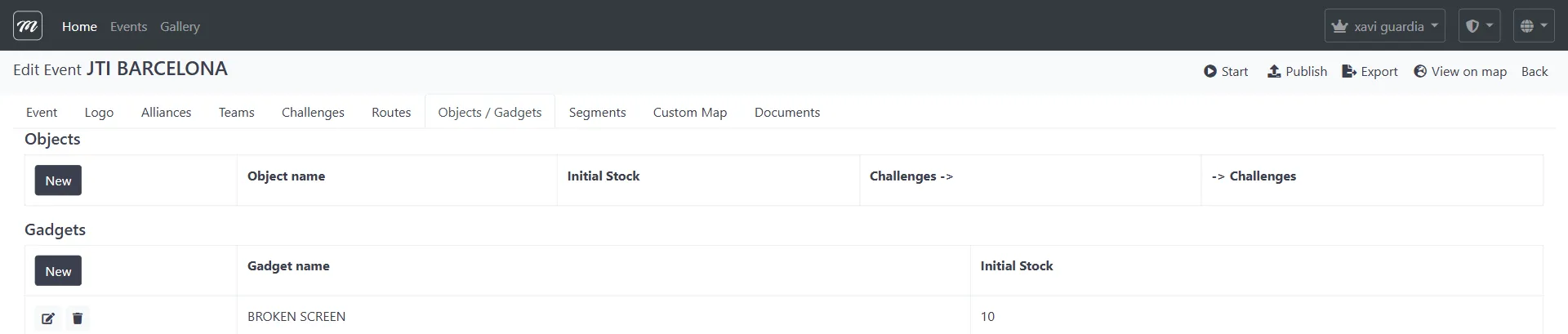
List objects and gadgets
Section titled “List objects and gadgets”The tab displays two separate tables: Objects at the top and Gadgets at the bottom.
Objects table
Section titled “Objects table”| Column | Type | Description |
|---|---|---|
| (Row actions) | Icons | Edit (pencil), Delete (trash) |
| Object name | Display | Name of the object |
| Initial Stock | Display | Starting quantity available to each team |
| Challenges → | Display | Number of challenges that directly award this object |
| → Challenges | Display | Number of challenges that require this object |
Gadgets table
Section titled “Gadgets table”| Column | Type | Description |
|---|---|---|
| (Row actions) | Icons | Edit (pencil), Delete (trash) |
| Gadget name | Display | Name of the gadget |
| Initial Stock | Display | Starting quantity available per team |
Toolbar
Section titled “Toolbar”| Action | Table | Description |
|---|---|---|
| New (Objects) | Objects | Opens the object creation form. Hidden in Quiz Mode events. |
| New (Gadgets) | Gadgets | Opens the gadget creation form |
| Auto | Gadgets | Generates all missing gadget types. Only visible when no gadgets exist for the event. |
Behavior
Section titled “Behavior”- When the event is running, an info alert is displayed and all New/Edit/Delete buttons are hidden.
- The Objects table is hidden for Quiz Mode events (only gadgets are relevant indoors).
- The Viewer role can see both lists but cannot create, edit, or delete.
Create gadget
Section titled “Create gadget”Fields
Section titled “Fields”| Field | Type | Description | Required |
|---|---|---|---|
| Gadget name | Text | Display name of the gadget | Yes |
| Initial Stock | Numeric | Starting quantity per team (default: 3) | Yes |
| Kind of gadget | Dropdown | The gadget effect type (see Gadget effects below) | Yes |
| This gadget can be picked up | Checkbox | Whether teams can obtain this gadget through challenges. Displayed in the form but server-side forced to unchecked for gadgets. | No |
The gadget type dropdown shows 10 effects for standard events or 8 for Indoor/Quiz Mode events (see Gadget effects).
Actions
Section titled “Actions”| Action | Description |
|---|---|
| Save | Creates the gadget and returns to the Objects / Gadgets tab. |
| Cancel | Discards the form and returns to the list. |
Behavior
Section titled “Behavior”- HTML content (if any) is sanitized on save.
- The “This gadget can be picked up” checkbox appears in the form, but the system always forces it to unchecked for gadgets regardless of user input. Only objects can be picked up.
Edit gadget
Section titled “Edit gadget”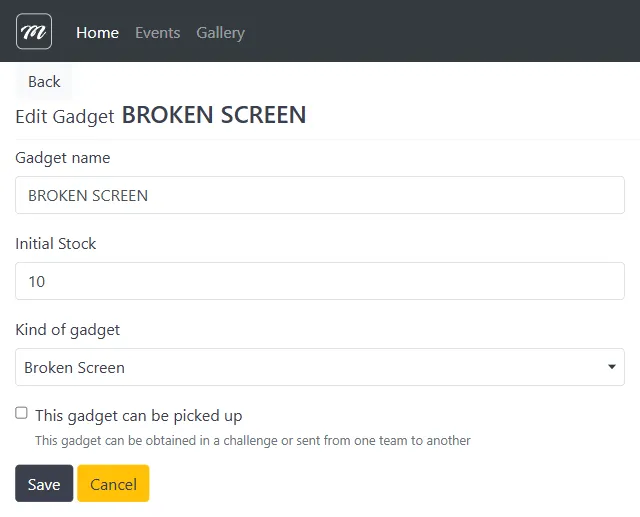
The edit form contains the same fields as the creation form, pre-filled with the gadget’s current values. The gadget name is displayed in the page header for context.
Fields
Section titled “Fields”| Field | Type | Description | Required |
|---|---|---|---|
| Gadget name | Text | Display name of the gadget | Yes |
| Initial Stock | Numeric | Starting quantity per team | Yes |
| Kind of gadget | Dropdown | The gadget effect type | Yes |
| This gadget can be picked up | Checkbox | Server-side forced to unchecked for gadgets | No |
Actions
Section titled “Actions”| Action | Description |
|---|---|
| Save | Saves changes and returns to the Objects / Gadgets tab. |
| Cancel | Discards changes and returns to the list. |
Delete gadget
Section titled “Delete gadget”Click the trash icon on a gadget row. This opens a confirmation dialog.
Confirmation dialog
Section titled “Confirmation dialog”| Element | Description |
|---|---|
| Title | ”Delete” |
| Confirmation prompt | ”Are you sure?” |
| Gadget name | Displays the name of the gadget being deleted |
| Delete button | Confirms deletion (danger/red style) |
| Cancel button | Returns to the list without deleting |
What gets deleted
Section titled “What gets deleted”- Gadget stock records — all team inventory records for this gadget are automatically removed
- The gadget itself — the gadget record is removed
Behavior
Section titled “Behavior”- No usage protection. Unlike objects, gadgets can always be deleted even if teams have stock.
- No undo. Deletion is permanent.
- Stock is lost. Any remaining team inventory of this gadget is destroyed.
Create object
Section titled “Create object”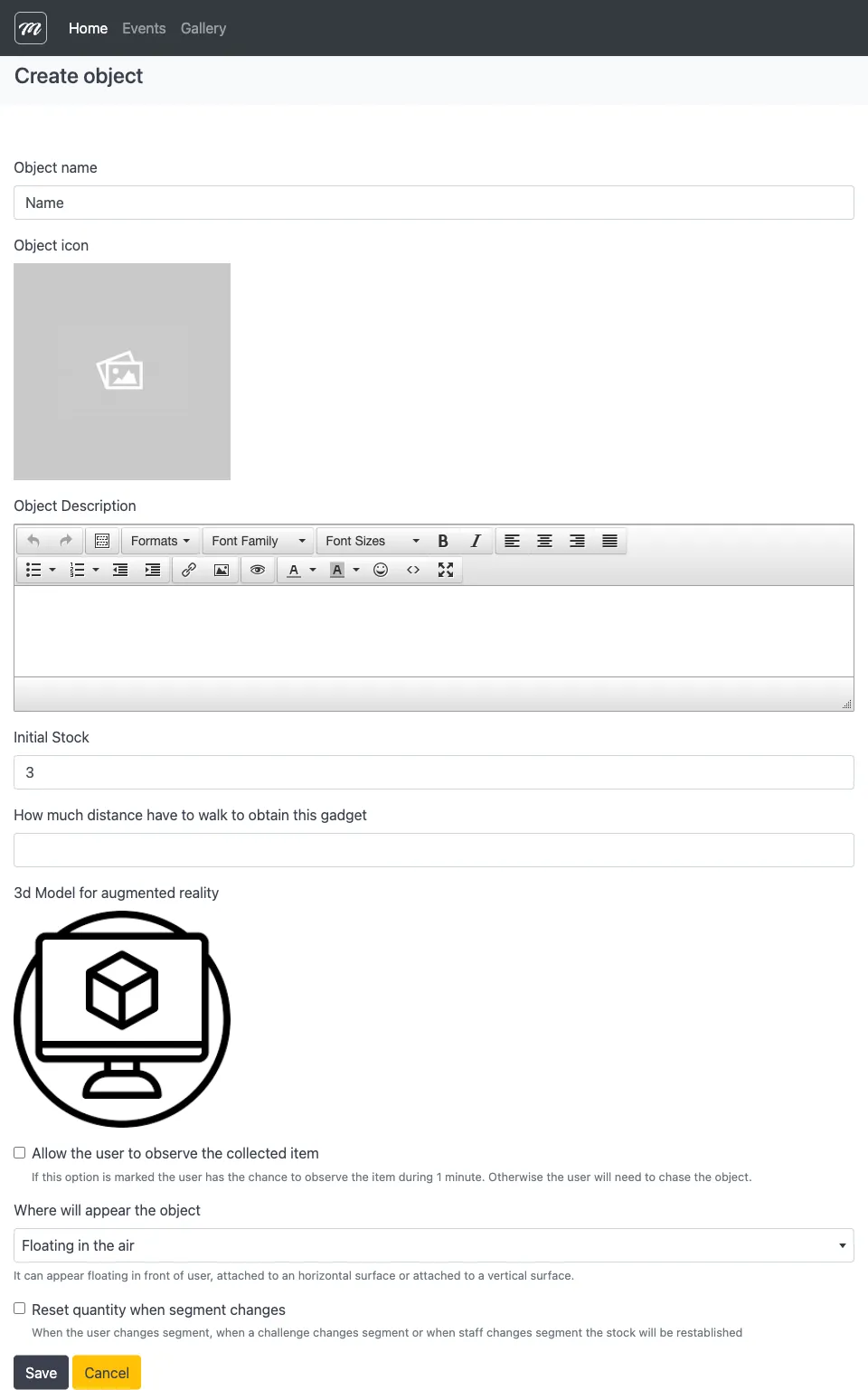
Fields
Section titled “Fields”| Field | Type | Description | Required |
|---|---|---|---|
| Object name | Text | Display name of the object | Yes |
| Object icon | Image selector | Gallery image representing the object. Presents a single-image selector with 1:1 aspect ratio. | No |
| Object Description | Rich text editor | Detailed HTML description shown to players. Supports custom fonts (Pirata, Mayas, Crystal, Christmas) and gallery image insertion. | No |
| Initial Stock | Numeric | Starting quantity available to each team (default: 3) | Yes |
| How much distance to walk to obtain | Numeric | Distance in meters a player must walk to collect the object | No |
| 3D Model for augmented reality | 3D model selector | Lists available 3D model files from the Gallery 3D library. | No |
| Allow user to observe collected item | Checkbox | When enabled, players can inspect the 3D model for 1 minute after collecting it. When disabled, players must chase the object. | No |
| Where will appear the object | Dropdown | Controls how the object spawns in AR: Floating in the air, Horizontal surface, or Vertical surface | No |
| Reset quantity when segment changes | Checkbox | Resets the object stock to its initial value when the active segment changes (user, challenge, or staff-triggered). | No |
Actions
Section titled “Actions”| Action | Description |
|---|---|
| Save | Creates the object and returns to the Objects / Gadgets tab. |
| Cancel | Discards the form and returns to the list. |
Behavior
Section titled “Behavior”- The system automatically marks objects as collectible (can be picked up) and sets the object type marker.
- The object is created empty — teams receive stock when the event starts.
- 3D models are loaded from the Gallery 3D library.
Edit object
Section titled “Edit object”The edit form contains the same fields as the creation form, pre-filled with the object’s current values. Below the form, the edit page also displays related challenges in two columns:
| Column | Description |
|---|---|
| Challenges that award this object | Challenges directly linked to this object (the object is given as a reward on completion) |
| Challenges that use this object | Challenges linked via challenge-object associations (the object is required to attempt or complete the challenge) |
Each challenge entry shows a link to its edit page.
Behavior
Section titled “Behavior”- The “can be picked up” and object type flags are preserved on save.
- The related challenges section is read-only — to change challenge-object links, edit the challenge itself.
Delete object
Section titled “Delete object”Click the trash icon on an object row. This opens a confirmation page.
Usage protection
Section titled “Usage protection”Before allowing deletion, the system checks how many challenges reference this object (both direct and via challenge-object associations). If the count is greater than zero:
- An alert is displayed: “This object cannot be deleted because it’s used in X Challenges”
- The Delete button is hidden (disabled)
- Only the Cancel button is available
Confirmation dialog (when no challenges use the object)
Section titled “Confirmation dialog (when no challenges use the object)”| Element | Description |
|---|---|
| Title | ”Delete” |
| Confirmation prompt | ”Are you sure?” |
| Object name | Displays the name of the object being deleted |
| Delete button | Confirms deletion (danger/red style) |
| Cancel button | Returns to the list without deleting |
What gets deleted
Section titled “What gets deleted”- Gadget stock records — all team inventory records for this object are automatically removed
- The object itself — the object record is removed
Behavior
Section titled “Behavior”- Protected by usage. Objects linked to challenges cannot be deleted. Remove the challenge links first.
- No undo. Deletion is permanent.
Gadget effects
Section titled “Gadget effects”The Kind of gadget dropdown shows the available effect types. The list varies by event mode.
Standard event effects (10 types)
Section titled “Standard event effects (10 types)”| Effect | Description |
|---|---|
| Bomb | Triggers a bomb animation on the target device |
| Drunk Screen | Distorts the target team’s screen as if intoxicated |
| X-Ray | Applies an X-ray visual filter to the target screen |
| Scaring Ghost | Displays a jump-scare ghost effect on the target device |
| Fart | Plays a fart sound on the target team’s device |
| Love | Displays a love/hearts animation on the target screen |
| Fireworks | Displays a fireworks animation on the target screen |
| Broken Screen | Simulates a cracked/broken screen on the target device |
| Inverted Screen | Flips the target team’s screen upside down |
| Lock Screen | Temporarily locks the target team’s screen |
Indoor / Quiz Mode effects (8 types)
Section titled “Indoor / Quiz Mode effects (8 types)”Indoor events exclude X-Ray and Inverted Screen, leaving 8 effects: Bomb, Drunk Screen, Scaring Ghost, Fart, Love, Fireworks, Broken Screen, Lock Screen.
Auto-generate gadgets
Section titled “Auto-generate gadgets”The Auto button appears only when no gadgets exist for the event. It bulk-creates all missing gadget types:
- Standard events: creates up to 10 gadgets (all available effect types)
- Quiz Mode events: creates up to 8 gadgets (indoor-compatible effect types)
- Default stock: each auto-generated gadget gets an initial quantity of 3
If some gadget types already exist, only the missing ones are created.
Stock per team
Section titled “Stock per team”Gadget and object inventory is tracked per team via gadget stock records — each record links a gadget or object to a team and stores the available quantity.
How stock is distributed
Section titled “How stock is distributed”- On event start (or restart), the system:
- Deletes all existing gadget stock records for the event’s teams
- Creates a fresh record for every (team, gadget/object) pair
- Sets the available quantity to the configured initial stock from the gadget/object
- This means restarting an event resets all inventories to their configured starting values.
How stock changes during gameplay
Section titled “How stock changes during gameplay”| Action | Effect on stock |
|---|---|
| Gadget launched at rival | Source team: -1 |
| Challenge awards a gadget/object | Completing team: +1 |
| Segment changes (if “Reset quantity” checked) | Reset to initial quantity |
| Event restarted | Reset to initial quantity (all teams) |
Launch gadget during event
Section titled “Launch gadget during event”During a live event, teams launch gadgets at rivals through the mobile app:
- Stock check — The server validates that the source team has available stock of the selected gadget
- Decrement — If stock > 0, the source team’s available quantity is decremented by 1 immediately
- Real-time notification — A real-time message is broadcast to the target team’s connected devices
- Effect playback — The target team’s mobile app receives the notification and plays the corresponding visual/audio effect
- Acknowledgment — The mobile app confirms delivery back to the server
If stock is zero, the launch fails and no effect is triggered.
For event operator controls during live events, see Live Control.
Map positioning
Section titled “Map positioning”Objects appear on the map through their linked challenges. Each challenge has latitude/longitude coordinates that determine where it (and its associated objects) appear on the team’s map during gameplay.
Object positioning is indirect: set the challenge’s GPS coordinates, and the object inherits that position on the map. The “Where will appear the object” dropdown (Floating / Horizontal / Vertical) controls the AR presentation style, not the map location.
Behavior and rules
Section titled “Behavior and rules”- Gadgets vs. objects. Both are managed from the same tab but serve different purposes. Gadgets cannot be picked up (they are sent to rival teams), while objects can be collected during gameplay.
- Stock is per team. When the event starts, each team receives the configured initial stock of each gadget and object. Teams spend gadgets by launching them at rivals during gameplay.
- Objects require AR support in the mobile app for 3D visualization. Without AR, objects can still be tracked but the 3D model is not rendered.
- “Inverted Screen” is platform-dependent. Some effects may behave differently across MooveXR and MooveGoXR apps.
Strategy tips
Section titled “Strategy tips”Stock economy
Section titled “Stock economy”Give each team 3–5 gadgets per type, not 10. A small stock turns gadgets into a strategic resource: teams must decide when to use them and who to target. With unlimited gadgets, every interaction becomes spam instead of a meaningful choice.
- 3 per team is the platform default (auto-generate sets this). It works well for events under 1 hour.
- 5 per team gives breathing room for longer events (2+ hours) or events with 15+ teams.
- 10 per team is only appropriate for very large, high-energy competitive events where constant sabotage is the point.
Progression design
Section titled “Progression design”Use Objects as unlock keys and Gadgets for player-vs-player interference. They serve different strategic roles:
- Objects for progression: Create objects that act as prerequisites for challenges or segments. For example, “Find the Blue Key” (object) unlocks access to Segment 2. This creates a collection-based progression where teams must complete specific challenges to advance.
- Gadgets for competition: Use Bomb and Lock Screen effects to let teams interfere with rivals during time-sensitive challenges. The disruption is temporary but can shift the ranking at critical moments.
Do not mix the two roles — avoid giving objects a sabotage function or making gadgets required for progression. Keep the mental model simple for players: objects are things you collect, gadgets are things you launch at rivals.
Choosing gadget types
Section titled “Choosing gadget types”| Scenario | Recommended gadgets | Why |
|---|---|---|
| Team building (cooperative) | None | Sabotage conflicts with a cooperative atmosphere |
| Tourism / sightseeing | None | Players are sightseeing, not competing |
| Competitive event | Bomb + Lock Screen | Bomb is visual and fun; Lock Screen is the most tactically impactful |
| High-energy party | All 10 types | Maximum chaos — appropriate for entertainment-first events |
| Indoor / Quiz Mode | Choose from 8 indoor types | X-Ray and Inverted Screen are excluded in Quiz Mode |
For a competitive event recipe that uses gadgets effectively, see The Competitive Chase.
Related pages
Section titled “Related pages”- Event — Routes — Previous tab
- Event — Segments — Next tab (segment changes can reset object stock)
- Event — Challenges — Challenges award or require objects; challenges define map positions for objects
- Event — Teams — Team gadget/object stock overview
- Event — Live Control — Gadget launching during active events
- Game Mechanics — Gadget system in the context of gameplay
- Game Design Recipes — Event archetypes showing how to combine gadgets with challenges
- Gadgets & Inventory (Player App) — How players see and use gadgets during gameplay