

Event — Teams
What it does
Section titled “What it does”The Teams section manages the groups of players participating in your event. Each team plays on a single device. From here you can create teams, assign them to routes and alliances, upload team photos, send real-time messages and gadgets to their devices, and inspect their gadget inventory. The tab includes three sub-tabs: the team list, QR code generation, and text export for email campaigns.
Requirements
Section titled “Requirements”- Role: Agency or Admin
- Event state: Event must be stopped for creating, editing, or deleting teams. Messaging and gadget sending work during a running event.
How to access
Section titled “How to access”Events list → click event name → Teams tab
Teams list
Section titled “Teams list”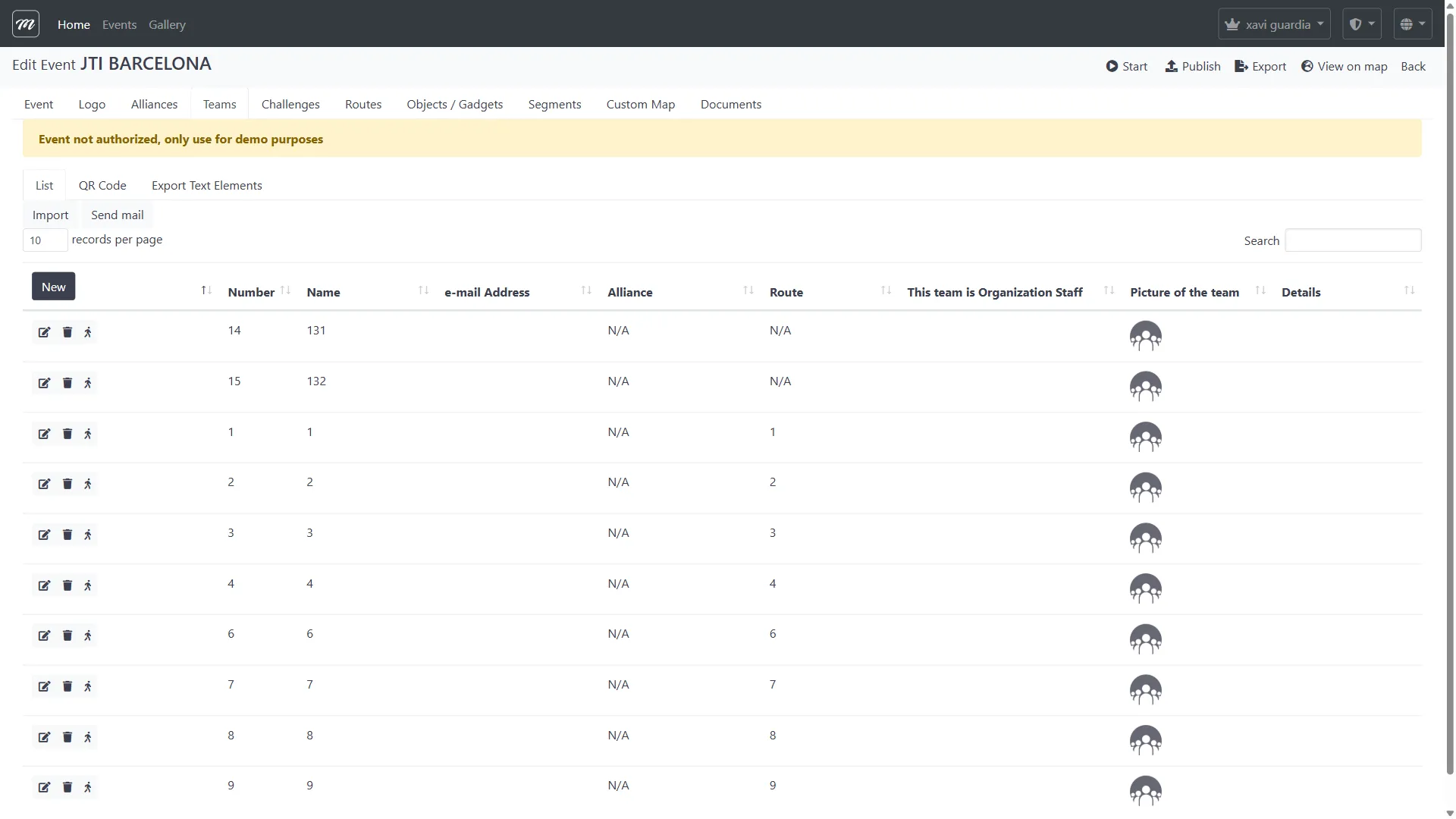
List teams
Section titled “List teams”The default sub-tab displays all teams for the event in a searchable, sortable table with pagination.
Columns
Section titled “Columns”| Column | Type | Description |
|---|---|---|
| (Row actions) | Icons | Edit (pencil), Delete (trash), Unassign device (person icon) |
| Number | Display | Team numeric identifier, used for QR code generation |
| Name | Display | Team display name |
| Email Address | Display | Contact email for message forwarding |
| Alliance | Display | Alliance the team belongs to (hidden in Quiz mode events) |
| Route | Display | Assigned route (hidden in Quiz mode events) |
| This team is Organization Staff | Display | Checkmark icon if team is flagged as staff |
| Picture of the team | Display | Team photo thumbnail (100px), or default silhouette |
| Details | Display | For teams with an assigned device: start timestamp, device UUID, and “Unassign device” link |
Search and pagination
Section titled “Search and pagination”| Field | Type | Description |
|---|---|---|
| Search | Text | Filters teams across all visible columns |
| Show entries | Select | 10, 25, 50, or 100 records per page |
Toolbar actions
Section titled “Toolbar actions”| Action | Description |
|---|---|
| New | Opens the team creation form. Hidden when the event is running. |
| Import | Opens CSV bulk import form |
| Send email | Opens a bulk email form to send registration details to all teams |
Row actions
Section titled “Row actions”Each row has three icon buttons (left column):
| Icon | Action | Description |
|---|---|---|
| Pencil | Edit | Opens the team edit form |
| Trash | Delete | Opens delete confirmation. Hidden when the event is running. |
| Person | Unassign device | Removes the team’s device assignment. Clears the start timestamp and device identifier. Only meaningful for teams with an assigned device. |
Create team
Section titled “Create team”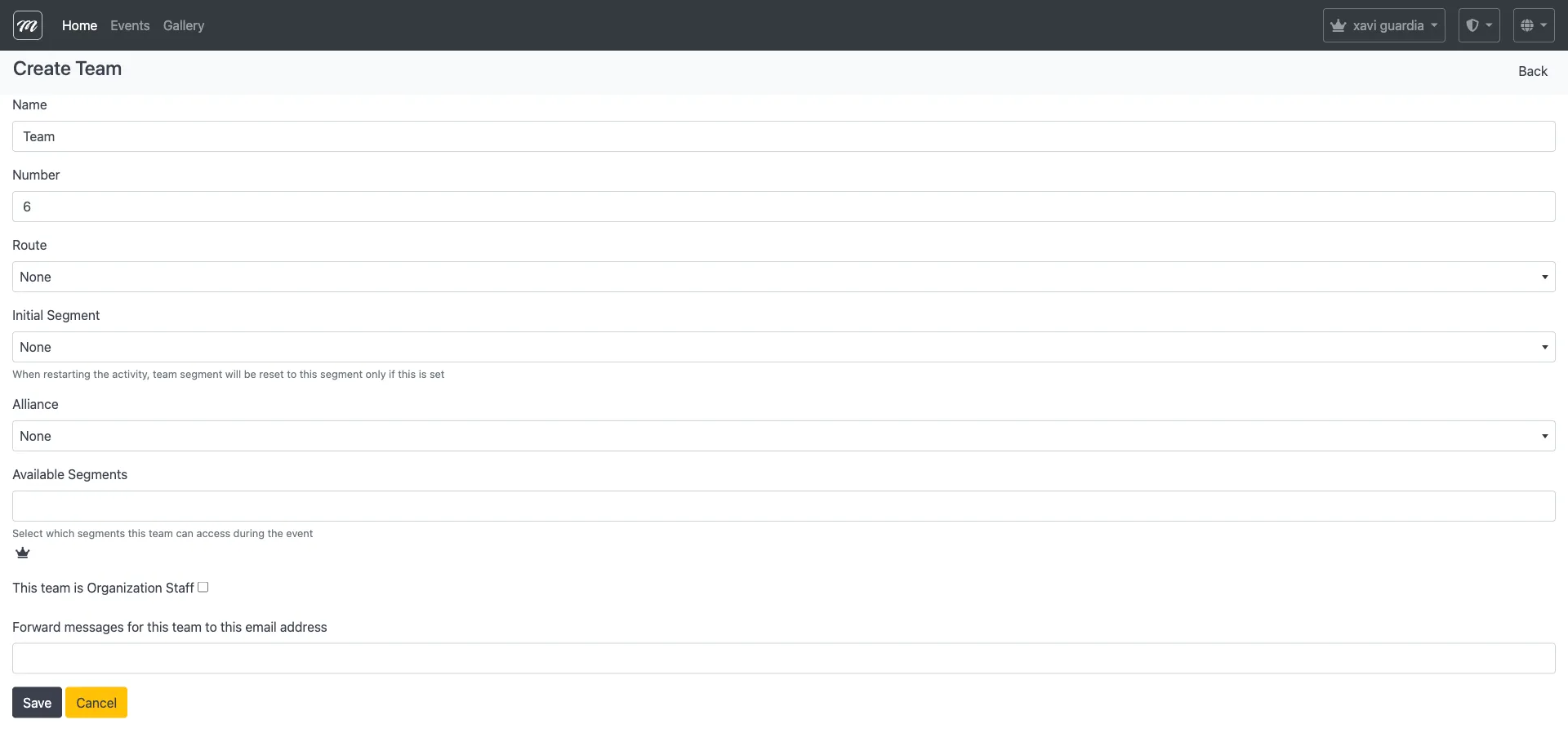
Fields
Section titled “Fields”| Field | Type | Description | Required |
|---|---|---|---|
| Name | Text | Team display name. Defaults to “Team”. | Yes |
| Number | Numeric | Team identifier. Auto-incremented to the next available number in the event. | Yes |
| Route | Select | Route to assign. Options: None + all routes defined for the event. | No |
| Initial Segment | Select | Segment the team starts in. Help text: “When restarting the activity, team segment will be reset to this segment only if this is set.” | No |
| Alliance | Select | Alliance to assign. Options: None + all alliances defined for the event. | No |
| Available Segments | Multi-select | Which segments this team can access during the event. Premium feature (crown icon). | No |
| This team is Organization Staff | Checkbox | Staff teams do not consume credits when the event starts. Use for support/monitoring teams. | No |
| Forward messages for this team to this email address | Text | Email address where team messages are forwarded. | No |
Actions
Section titled “Actions”| Action | Description |
|---|---|
| Save | Creates the team and returns to the team list (or event edit Teams tab). |
| Cancel | Discards the form and returns to the team list. |
Edit team
Section titled “Edit team”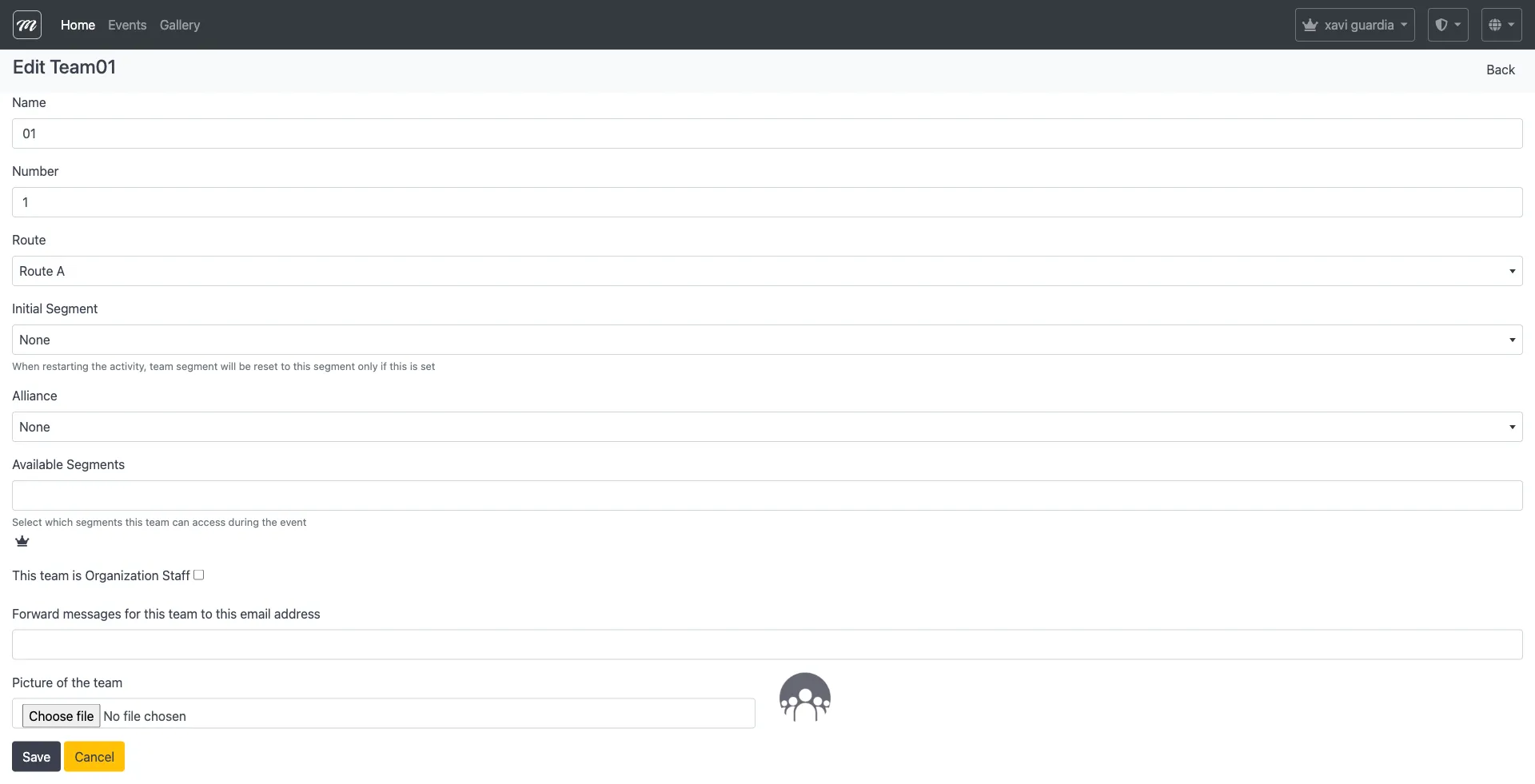
The edit form contains all fields from the creation form, plus the image upload section.
Additional fields (edit only)
Section titled “Additional fields (edit only)”| Field | Type | Description | Required |
|---|---|---|---|
| Picture of the team | File upload | Upload or replace the team photo. Current image shown as thumbnail beside the upload control. Accepts image files — converted to JPEG server-side. | No |
Image upload flow
Section titled “Image upload flow”- On the edit form, the current team image is displayed as a thumbnail (default silhouette if no image uploaded).
- Click Choose file to select an image from your computer.
- Click Save — the image is uploaded with the form submission.
- The server converts the image to JPEG format and saves it.
- The team’s image appears in the list view “Picture of the team” column and in results reports.
Team images can also be uploaded programmatically by the mobile app when teams take photos during device registration.
Actions
Section titled “Actions”| Action | Description |
|---|---|
| Save | Saves changes and returns to the team list. Hidden when the event is running. |
| Cancel | Discards changes and returns to the team list. |
| Back | Link in the top-right corner, returns to the team list. |
Delete team
Section titled “Delete team”Click the trash icon on a team row in the list. This opens a confirmation dialog.
Confirmation dialog
Section titled “Confirmation dialog”The delete page displays a modal with:
| Element | Description |
|---|---|
| Title | ”Delete” |
| Confirmation prompt | ”Are you sure?” |
| Team name | Displays the name of the team being deleted |
| Delete button | Confirms deletion (danger/red style) |
| Cancel button | Returns to the team list without deleting |
What gets deleted
Section titled “What gets deleted”Deleting a team also removes all associated data:
- All messages — both sent and received
- All results — every scoring record for this team
- All GPS positions — every GPS position record
- All gadget stock — every gadget stock record
- The team itself
After deletion, the event’s team count is updated.
Behavior
Section titled “Behavior”- Blocked during running event. If the event is running, the delete action returns an error page: “Editing an event is not allowed while it is active.”
- No undo. Deletion is permanent — results, positions, and messages are lost.
- Row icon hidden. The trash icon is hidden in the list view when the event is running.
Send message to team
Section titled “Send message to team”Sends a text message or a gadget/object to a team’s device in real time. This is the staff communication channel during a live event.
Fields
Section titled “Fields”| Field | Type | Description | Required |
|---|---|---|---|
| Team Destination | Select | Which team receives the message. Options: “All teams” (broadcast) + individual team names. Pre-selected if opened from a specific team. | Yes |
| Message | Textarea | Free-text message content. Maximum 100 characters. Disabled when a gadget type is selected. | Conditional |
| Gadget Type | Select | Gadget effect to send (see below). Disabled when a text message is entered. | Conditional |
| Object/Gadget | Select | Specific object or gadget instance to send. Disabled when a text message is entered. | Conditional |
Mutual exclusion logic
Section titled “Mutual exclusion logic”The form enforces mutual exclusion between text messages and gadget/object sending:
- Typing in the Message field disables the Gadget Type and Object dropdowns.
- Selecting a Gadget Type disables the Message field.
- Selecting an Object unchecks any Gadget selection, and vice versa.
Message types
Section titled “Message types”| Type | Behavior |
|---|---|
| Text message | Sent as a notification to the team’s device. Displayed as a popup from “Organization”. Delivered in real time to the team’s device. |
| Gadget effect | Triggers a visual/audio effect on the team’s device (Bomb, Drunk Screen, X-Ray, Scaring Ghost, Fart, Love, Fireworks, Broken Screen, Inverted Screen, Lock Screen). |
| Object delivery | Sends a collectible object to the team’s inventory. |
Broadcast behavior
Section titled “Broadcast behavior”When “All teams” is selected as the destination, the system creates one message record per team in the event. Each message is individually delivered in real time.
Success
Section titled “Success”On successful send, a confirmation message is displayed.
View team objects/gadgets
Section titled “View team objects/gadgets”Displays the gadget and object inventory for a specific team. Shows what items the team currently holds and any pending deliveries.
Sections
Section titled “Sections”Pending gadgets
Section titled “Pending gadgets”Shown only when there are unconfirmed object delivery messages (not yet confirmed by the team’s device). Displays an alert box with:
| Column | Description |
|---|---|
| Object name | Name of the pending gadget/object |
| Origin team | Which team or “Staff” sent the gadget |
| Timestamp | When it was sent (displayed as relative time, e.g., “5 minutes ago”) |
Gadget stock
Section titled “Gadget stock”Lists all gadget effects (non-collectible items) currently in the team’s inventory.
| Column | Description |
|---|---|
| Gadget name | Name of the gadget type |
| Quantity | Number of available uses |
Object stock
Section titled “Object stock”Lists all collectible objects in the team’s inventory.
| Column | Description |
|---|---|
| Object name | Name of the collectible object |
| Quantity | Number available |
Sub-tab: QR Code
Section titled “Sub-tab: QR Code”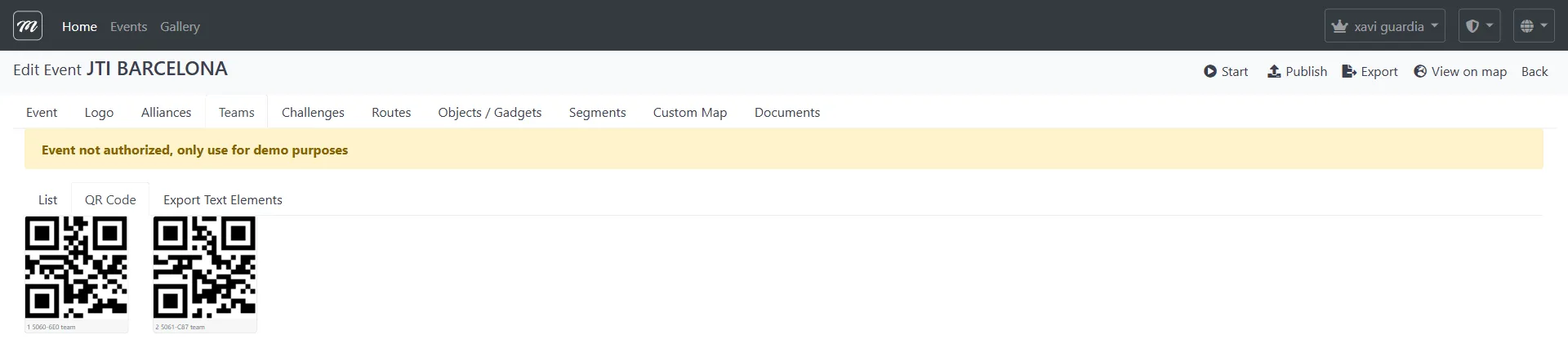
Generates printable QR codes that teams scan with the MooveXR app to register their device and join the event. Each team gets a unique registration code (e.g., “5060-6E0”). Print these on paper and distribute them to teams before the event starts.
Sub-tab: Export Text Elements
Section titled “Sub-tab: Export Text Elements”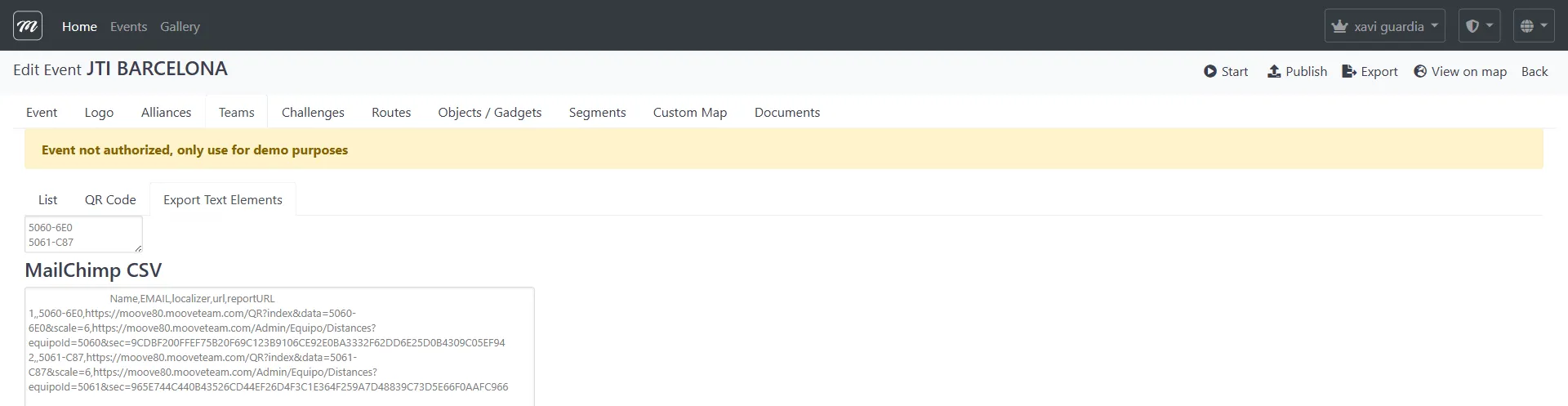
Exports team registration data for email campaigns or printed materials. Contains two sections:
| Section | Description |
|---|---|
| Localizer list | A text area listing each team’s localizer code (e.g., “5060-6E0”) |
| MailChimp CSV | A copyable text area with CSV data: Name, EMAIL, localizer, url, reportURL. The url field contains the team’s QR registration link. The reportURL field contains a link to the team’s distance report. |
Behavior and rules
Section titled “Behavior and rules”- Auto-numbering. When creating a team, the Number field defaults to one more than the highest existing team number in the event.
- Quiz mode. In Quiz Mode events, the Alliance, Route, and Segment columns are hidden from the list, and the corresponding dropdowns are hidden from the create/edit form.
- Available Segments is a premium feature (crown icon). It restricts which segments a team can access during gameplay. If not set, the team can access all segments.
- Device assignment. Teams connect to the event by scanning their QR code with the MooveXR app. Once connected, the Details column shows the start timestamp and device UUID. The “Unassign device” action clears this binding, allowing a different device to connect.
- Message forwarding. If the “Forward messages” email is set, messages sent to the team are also forwarded to that email address.
- Send mail sends bulk email to all teams with their registration QR codes and instructions.
Related pages
Section titled “Related pages”- Event — Alliances — Alliance creation (teams can be grouped into alliances)
- Event — Challenges — Challenges that teams complete
- Event — Routes — Routes that teams are assigned to
- Event — Objects / Gadgets — Gadgets and objects that can be sent to teams
- Event — Live Control — Starting events and tracking teams in real time
- Event — Results — Team results and scoring
- Events Overview — Event list, creation, editing, and deletion
- How to add teams — Step-by-step team creation
- How to import teams from CSV — Bulk import guide
- How to send a message — Messaging teams during events
- Events & Teams (Player App) — How players join and see their team assignment