

Event — Live Control
What it does
Section titled “What it does”Live Control is the operational heart of MooveTeam CMS. Once an event is configured (teams, challenges, routes), this section covers everything that happens during execution: starting the event, monitoring teams in real time on a map, managing scores, and stopping the event when it finishes. It also covers the public-facing displays that audiences see on venue screens.
Requirements
Section titled “Requirements”- Role: Agency or Admin
- Event state: Event must be fully configured (teams, challenges, routes) before starting
How to access
Section titled “How to access”Live control features are accessed from multiple entry points:
- Start/Stop: Events list →
 Start button (green) or row dropdown menu → Start
 - Start from edit page: Event Edit → action bar → Start button (top-right)
- Tracking / Results: Events list →
 toolbox dropdown → Results (
 pencil icon) — opens the tracker and results dashboard
 - Public displays: Direct URL — no authentication required
Public display URLs (no authentication required — share with venue staff):
| Display | Path |
|---|---|
| Public results | /Gamestation/ViewResults?eventoid=YOUR_EVENT_ID |
| Public control panel | /Gamestation/ControlPanel?eventoId=YOUR_EVENT_ID |
Live control panel
Section titled “Live control panel”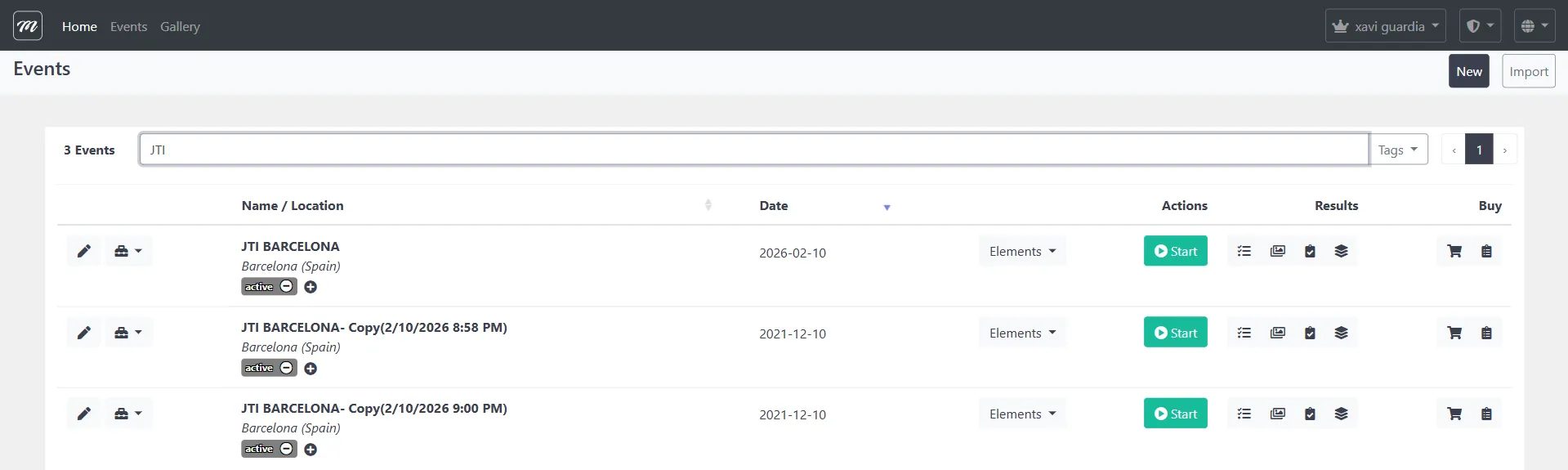
The events list shows the primary entry points for live control: the green Start button in the Actions column, and the results icons ( ) to the right. The toolbox icon with a dropdown arrow (left of each row) opens additional operational actions.
Event lifecycle overview
Section titled “Event lifecycle overview”An event moves through these states:
- Configured — Teams, challenges, routes, and segments are set up. The event has no start/end dates yet.
- Pre-start — You review a confirmation screen showing team counts, credit balance, and pending jobs.
- Running — The start date is set to now, the end date to now + duration days (minimum 3). Teams can connect via the mobile app, GPS positions are tracked, and results accumulate.
- Stopped — The end date is backdated to 3 minutes ago. The event is marked as completed.
The event is considered running whenever the current time falls between the start and end dates. There is no explicit “paused” state — stopping sets the end date to the past, and restarting sets new start/end dates.
Starting an event
Section titled “Starting an event”Pre-start confirmation
Section titled “Pre-start confirmation”Before an event can start, MooveTeam CMS shows a confirmation screen where you choose between Demo mode and Real Game mode.

Navigation: Events list → click Start (green button) or Event Edit → action bar → Start
The pre-start page displays the event name and two tabs:
Demo tab
Section titled “Demo tab”| Field | Type | Description |
|---|---|---|
| Mode description | Display | ”Demo run - test the game with 2 teams, free of charge” |
| Action | Description |
|---|---|
| Start | Starts the event in demo mode (max 2 teams, no credits consumed) |
| Cancel | Returns to the events list without starting |
Real Game tab
Section titled “Real Game tab”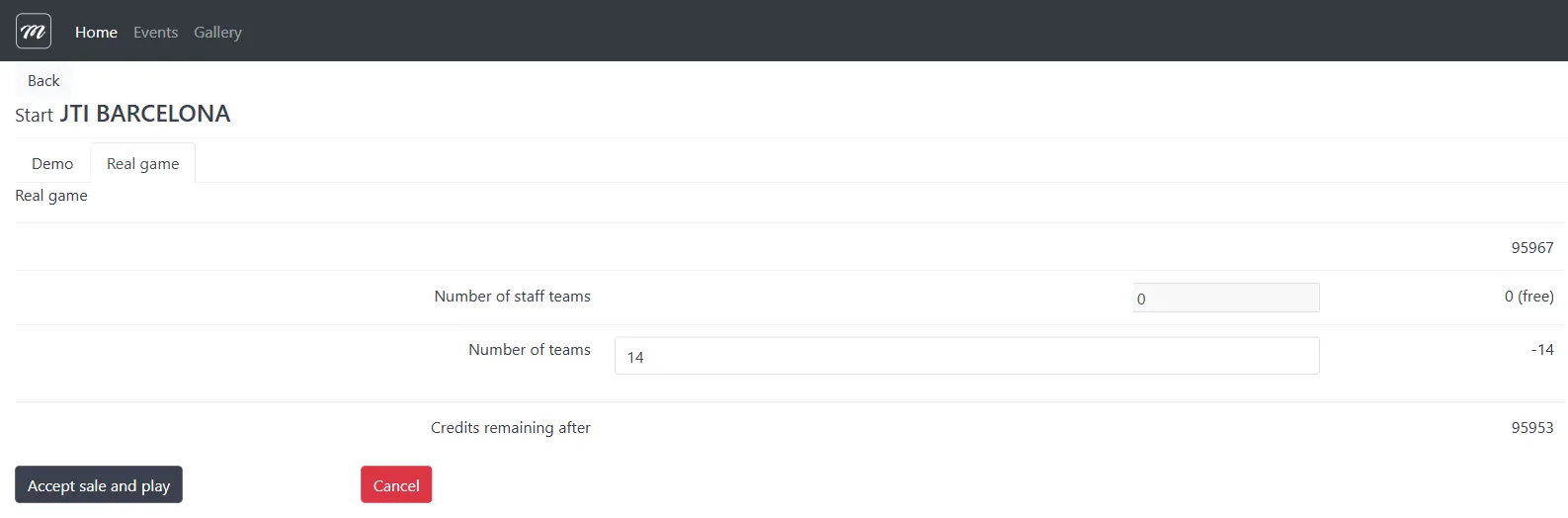
| Field | Type | Description |
|---|---|---|
| Credit balance | Display | Current credit balance for the company account (top-right number) |
| Number of staff teams | Text (numeric) | Staff teams do not consume credits — shown as “0 (free)“ |
| Number of teams | Text (numeric) | Playing teams — each consumes credits (1 credit = 1 mobile device) |
| Credits remaining after | Display | Calculated: current balance minus team count |
| Action | Description |
|---|---|
| Accept sale and play | Starts the event using credits from an active sale. Associates the event with the selected sale record |
| Cancel | Returns to the events list without starting |
What happens when an event starts
Section titled “What happens when an event starts”Starting an event triggers the following sequence of operations:
- Time window set — The start date is set to now, the end date to now + duration days (minimum 3)
- Previous data cleared — All previous results, GPS positions, gadget inventories, and team messages are deleted
- Gadgets redistributed — Fresh gadget stock is assigned to every team
- Team device IDs reset — Mobile app registrations are cleared, forcing teams to re-register
- HTML ZIP created — Event content is packaged for offline use
- Game session created — The system records the event start
- Execution counter — The system tracks how many times the event has been run
Row dropdown menu
Section titled “Row dropdown menu”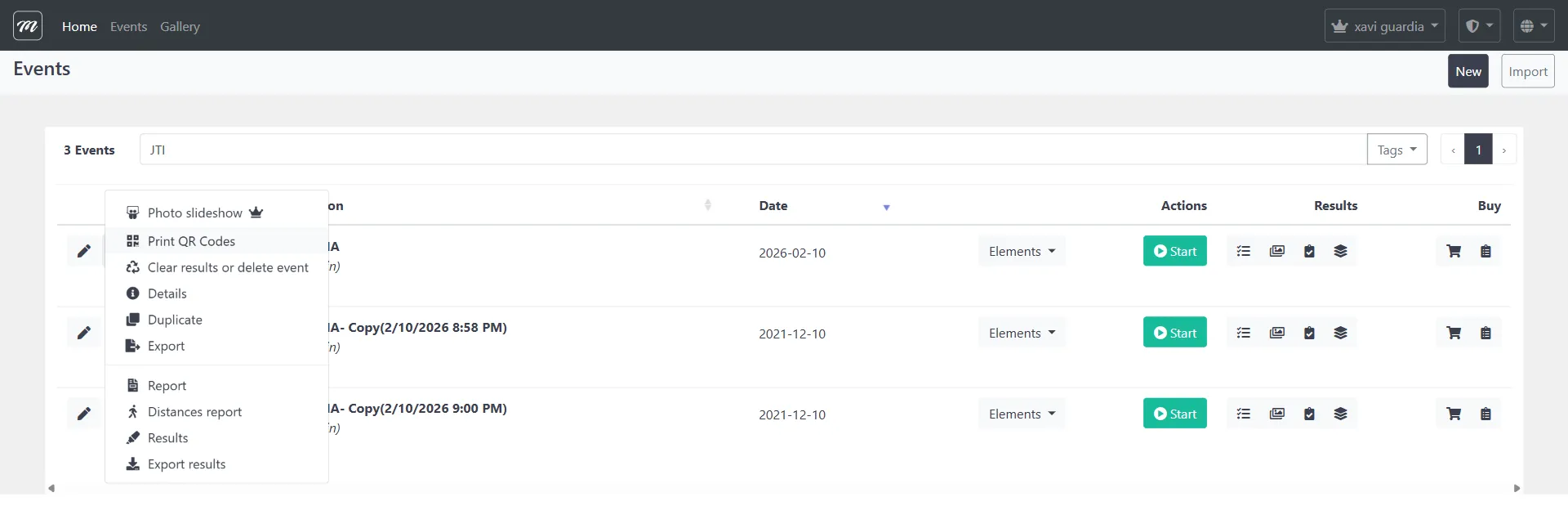
The dropdown (accessed via the toolbox icon on each event row) provides these operational actions:
| Action | Icon | Description |
|---|---|---|
| Photo slideshow |  | Opens the event photo slideshow display  |
| Print QR Codes |  | Generates printable QR codes for team registration |
| Clear results or delete event |  | Clears accumulated data or permanently deletes the event |
| Details |  | Opens the event details/statistics page |
| Duplicate |  | Creates a copy of the event |
| Export |  | Exports the event configuration (XML) |
| Report |  | Generates the event performance report |
| Distances report |  | Generates team distance/movement report |
| Results | | Opens the admin results table |
| Export results |  | Exports results data for external analysis |
Action bar (from Event Edit)
Section titled “Action bar (from Event Edit)”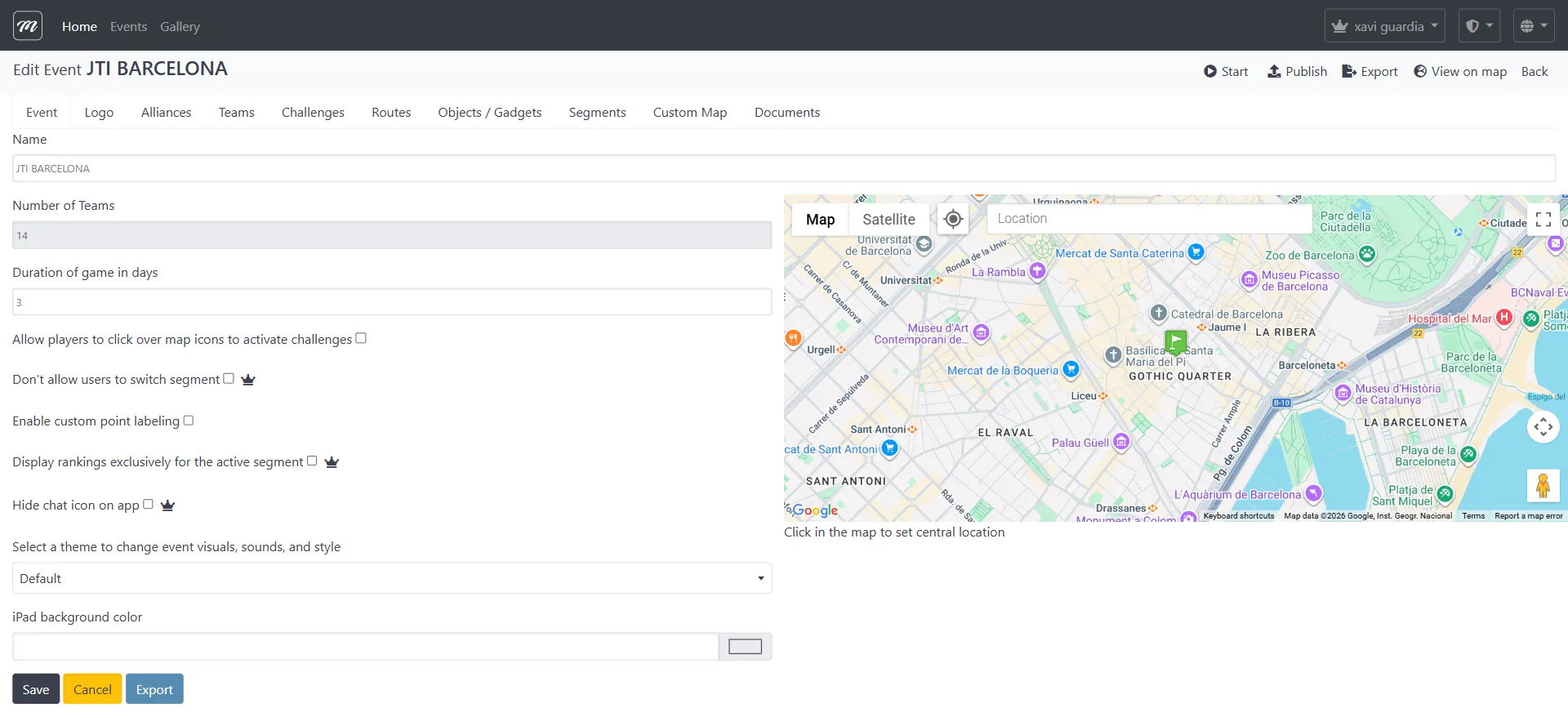
When editing an event, the top-right action bar provides direct access to live control actions: Publish, Start, Export, View on map, and Back.
Stopping an event
Section titled “Stopping an event”
Pre-stop confirmation
Section titled “Pre-stop confirmation”This action is available when an event is currently running — the Stop button replaces the green Start button when the event is running. Access it from the admin interface.
If the event has accumulated results or GPS positions, MooveTeam CMS shows a confirmation screen before stopping. If no data exists, the event stops immediately.
The pre-stop view shows:
| Field | Type | Description |
|---|---|---|
| Event | Display | Event name and basic info |
| Positions recorded | Display | Number of GPS position records captured during the event |
| Results recorded | Display | Number of scoring records (team challenge completions) |
| Pending jobs | Display | Whether background jobs are still processing |
| Action | Description |
|---|---|
| Stop | Confirms stopping the event |
| Cancel | Returns without stopping |
What happens when an event stops
Section titled “What happens when an event stops”- End time backdated — The end date is set to 3 minutes ago, which immediately marks the event as stopped
- Game session finalized — The event session is closed
- Data preserved — Results, GPS positions, and photos are kept for reporting and export
Restarting an event
Section titled “Restarting an event”Restart is a quick action that re-launches a stopped event. It runs the same start sequence but without selecting a sale — the event restarts in its previous authorization mode.
| Action | Description |
|---|---|
| Restart | Re-starts the event. No confirmation page is shown — the action takes effect immediately |
Live tracking
Section titled “Live tracking”Scoring and challenge tracker
Section titled “Scoring and challenge tracker”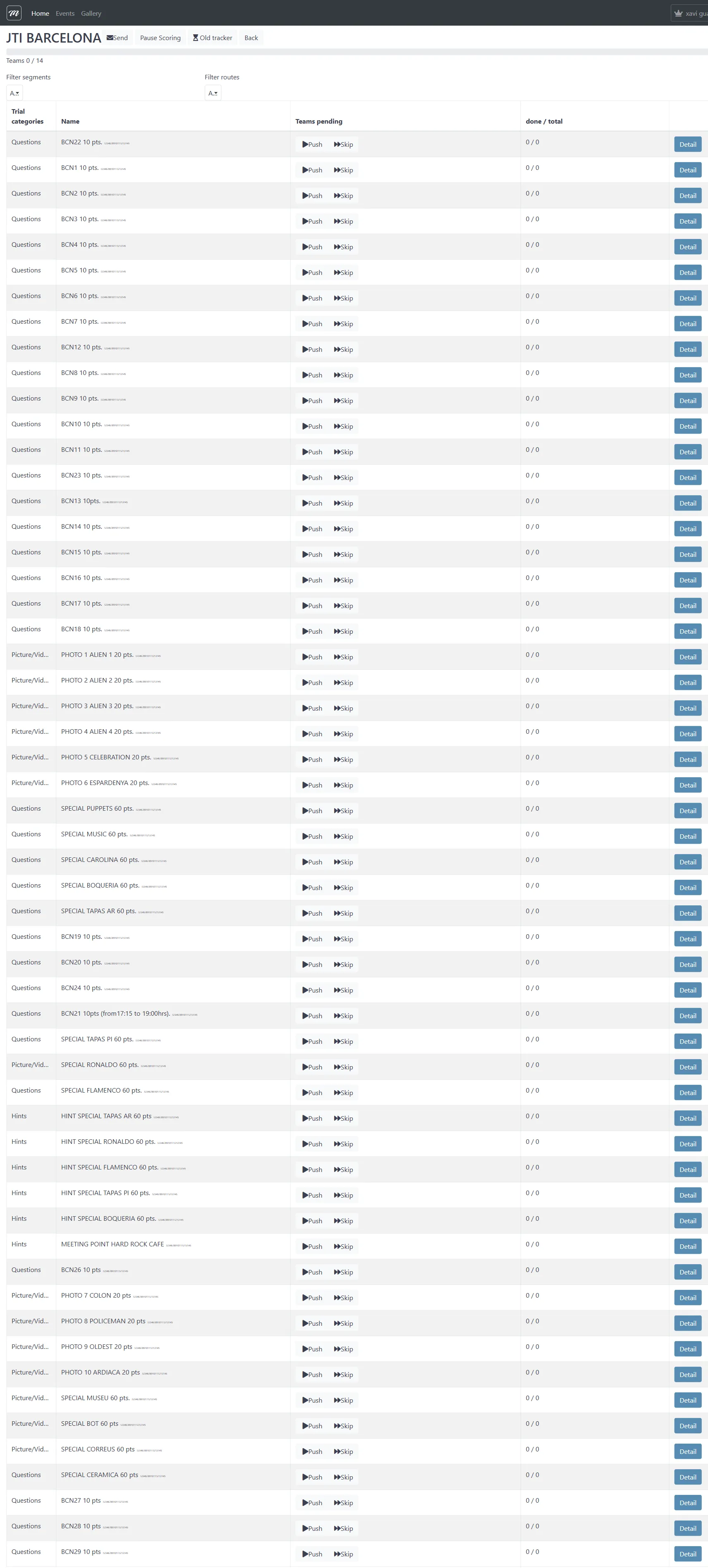
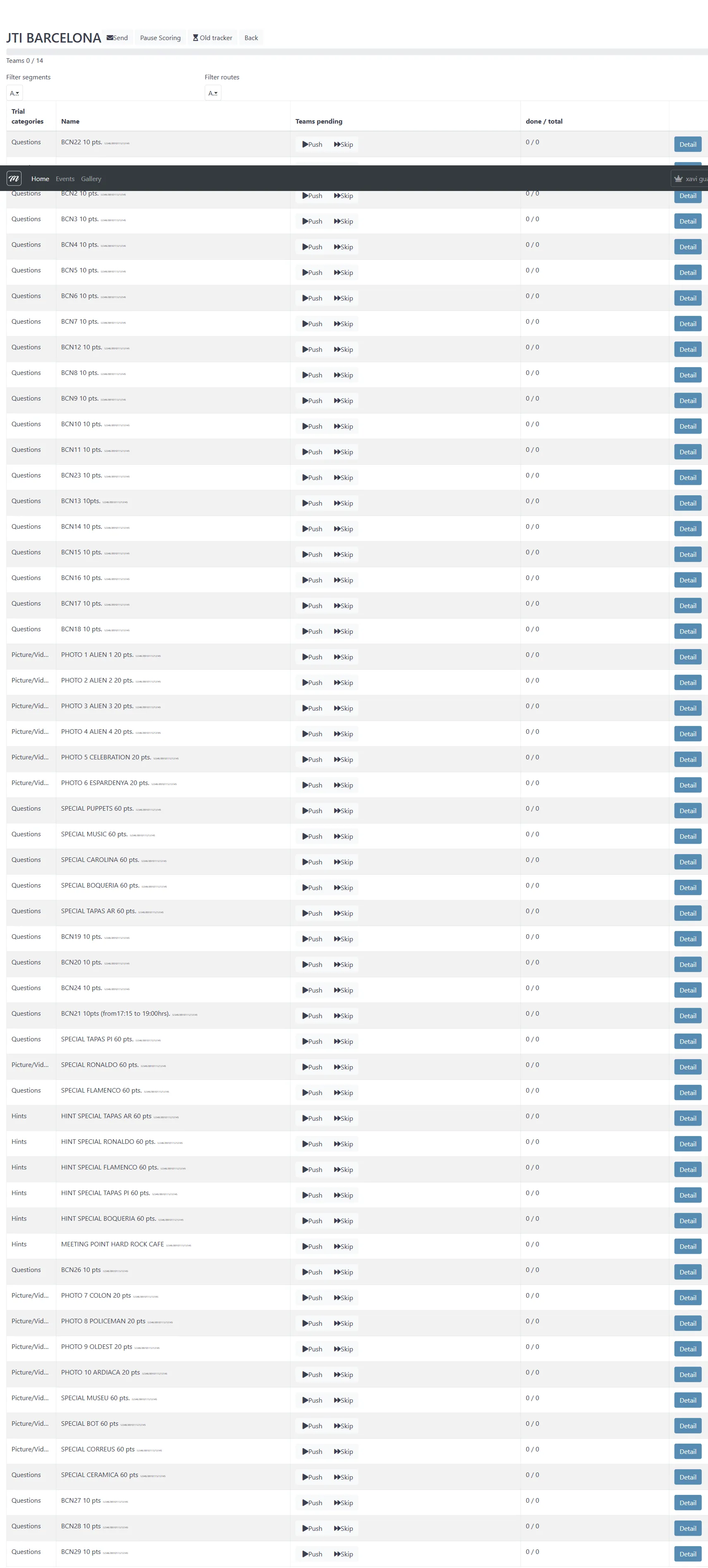
The tracker dashboard is the primary monitoring interface during a live event. It shows all challenges organized by type, with real-time completion status.
Navigation: Available during a running event from the tracking interface.
The dashboard has tabs across the top:
| Tab | Description |
|---|---|
| Word | Filter to word/text-based challenges |
| Power Scoring | Manual scoring interface |
| All tracker | Show all challenges (shown in screenshot) |
| Back | Return to the previous view |
The challenge list displays:
| Column | Description |
|---|---|
| Category | Challenge type (Questions, PictureVid, Hints, Special, etc.) |
| Name | Challenge name and point value |
| Teams pending | Number of teams that have not yet attempted this challenge |
| done / total | Completion ratio (e.g., “0 / 9” means 0 of 9 teams completed) |
| Action buttons | Blue buttons for viewing team responses, scoring manually |
Per-team statistics
Section titled “Per-team statistics”The tracking system calculates detailed statistics for each team:
| Metric | Description |
|---|---|
| Distance | Accumulated GPS distance traveled (in meters) |
| Challenges attempted | Number of challenges the team started |
| Challenges completed | Number of challenges with a recorded result |
| Photos taken | Number of photo challenge submissions |
| Time elapsed | Minutes between first and last GPS position |
Segment tracking and team positions
Section titled “Segment tracking and team positions”
The segment tracking view shows which segment each team or alliance is currently in. Segments represent game phases — teams progress through them as they complete challenges.
| Column | Description |
|---|---|
| Team / Alliance | Team or alliance number/name (clickable links for those with recorded data) |
You can manually reassign a team to a different segment, which sends a notification to the team’s mobile app forcing a segment change.
Control panel
Section titled “Control panel”Path: /Gamestation/ControlPanel?eventoId=YOUR_EVENT_ID (public, no authentication required)
The control panel is a public-facing display designed for venue screens (projectors, TVs). It shows live results and event status without requiring authentication.
The control panel renders a customizable display powered by uploaded HTML/CSS/JS templates.
Event status check
Section titled “Event status check”The control panel periodically checks whether scoring is suspended. When suspended, the display hides the leaderboard.
Suspend scoring
Section titled “Suspend scoring”This toggle hides the live ranking from all public displays (Control Panel, ViewResults) without stopping the event. Results continue to be recorded — they are just not shown to the audience.
| Action | Description |
|---|---|
| Suspend | Hides rankings from all public displays. Redirects to the Track view |
| Resume | Shows rankings again on all public displays |
Use cases:
- Pause the leaderboard before a final reveal ceremony
- Hide partial results while judges manually score subjective challenges
- Create dramatic tension at the end of an event
Public results view
Section titled “Public results view”
Path: /Gamestation/ViewResults?eventoid=YOUR_EVENT_ID (public, no authentication required)
The public results view displays a paginated, searchable table of all scoring records for an event.
| Column | Description |
|---|---|
| Team | Team name |
| Date | Timestamp of the scoring event |
| Type of Challenge | Challenge type (Questions, Photo, Puzzle, etc.) |
| Correct Answer | The expected answer (for quiz-type challenges) |
| Answer | The team’s submitted answer |
| Picture | Photo submission (for photo challenges) |
| Name | Challenge name |
| Points | Points awarded |
| Extra points | Bonus points (if any) |
The results page also provides:
| Action | Description |
|---|---|
| Back | Return to previous view |
| Report | Generate the event performance report |
| Search | Filter results by any column value |
Alliance-level aggregation
Section titled “Alliance-level aggregation”The public results page at /Gamestation/Results aggregates scores at the alliance level:
Points per alliance = Sum(all team points in alliance) / Number of alliance membersThis weighted calculation ensures that larger alliances don’t automatically win by having more teams.
Photo slideshow
Section titled “Photo slideshow”
Navigation: Events list → row dropdown → Photo slideshow
The slideshow cycles through photos submitted by teams during challenges, designed for projection on venue screens during or after an event.
Mid-event operations
Section titled “Mid-event operations”These operations are available while the event is running. They modify event state without stopping it.
Relocate event
Section titled “Relocate event”Moves the entire event to a new GPS location. All challenge coordinates are recalculated to maintain their relative positions — the system computes the bearing and distance from the old center to the new center, then projects each challenge’s position accordingly.
You provide the new location name and GPS coordinates (latitude, longitude).
- The event’s location name and GPS center are updated
- For every challenge with coordinates, the system calculates the new position using bearing + distance projection from the original center
- The map overlay is cleared (you must re-upload if needed)
- Changes are saved immediately
Clear auxiliary data
Section titled “Clear auxiliary data”Wipes all runtime data from the event without fully stopping it. Use this when something went wrong during a live event and you need a clean slate without going through the full stop-and-restart cycle.
| Data | Action |
|---|---|
| Results | All scoring records deleted |
| GPS positions | All position records deleted |
| Free photos | All freeform photo submissions deleted |
| Event points | Manual point adjustments deleted |
| Gadget stock | All team inventories deleted, then rebuilt fresh from configured quantities |
| Team messages | All sent/received messages deleted |
| Temporary files | Deleted (logo, overlay, briefing, GPX, and AR packages are preserved) |
| Team device bindings | Cleared (teams must re-register via QR code) |
| Execution counter | Incremented |
| Game session | Current session finalized, new session created |
Large event tracking
Section titled “Large event tracking”When an event has more than 100 teams, the tracking dashboard automatically switches to an optimized list view instead of the standard map+matrix view. This prevents browser performance issues with very large datasets.
The standard view loads data in pages of 10 teams at a time with pagination controls, so even medium-sized events remain responsive. The tracking data includes:
| Data element | Description |
|---|---|
| Team list | All non-staff teams (ID, name, number) |
| Challenge matrix | For each team × challenge combination: whether the team has a result, and whether the challenge is visible in the team’s route |
| Challenge waypoints | GPS coordinates for each challenge (for map display) |
| Robot challenges | Separate list of robot-type challenges |
| Time remaining | Calculated from the event’s end date |
Editing lock
Section titled “Editing lock”If you need to make changes to an event that is currently running:
- Stop the event — this preserves all data (results, GPS positions, photos)
- Make your changes — edit challenges, routes, teams, etc.
- Restart the event — this clears all data and starts fresh
There is no way to edit event configuration while it is live. Plan your event setup thoroughly before starting.
Behavior and rules
Section titled “Behavior and rules”- Real Game mode consumes credits. The cost equals the number of playing teams (staff teams are free). Credits are deducted from the company’s balance via an active sale.
- The event window uses the configured duration (default: 15 days, minimum: 3 days).
- Suspend scoring hides rankings but does not stop the event or delete data. All results continue to accumulate normally.
- GPS tracking is passive — the mobile app sends position updates, and the server stores them. The tracking dashboard reads these positions to display team locations on the map.
- Relocating an event recalculates all challenge GPS coordinates using bearing/distance projection. The map overlay is cleared because it would no longer align.
- Clearing auxiliary data is a mid-event reset — it wipes runtime data but preserves event configuration.
- The execution counter is incremented every time an event starts, restarts, or clears auxiliary data. It tracks how many times the event has been run, used for licensing compliance and auditing. The counter appears in the sale detail view under “Run Counter”.
Related pages
Section titled “Related pages”- Events Overview — Event list, creation, editing, and deletion
- Event — Results — Detailed results management, scoring, and export
- Game Mechanics — GPS tracking, scoring system, gadgets, segments
- Event — Segments — Segment configuration and progressive unlocking
- Event — Teams — Team management and QR code registration
- How to start an event — Step-by-step guide
- How to track teams live — Monitoring during a running event
- How to stop an event — Safely ending a running event
- Map & Navigation (Player App) — What players see on the map during your event
- System & Settings (Player App) — Player-side system features and settings