

Event — Results
What it does
Section titled “What it does”The Results section is where you review, score, export, and manage all the data produced by a completed (or running) event. Every challenge response, photo submission, GPS track, and team score flows here. This is the payoff of the entire platform — what the client sees after the event ends.
Requirements
Section titled “Requirements”- Role: Admin or Agency for the full results list; Viewer role has read-only access to reports, details, and exports
- Event state: Results are available for both running and stopped events
How to access
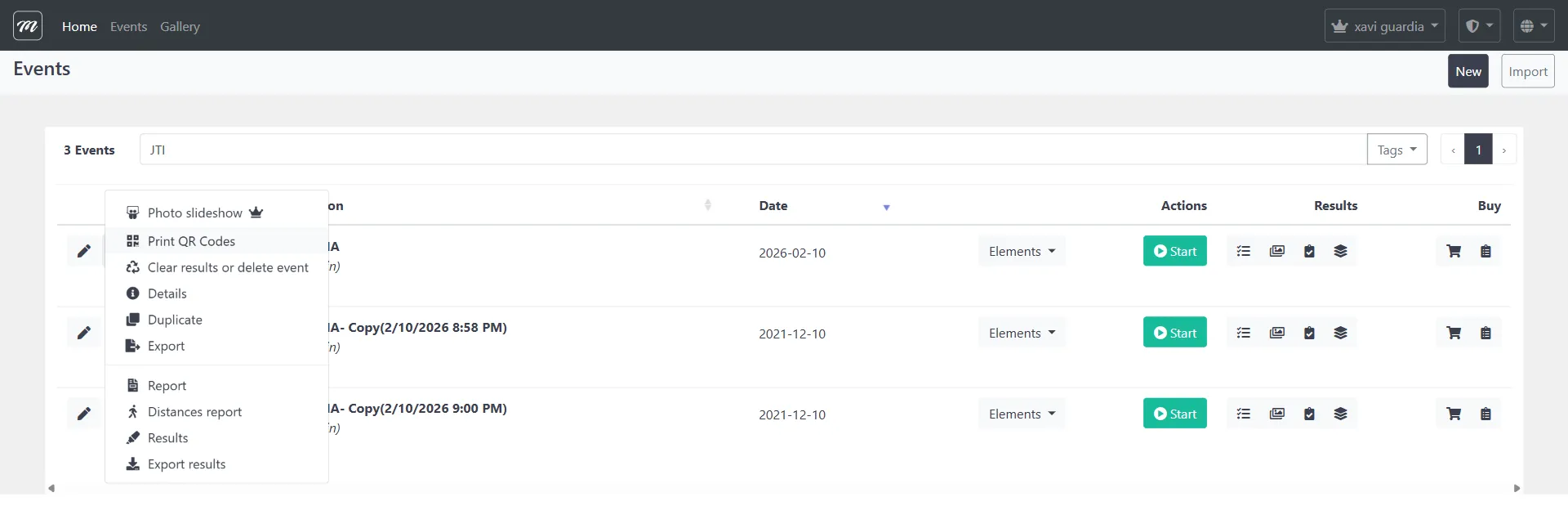
Section titled “How to access”Results are accessed from multiple entry points via the  toolbox dropdown:
- Results list: Events list → row dropdown →
 Results
 - Score responses: Events list → row dropdown → Results → view shows all results with inline scoring
- Report: Events list → row dropdown →
 Report
 - Distances report: Events list → row dropdown →
 Distances report
 - Export results (ZIP): Events list → row dropdown →
 Export results
 - Export photos: Events list → row dropdown →
 Export results (the photo export form)
 - Photos without score: Results list → toggle to “Photos without score” view
Results list page
Section titled “Results list page”
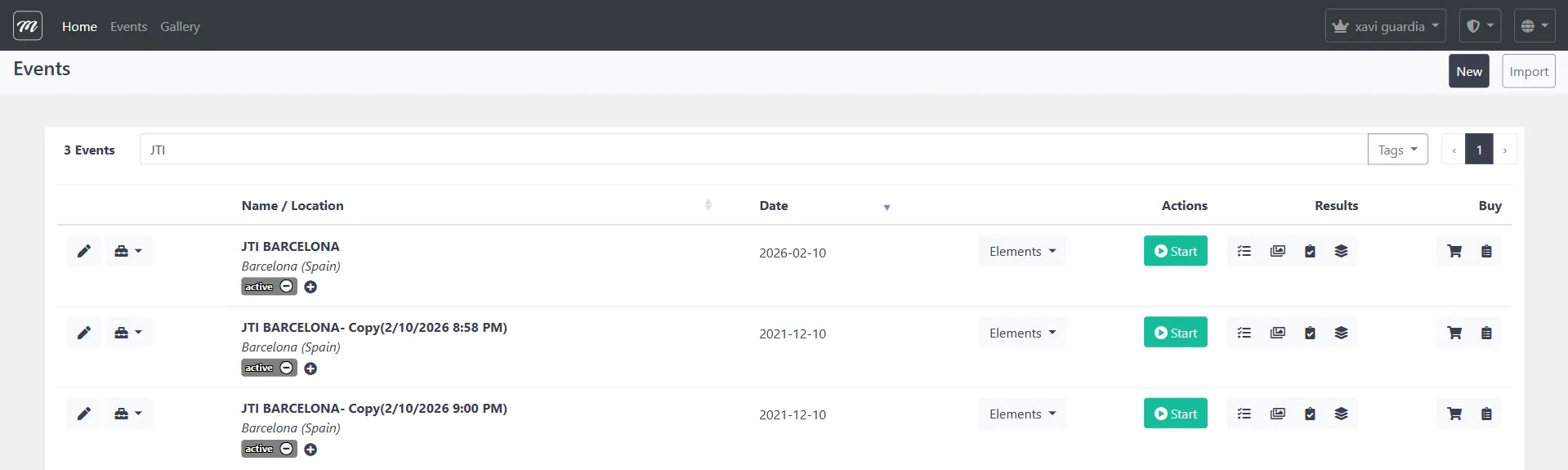
The results list is a paginated, searchable table showing every scoring record for the event. From here, you can view details, edit scores inline, and navigate to reports or exports.
Results list
Section titled “Results list”Navigation: Events list → row dropdown → Results
The results list page displays all scoring records for a given event in a searchable, sortable table.
Columns
Section titled “Columns”| Column | Type | Description |
|---|---|---|
| Checkbox | Checkbox | Row selection for bulk actions |
| Team | Display | Team name (sortable) |
| Date | Display | Timestamp when the result was submitted |
| Type of Challenge | Display | Challenge type (Questions, Photo, Puzzle, etc.) |
| Correct Answer | Display | The expected answer (for multiple-choice questions only) |
| Answer | Display | The team’s submitted answer |
| Picture | Display | Thumbnail of photo/video submission (click to expand in lightbox) |
| Name | Display | Challenge name |
| Points | Text (editable) | Points awarded — editable inline for photo-based challenges (see Edit score) |
| Extra points | Display | Bonus points awarded |
Actions
Section titled “Actions”| Action | Description |
|---|---|
| Back | Return to the events list |
| Report | Navigate to the results report |
| Search | Filter results across all columns |
| Show entries | Change pagination (10, 25, 50, 100 per page) |
| Delete | Remove a single result record (per-row action) |
Photos without score view
Section titled “Photos without score view”Toggle the results list to show only photo-based results that have not yet been scored (zero points and no manual response recorded). This filtered view helps you quickly find and score photo challenge submissions that need manual review.
Result detail
Section titled “Result detail”Navigation: Results list → click a result row to view its detail
The detail view shows the full information for a single result record: the team that submitted it, the challenge it belongs to, the answer given, points awarded, and any attached media (photo or video).
Fields
Section titled “Fields”| Field | Type | Description |
|---|---|---|
| Team | Display | Team name and number |
| Challenge | Display | Challenge name and type |
| Date/Time | Display | When the response was submitted |
| Answer | Display | The team’s text answer |
| Correct Answer | Display | The expected answer (for quiz-type challenges) |
| Points | Display | Points awarded |
| Extra Points | Display | Bonus points |
| Response Time | Display | Time taken to answer (seconds) |
| Photo/Video | Display | Attached media file (if photo or video challenge) |
Actions
Section titled “Actions”| Action | Description |
|---|---|
| Edit | Open the result in edit mode to modify scores or data |
| Back to list | Return to the results list |
| Delete | Remove this result permanently |
Edit score manually
Section titled “Edit score manually”Scores can be edited in two ways:
Inline editing
Section titled “Inline editing”In the results list, the Points column for photo-based challenges is an editable field. Click the points value to activate the input, type the new score, and click Save. The change is saved immediately without reloading the page.
When a score is updated inline:
- The points value is set to the new value
- The response is flagged as manually scored
- The change is saved immediately
Full edit form
Section titled “Full edit form”For more detailed editing, click a result row to open the detail view, then click Edit. This opens a modal form where you modify the points value. The edit form also shows additional context (team, challenge, date) as read-only information.
| Field | Type | Description | Required |
|---|---|---|---|
| Points | Text (numeric) | The score to award for this result | Yes |
| Action | Description |
|---|---|
| Save | Apply the new score and return to the results list |
| Cancel | Discard changes and close the edit form |
Score responses
Section titled “Score responses”Navigation: Results list → Score free text questions link, or directly via URL

The “Score free text questions” page is designed for scoring open-ended challenge responses where there is no single correct answer — read each response and assign points manually.
Fields
Section titled “Fields”| Column | Type | Description |
|---|---|---|
| Teams | Display | Team name |
| Challenge | Display | Challenge name |
| Question | Display | The question text that was posed |
| Answer | Display | The team’s free-text response |
| Points | Text (numeric) | Input field showing [score] / [maxPoints] — enter the score to assign |
Actions
Section titled “Actions”| Action | Description |
|---|---|
| Send | Save the score for this individual row (per-row button) |
| Back | Return to the previous view |
Results report
Section titled “Results report”Navigation: Events list → row dropdown → Report, or Results list → Report button
The report generates a comprehensive summary of all results for an event. MooveTeam CMS produces two different report layouts depending on the event mode:
Non-Quiz report (outdoor/geo-tracking events)
Section titled “Non-Quiz report (outdoor/geo-tracking events)”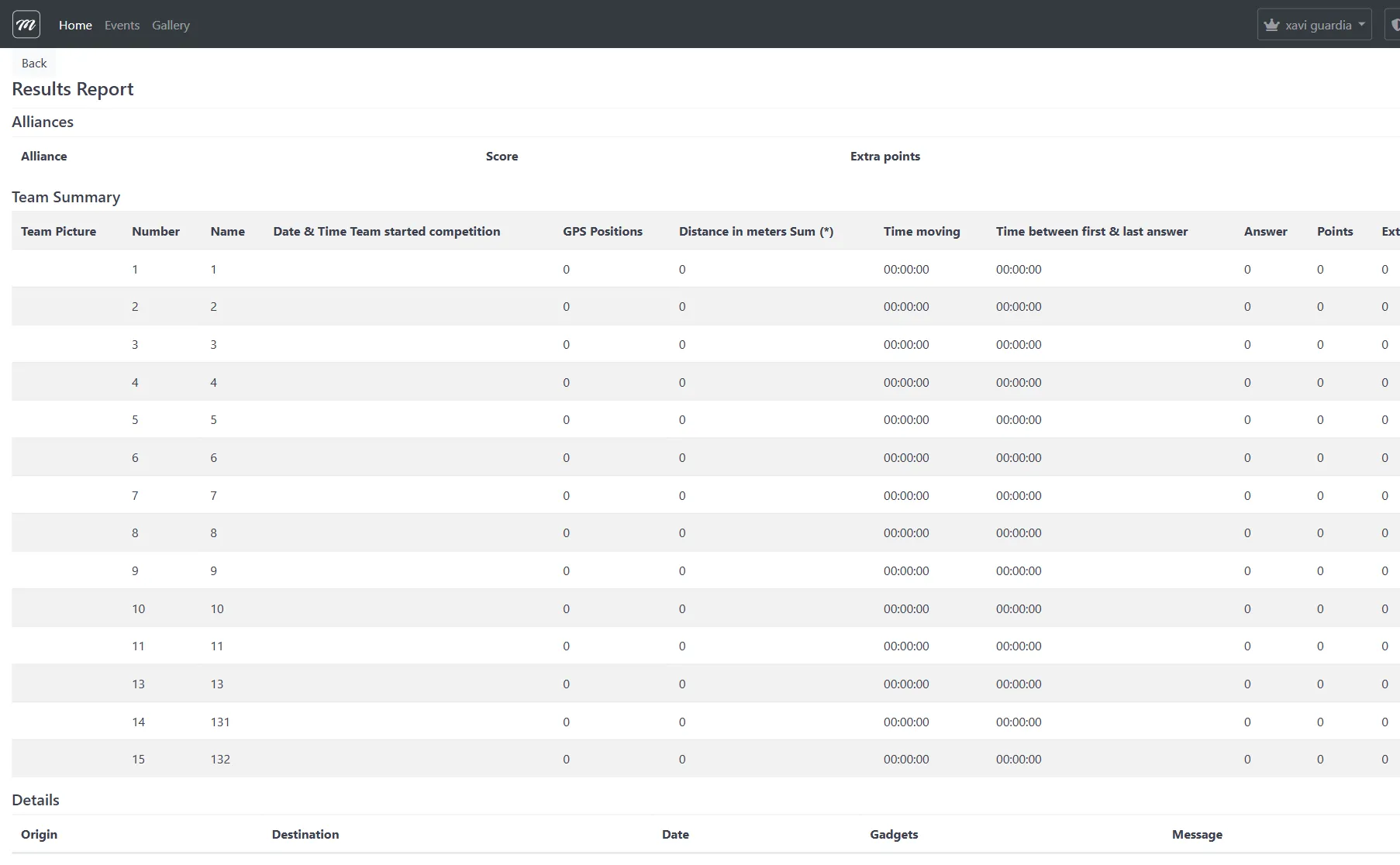
This report is used for standard outdoor events with GPS tracking. It includes:
Alliances summary
Section titled “Alliances summary”| Column | Description |
|---|---|
| Alliance | Alliance name |
| Score | Total points for all teams in the alliance |
| Extra Points | Total bonus points |
Team summary
Section titled “Team summary”| Column | Description |
|---|---|
| Team Picture | Team photo thumbnail (click to enlarge) |
| Team Number | Numeric identifier |
| Team Name | Team display name |
| Date & Time Team Started | When the team began competing |
| GPS Positions | Count of GPS position records captured |
| Distance in meters | Total distance traveled during the event |
| Time Moving | Duration of movement |
| Time Between First & Last Answer | Time span from first to last challenge response |
| Total Answers | Number of challenges attempted |
| Total Points | Sum of all points |
| Total Extra Points | Sum of all bonus points |
Per-team detail
Section titled “Per-team detail”Below the summary, each team has a dedicated section (with page breaks for printing) showing:
- Team name and photo
- Individual results table: Challenge Type, Date/Time, Challenge Name, Question, Correct Answer, Team’s Answer, Points (+ bonus), Response Time
- Result media: thumbnails of all submitted photos and videos, organized by challenge (with high-quality versions when available)
- Gadgets inventory: Gadget Name, Quantity Available, Can be Picked Up?
Messages log
Section titled “Messages log”At the end of the report, a messages section shows all communications:
| Column | Description |
|---|---|
| From | Sending team or organization |
| To | Receiving team or organization |
| Date/Time | Message timestamp |
| Gadget Type | Type of gadget used, or “Message” for text messages |
| Content | Message text |
Quiz report
Section titled “Quiz report”For events running in Quiz Mode, the report uses a simplified layout without GPS/distance data. It shows the same alliance summary, team summary (without GPS columns), per-team results, gadgets, and messages.
Distances report
Section titled “Distances report”
Navigation: Events list → row dropdown → Distances report
A focused report showing only the distance and movement metrics for each team. Useful for events where physical movement is a key scoring factor.
Export results
Section titled “Export results”Navigation: Events list → row dropdown → Export results
The export action generates an Excel workbook packaged in a ZIP file, downloaded directly to the browser.
Export workflow
Section titled “Export workflow”- Click Export results from the event’s row dropdown menu.
- The system validates that the event exists and belongs to your company.
- The system checks that the event has at least one result record.
- An Excel workbook is generated with:
- “Results” sheet — Master table with columns: Team, Test Number, Test Title, Right Answer, Chosen Answer, Points, Date/Time, Image
- Per-team sheets — One sheet per team named “Images of Team: {name}” containing embedded photos from photo-based challenges
- The workbook is zipped and streamed as a download
Actions
Section titled “Actions”| Action | Description |
|---|---|
| Export results | Downloads a ZIP file containing the Excel workbook with all results data |
Behavior
Section titled “Behavior”- The export requires at least one result record; if the event has no results, an error message is shown
- Temporary files are cleaned up automatically after generation
- The downloaded file is a
.ziparchive containing the.xlsxworkbook - Only users with Admin or Agency roles can access results. Viewers cannot access the results list.
Export event photos
Section titled “Export event photos”Navigation: Events list → row dropdown → the export photos form

Photo export is an asynchronous operation. Unlike the Excel export, which downloads immediately, photo export queues a background job that packages all photos and uploads them to the cloud. When complete, download links are emailed to the specified recipients.
Export workflow
Section titled “Export workflow”- Navigate to the export photos page for your event.
- The system pre-fills the email field with all email addresses from your company’s user accounts.
- Edit the email list if needed (comma-separated addresses).
- Click Export.
- A background job is created and the page confirms the job was queued.
- If email notification is enabled, recipients receive an immediate “job queued” notification.
- The background processing service picks up the job and exports all photos to the cloud.
- When complete, recipients receive an email with download links.
- Download links remain valid for 4 days.
Fields
Section titled “Fields”| Field | Type | Description | Required |
|---|---|---|---|
| Notification Emails | Textarea | Comma-separated list of email addresses to notify with download links | Yes |
Actions
Section titled “Actions”| Action | Description |
|---|---|
| Export | Queue the background photo export job |
| Back to event list | Return to events list without exporting |
Job status
Section titled “Job status”The export photos page also shows the status of any previous export jobs for this event:
| Column | Description |
|---|---|
| Job Status | Current state: Pending, Processing, Done, or Failed |
| Last Time Active | Humanized timestamp (e.g., “2 hours ago”) |
| Notification Emails | Email addresses associated with the job |
| Last Message | Status message from the job processor |
| Download | Links to completed exports (numbered if multiple files) |
Photos without score
Section titled “Photos without score”
The “Photos without score” view filters results to show only photo challenge submissions that have not been scored yet (zero points and no manual response recorded). Use this view to identify which photo responses still need manual review and point assignment.
Clear results
Section titled “Clear results”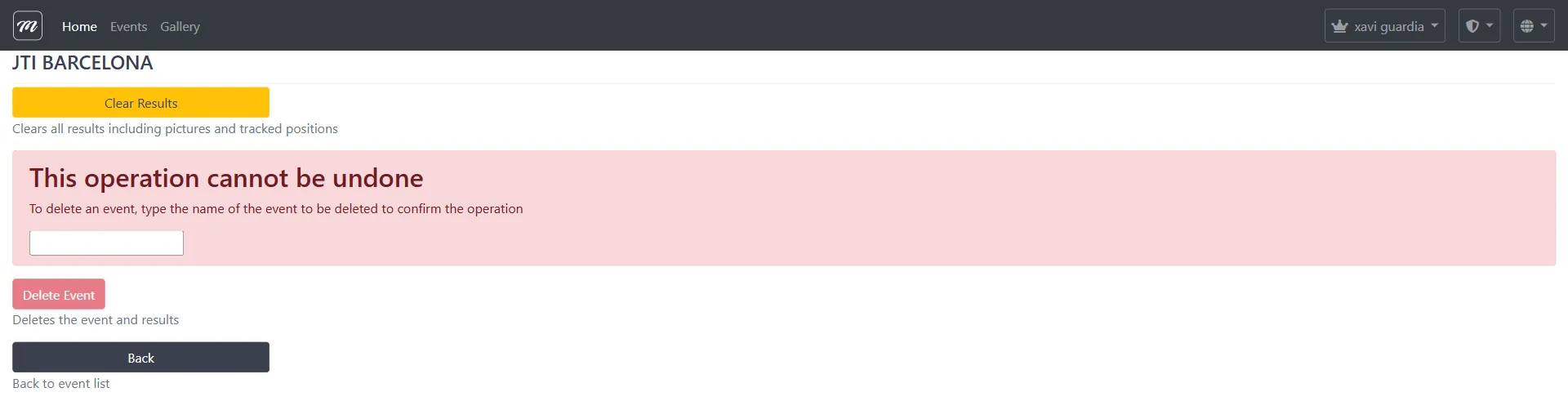
Navigation: Events list → row dropdown → Clear results or delete event
This page provides two destructive operations:
| Action | Description |
|---|---|
| Clear Results | Removes all results, photos, and tracked GPS positions for the event. The event configuration (teams, challenges, routes) is preserved. Cannot be undone. |
| Delete Event | Permanently removes the entire event and all associated data. Requires typing the event name to confirm. Cannot be undone. |
| Back to event list | Return without making changes |
Behavior and rules
Section titled “Behavior and rules”- Inline editing is for photo challenges only. The Points column becomes an editable input field only for results linked to photo-based challenge types. Other challenge types display static point values.
- Export requires results. The Excel export validates that at least one result record exists before generating the file. If the event has no results, an error view is displayed.
- Reports are print-friendly. Both Quiz and Non-Quiz reports include page-break CSS between team sections, designed for printing or PDF export.
- Distance is calculated from GPS positions recorded during the event.
- Deletion is permanent. There is no archive or undo mechanism.
Related pages
Section titled “Related pages”- Event — Live Control — Starting, stopping, and monitoring events in real time
- Events Overview — Event list, creation, editing, and deletion
- Game Mechanics — Scoring system, GPS tracking, rankings
- Event — Challenges — Challenge types that produce results
- How to export results — Step-by-step export guide
- How to score photo challenges — Manual scoring workflow
- Ranking (Player App) — The live leaderboard players see during events
- Staff Mode (Player App) — How staff score submissions from the app