

Event — Challenges
What it does
Section titled “What it does”The Challenges tab is where you create and manage the interactive tasks that teams must complete during the event. MooveTeam CMS supports 14 distinct challenge types — from quiz questions and photo tasks to mini-games and augmented reality. Each challenge has a GPS location on the map, a point value, and type-specific configuration.
Requirements
Section titled “Requirements”- Role: Agency or Admin
- Event state: Event must be stopped — challenges cannot be created, edited, or deleted while the event is running
How to access
Section titled “How to access”Events list → click event name → Challenges tab
Challenges tab
Section titled “Challenges tab”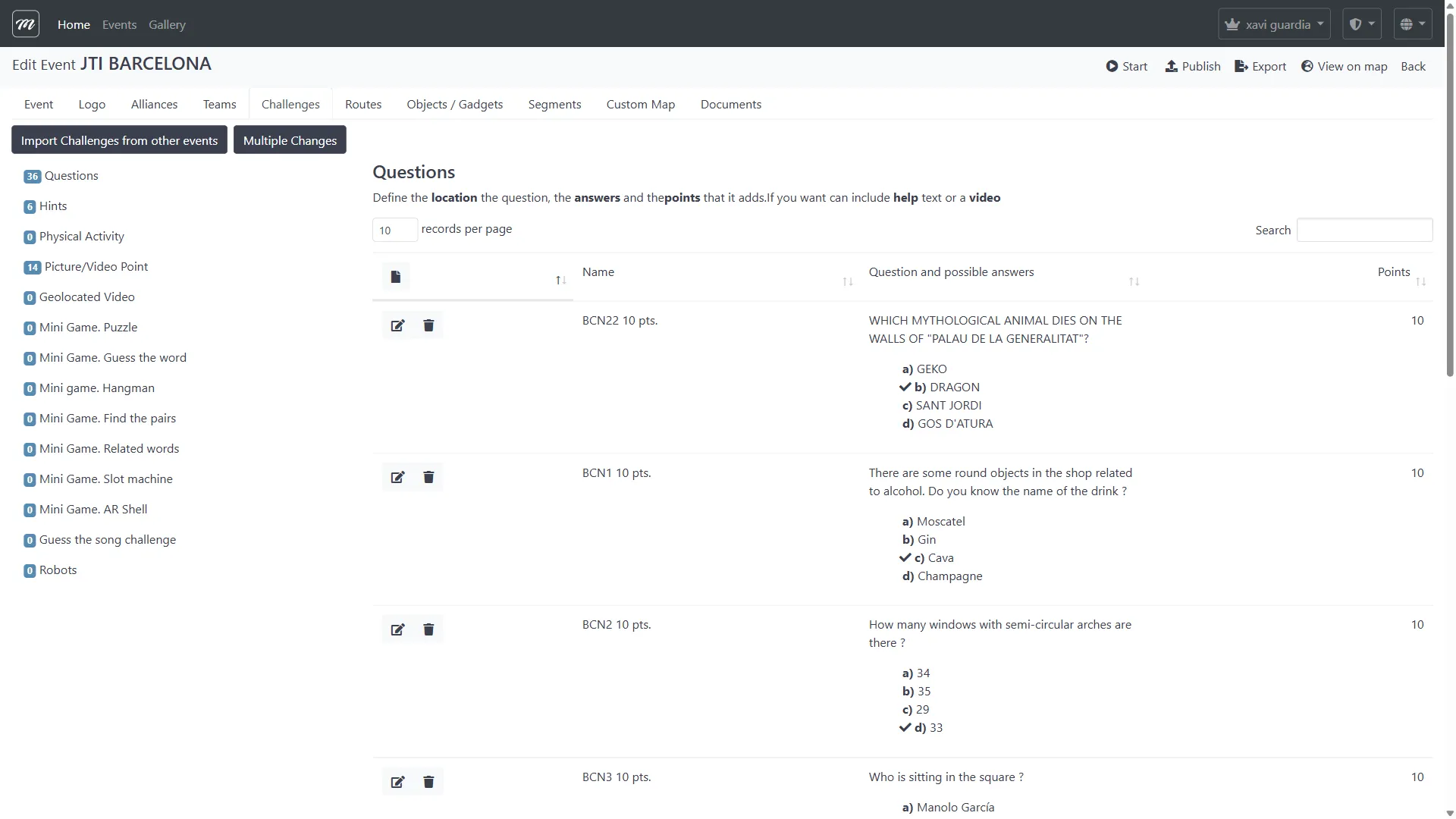
Fields / Options
Section titled “Fields / Options”Challenge list
Section titled “Challenge list”The tab displays an interactive table of all challenges for the event, with a left sidebar showing challenge counts per type.
| Column | Type | Description |
|---|---|---|
| Challenge name | Display | Challenge display name with type indicator |
| Row actions | Icons | Edit (pencil) and Delete (trash) per row |
Search and pagination
Section titled “Search and pagination”| Field | Type | Description |
|---|---|---|
| Search | Text | Filters challenges by name |
| Show entries | Select | Pagination: 10, 25, 50, or 100 entries per page |
Left sidebar — Challenge type counts
Section titled “Left sidebar — Challenge type counts”The sidebar groups challenges by type and shows the count for each. The 14 challenge types are:
| Type | Description |
|---|---|
| Questions (Quiz) | Multiple-choice or free-text questions |
| Hints | Informational hints (no scoring) |
| Physical Activity | Physical movement challenges |
| Photo / Video | Take a photo or video at a location |
| Geolocated Video | Video that plays when arriving at a location |
| Puzzle | Image jigsaw puzzle |
| Guess the Word | Guess a hidden word letter by letter (hangman is a player-app variant) |
| Find the Pairs | Memory card-matching game |
| Related Words | Connect related words |
| Slot Machine | Virtual slot machine mini-game |
| AR Shell (Shell Game) | Augmented reality shell game |
| Guess the Song | Identify a song from a clip |
| Robots | Virtual characters moving on the map |
For detailed documentation of each type, see Challenge Types Reference.
Actions
Section titled “Actions”| Action | Description |
|---|---|
| New | Opens the challenge creation form — first select a challenge type from a dropdown |
| Edit (per row) | Opens the challenge edit form for that challenge |
| Delete (per row) | Opens the delete confirmation page |
| Copy (per row) | Duplicates the challenge within the same event (saves without page reload) |
| Import Challenges from other events | Opens the import page (see Import challenges) |
| Multiple Changes | Opens the bulk edit page (see Multiple Changes) |
Create challenge
Section titled “Create challenge”When you click New, select a challenge type from the dropdown. The form that opens depends on the selected type. All types share a set of common fields (see Common Fields below), and each type adds its own specific fields documented in the Challenge Types Reference.
Behavior
Section titled “Behavior”- The form pre-fills the GPS coordinates from the event’s default location.
- The map icon is auto-set to the default icon for the selected type.
- Hint-type challenges default to 0 points (informational, no scoring).
- Photo/Video challenges get a default time limit: 60 seconds for premium accounts, 20 seconds for standard.
- Blocked during running event. If the event is active, the create action returns an error: “Editing an event is not allowed while it is active.”
- On save, the event’s challenge count is incremented.
Edit challenge
Section titled “Edit challenge”Opens the same form as create, pre-filled with the challenge’s current values. The form includes all common fields plus the type-specific fields.
Behavior
Section titled “Behavior”- Blocked during running event. Editing is blocked if the event is active.
- Gallery images associated with the challenge are shown and can be added/removed.
- For Related Words type, the existing word groups are shown in the editor.
- Images in rich text fields are automatically resized on save.
Delete challenge
Section titled “Delete challenge”Click the trash icon on a challenge row. This opens a confirmation dialog.
Confirmation dialog
Section titled “Confirmation dialog”| Element | Description |
|---|---|
| Title | ”Delete” |
| Confirmation prompt | ”Are you sure?” |
| Challenge name | Displays the name of the challenge being deleted |
| Delete button | Confirms deletion (danger/red style) |
| Cancel button | Returns to the challenge list |
What gets deleted
Section titled “What gets deleted”Deleting a challenge also removes all associated data:
- Gadget/object associations — links to gadgets that the challenge awards
- Gallery image associations — images for mini-games (pairs, slot, puzzle)
- Related words — word groups for the Related Words type
- All results — every team response/score for this challenge
- The challenge itself
After deletion, the event’s challenge count is updated.
Behavior
Section titled “Behavior”- Blocked during running event. If the event is active, the delete action returns an error page.
- No undo. Deletion is permanent — all results and media associations are lost.
- Route impact. The challenge is removed from any routes that reference it.
Import challenges from other events
Section titled “Import challenges from other events”Allows importing challenges from any other event belonging to the same company. This is the primary way to reuse challenge content across events.
Interface
Section titled “Interface”The import page shows a searchable, paginated table of all challenges across all company events:
| Column | Description |
|---|---|
| Event Name | The source event |
| Challenge Name | The challenge to copy |
| Type | Challenge type (e.g., Questions, Puzzle, Robots) |
| Copy button | Copies this challenge to the current event |
Search and pagination
Section titled “Search and pagination”- Search field filters by challenge name or event name.
- Paginated with 20 records per page, with Previous/Next navigation.
- A copy log on the right side shows the history of copied challenges in the current session.
What gets copied
Section titled “What gets copied”When copying a challenge to another event:
- All challenge properties are duplicated (name, points, location, configuration).
- Gallery images are linked (shared references, not duplicated).
- Related words groups are duplicated.
- Gadgets/objects — if the destination event has a gadget with the same name, it is linked. If not, the gadget is duplicated in the destination event.
- QR static code is regenerated (new unique code) to avoid conflicts.
Behavior
Section titled “Behavior”- Copying happens without a page reload. The row flashes green on success, red on failure.
- The “Back” link returns to the event’s Challenges tab.
Multiple Changes
Section titled “Multiple Changes”Bulk-edit properties across multiple challenges at once. Essential for events with many challenges where the same activation settings need to apply to all.
Interface
Section titled “Interface”The page has two sections:
Data to change (top)
Section titled “Data to change (top)”Set the values to apply:
| Field | Type | Description |
|---|---|---|
| QR Code | Checkbox | Enable/disable QR code activation |
| Distance in meters | Text | GPS activation distance |
| Selectable by user | Checkbox | Whether the player can choose when to do the challenge |
| Disappears once done by first team | Checkbox | Whether the challenge vanishes after the first completion |
Elements to change (bottom)
Section titled “Elements to change (bottom)”A table listing all challenges in the event:
| Column | Description |
|---|---|
| Select | Checkbox to include this challenge in the bulk operation |
| Challenge Type | The type of challenge |
| Name | Challenge name |
| QR Code | Current QR activation state (check icon) |
| Distance in meters | Current activation distance |
| Selectable by user | Current state (check icon) |
| Disappears once done by first team | Current state (check icon) |
Workflow
Section titled “Workflow”- Check the boxes or fill in the fields in the “Data to change” section.
- Select the challenges you want to modify using the checkboxes in the table.
- Click Apply changes to N (where N is the number of selected challenges).
- The changes are applied immediately and the table updates to reflect the new values without a page reload.
Behavior
Section titled “Behavior”- The “Apply changes” button only appears when at least one challenge is selected.
- The “Back” link returns to the event’s Challenges tab.
Import from GPX file
Section titled “Import from GPX file”Import GPS waypoints from a GPX file to create challenge locations. Each waypoint in the file becomes a potential challenge position.
Workflow
Section titled “Workflow”- Navigate to the GPX import page from the admin menu.
- Upload a
.gpxfile containing waypoints with latitude, longitude, and optional names. - The system parses each
<wpt>element and creates a challenge record with:- GPS coordinates from the waypoint
- Name from the waypoint name (or a default)
- The selected challenge type
- Association to the selected event
- Created challenges appear in the event’s Challenges tab, ready for content editing.
Behavior
Section titled “Behavior”- GPX files must contain
<wpt>(waypoint) elements — track segments (<trk>) are not imported as challenges. - Each waypoint creates one challenge. For events with many locations (e.g., city tours), this is significantly faster than creating challenges one by one.
Import from KML via draft points
Section titled “Import from KML via draft points”KML files (from Google Earth or Google My Maps) can be imported as staged locations. Unlike GPX import, KML goes through a staging area (“Draft Points”) where you review and convert each location into a challenge one at a time.
Draft points workflow
Section titled “Draft points workflow”- Import KML — Upload a
.kmlfile. The system extracts placemarks and creates draft point records with coordinates and names. - Review staging area — The draft points index page shows all staged locations on a map with a table listing each point’s name, coordinates, and original KML data.
- Convert to challenges — For each draft point, select a target event and challenge type, then click to create the challenge. The draft point’s coordinates and name are used as the starting values.
- Clean up — Use “Delete All” to clear the staging area when done.
Draft point fields
Section titled “Draft point fields”| Field | Type | Description |
|---|---|---|
| Name | Text | Location name from KML |
| Latitude | Decimal | GPS latitude |
| Longitude | Decimal | GPS longitude |
| Notes | Text | Original KML description (used as HTML content if no other data exists) |
Converting a draft point to a challenge
Section titled “Converting a draft point to a challenge”| Field | Type | Description | Required |
|---|---|---|---|
| Event | Select | Target event to create the challenge in | Yes |
| Challenge type | Select | Type of challenge to create | Yes |
| Name | Text | Pre-filled from draft point name | Yes |
Behavior
Section titled “Behavior”- Draft points belong to the company, not to a specific event — you can import once and distribute to multiple events.
- For Augmented Reality challenge types, the system automatically creates a default character if none exists for the company. See Characters for details.
- The “Delete All” action clears all draft points — use it to reset the staging area between imports.
QR code regeneration
Section titled “QR code regeneration”Regenerates all challenge QR codes for an event. Each challenge receives a new unique identifier, making all previously printed QR codes invalid.
When to use:
- After copying an event (to ensure unique codes)
- If QR codes have been compromised or shared publicly
- Before a new run of a recurring event
After regeneration, the system redirects to the QR printing page.
Print QR codes
Section titled “Print QR codes”Events list → row dropdown → Print QR Codes
Generates a printable page of QR codes for all challenges in the event. Each QR code contains the challenge’s unique static code, which teams scan to activate the challenge.
Print this page and cut out individual codes to place at physical locations during the event setup. Each code is labeled with the challenge name for identification.
Order challenges
Section titled “Order challenges”Sets the global display order for challenges within an event. This is separate from the per-route ordering managed in the Routes tab — it controls the order challenges appear in the admin list.
The interface allows drag-and-drop reordering. The display order is saved when you submit the form.
Common challenge fields
Section titled “Common challenge fields”All 14 challenge types share these base fields (except Robots and Geolocated Video, which have simplified forms):
Basic data
Section titled “Basic data”| Field | Type | Description | Required |
|---|---|---|---|
| Name | Text | Challenge display name | Yes |
Activation
Section titled “Activation”Defines how the challenge is triggered for the player:
| Field | Type | Description | Required |
|---|---|---|---|
| When the user approaches certain location | Checkbox | Activates based on GPS proximity | No |
| Location | Text | Location name or address (geocoded) | Yes |
| Distance in meters to activate | Text | GPS proximity threshold | Yes |
| Latitude / Longitude | Text | GPS coordinates (auto-filled from Location) | Yes |
| Use a code to activate | Checkbox | Requires entering an access code | No |
| When user is near an iBeacon | Checkbox | Activates via Bluetooth iBeacon proximity | No |
| iBeacon UID | Text | The iBeacon identifier (shown when iBeacon checkbox is on) | Conditional |
| When the user scans this QR Code | Checkbox | Activates by scanning a QR code | No |
| When the user chooses to do it | Checkbox | Player selects when to attempt the challenge | No |
| This challenge disappears once done by the first team | Checkbox | Removes the challenge from the map after first completion | No |
Map appearance
Section titled “Map appearance”| Field | Type | Description | Required |
|---|---|---|---|
| Icon on Map | Select | Predefined icon (Standard, Drink Beer, Bomb, Box, Find QR, Flag, Food Burger, Food Tapas, Google, mini-game icons, Hint) | No |
| Customized icon | Select | Custom icon from the company’s gallery | No |
| Allow emergency activation | Select | Never / Button / Button and code — fallback when GPS fails | No |
| Change to segment | Select | Transition to a different segment upon completion | No |
| Hide reward from users | Checkbox | Hides the gadget/object reward from the challenge display | No |
Scoring
Section titled “Scoring”| Field | Type | Description | Required |
|---|---|---|---|
| Points | Text | Base score awarded upon completion | Yes |
| Extra points for 1st team | Text | Bonus for the first team to complete | No |
| Extra points for 2nd team | Text | Bonus for the second team | No |
| Extra points for 3rd team | Text | Bonus for the third team | No |
| Time Allowed | Text | Time limit in seconds | No |
Media and segment
Section titled “Media and segment”| Field | Type | Description | Required |
|---|---|---|---|
| Video | Select | Video character from the gallery | No |
| Introductory Text | Text | HTML content shown to players before the challenge | No |
| Segment | Select | Segment this challenge belongs to | No |
| Augmented Reality scenes | Select | AR scene integration | No |
| Object | Select | Object/gadget reward or requirement | No |
Type-specific constraints
Section titled “Type-specific constraints”Some challenge types have specific requirements and default behaviors:
| Constraint | Challenge type | Details |
|---|---|---|
| Time limit defaults | Photo / Video | 60 seconds for premium accounts, 20 seconds for standard accounts |
| Image count | Find the Pairs, Slot Machine | 2–8 gallery images required. The form validates this minimum. |
| Points default | Hints | Always 0 points — hints are informational, not scored |
| Unique form | Robots | Completely different form — no activation checkboxes, no map appearance, no scoring extras. Requires a character. |
| Video character | Robots, Geolocated Video | Requires a video character from the gallery for display |
| Simplified form | Geolocated Video | Reduced form without most common fields |
Behavior and rules
Section titled “Behavior and rules”- Challenge ordering within a route is managed on the Routes tab, not here. The Challenges tab handles challenge content; the Routes tab handles the sequence.
- Gallery images for mini-games (Pairs, Slot Machine) require 2-8 images. The form validates this minimum.
- Copy within event duplicates the challenge with a new QR code. The original is preserved.
- QR codes are unique. When copying a challenge (within or between events), the system generates a new unique code for the QR static code to avoid conflicts. Use QR code regeneration to refresh all codes at once.
Related pages
Section titled “Related pages”- Event — Teams — Previous tab
- Event — Routes — Next tab (where challenges are ordered within routes)
- Challenge Types Reference — Detailed documentation for all 14 types
- Event — Results — Challenge responses and scoring
- Events Overview — Event list, creation, editing, and deletion