

Event — Custom Map
What it does
Section titled “What it does”The Custom Map tab lets you overlay a custom image on top of the default Google Maps view and upload GPS tracks in GPX format. This creates branded or illustrated map experiences in the participant app — useful for events with custom venue maps, hand-drawn route illustrations, or themed visual designs.
How to access
Section titled “How to access”Events list → click event name → Custom Map tab
Requirements
Section titled “Requirements”- Role: Agency or Admin
- Event state: Event must be stopped for editing
Custom Map tab
Section titled “Custom Map tab”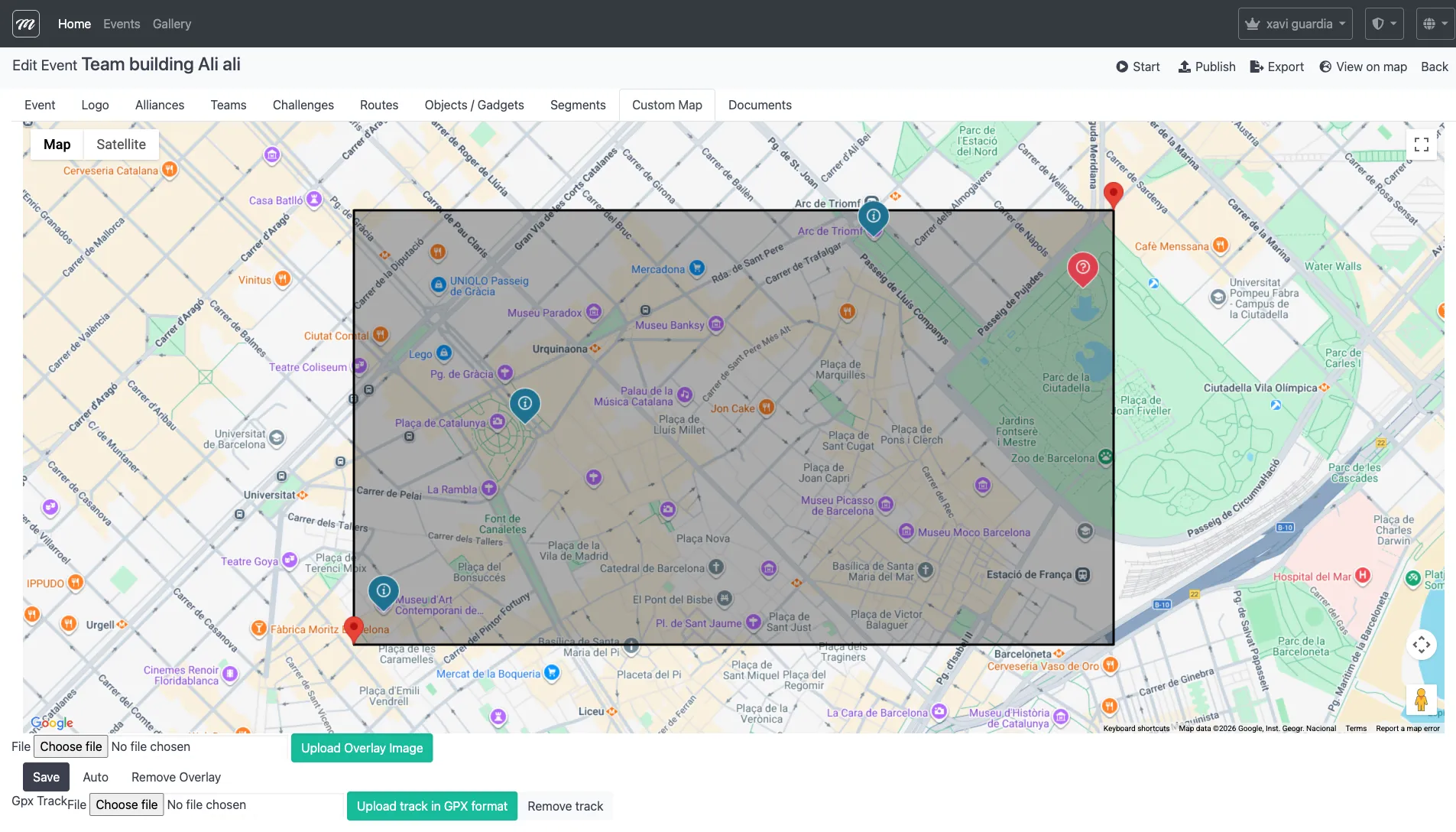
Fields / Options
Section titled “Fields / Options”Overlay image
Section titled “Overlay image”| Field | Type | Description | Required |
|---|---|---|---|
| Overlay file | File upload | An image file (PNG, JPG) that is displayed on top of the Google Maps base layer | No |
The overlay appears as a semi-transparent layer on the map. After uploading, it can be positioned and scaled using the map widget controls.
GPX track
Section titled “GPX track”| Field | Type | Description | Required |
|---|---|---|---|
| GPX file | File upload | A GPS track file in GPX format — displays a route path on the map | No |
Actions
Section titled “Actions”| Action | Description |
|---|---|
| Upload Overlay Image | Uploads the selected image file as the map overlay |
| Save | Saves the current overlay position and scale settings |
| Auto | Automatically adjusts the overlay to fit the current map view |
| Remove Overlay | Deletes the currently uploaded overlay image |
| Upload track in GPX format | Uploads the selected GPX file to display a route track on the map |
| Remove track | Deletes the currently uploaded GPX track |
Behavior and rules
Section titled “Behavior and rules”- Overlay positioning: After uploading an image, drag it on the map to position it. The image corners snap to GPS coordinates, so it displays correctly at different zoom levels.
- The “Auto” button fits the overlay to the current map viewport — useful as a starting point before fine-tuning.
- Both features are optional. The event works perfectly with the default Google Maps view.
Related pages
Section titled “Related pages”- Event — Segments — Previous tab
- Event — Documents — Next tab
- Event — Routes — Route definitions that the overlay visualizes
- Event — Challenges — Challenge definitions referenced by GPX tracks