

Flow 4 — Finalize, Results, and Export
What this flow covers
Section titled “What this flow covers”Follow these steps to end an event and extract all its value: stop the game, review results, score remaining responses, generate reports, export data as Excel or photos, and archive. This is the payoff of the entire platform — what the client receives after the event ends.
Prerequisites
Section titled “Prerequisites”- Event is currently running (see Flow 2 — Start Event)
- Teams have completed challenges and accumulated results
- Photo challenges have been scored (or will be scored in this flow)
Step-by-step
Section titled “Step-by-step”Step 1 — Stop the event
Section titled “Step 1 — Stop the event”Navigate to: Admin interface → stop action for the running event
If the event has accumulated results or GPS positions, MooveTeam CMS shows a pre-stop confirmation screen:
| Field | What it shows |
|---|---|
| Event | Event name and basic info |
| Positions recorded | Total GPS position records captured |
| Results recorded | Total challenge completion records |
| Pending jobs | Whether background jobs are still processing |
Click Stop to confirm.
What happens when you stop:
- End time backdated — The end date is set to 3 minutes ago, immediately marking the event as stopped
- Game session finalized — The game session is closed with final statistics
- Data preserved — All results, GPS positions, and photos are kept for reporting and export
See: Event — Live Control for full stop/restart reference
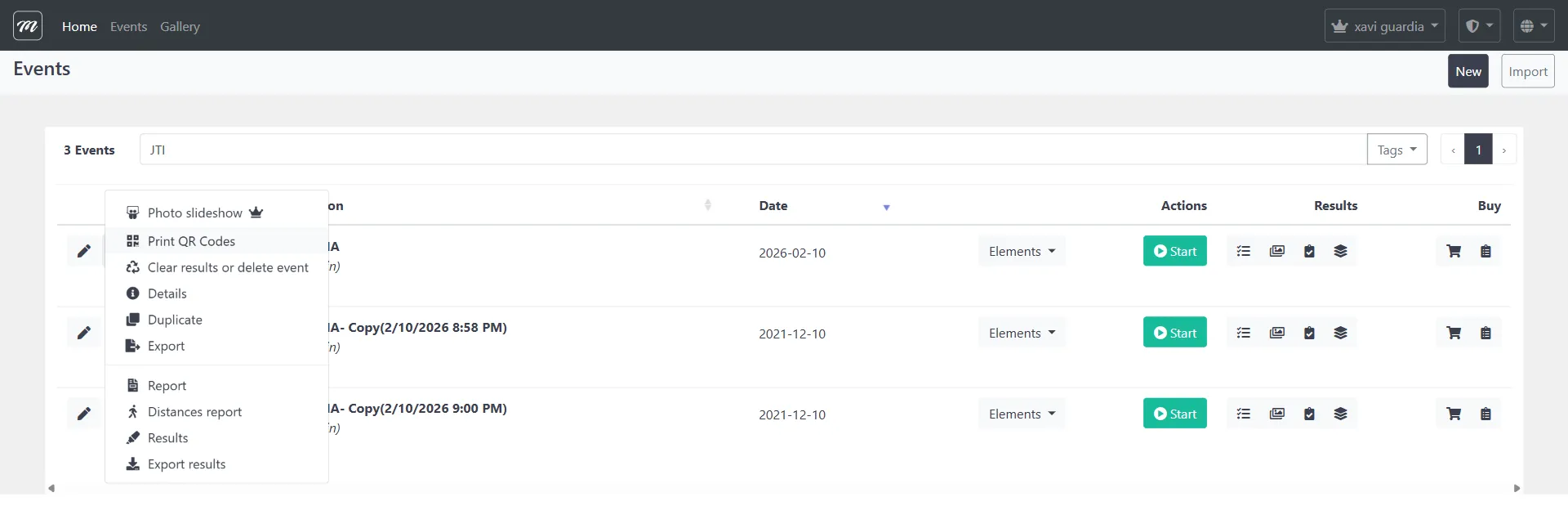
Step 2 — Navigate to the results list
Section titled “Step 2 — Navigate to the results list”Navigate to: Events list → row dropdown menu → Results

The results list displays every scoring record in a searchable, sortable interactive table with 10 columns including team, challenge type, answers, points, and attached photos.
See: Event — Results for full column reference
Step 3 — Review individual results
Section titled “Step 3 — Review individual results”Click any result row to view its full detail.
The detail view shows: team name, challenge type, question text, team’s answer, correct answer, points awarded, extra points, response time, and any attached photo or video.
From here you can Edit the score or Delete the result.
Step 4 — Score remaining photo and free-text responses
Section titled “Step 4 — Score remaining photo and free-text responses”If any photo challenges or free-text questions remain unscored:
Navigate to: Results list → Score free text questions link

For each unscored response:
- Read the team’s answer or view their photo submission
- Enter a point value in the Points field (shows
[score] / [maxPoints]) - Click Send to save the score for that row

Step 5 — Generate the results report
Section titled “Step 5 — Generate the results report”Navigate to: Events list → row dropdown → Report, or Results list → Report button
The report generates a comprehensive summary. MooveTeam CMS produces different layouts depending on event mode:
Non-Quiz report (outdoor/GPS events)
Section titled “Non-Quiz report (outdoor/GPS events)”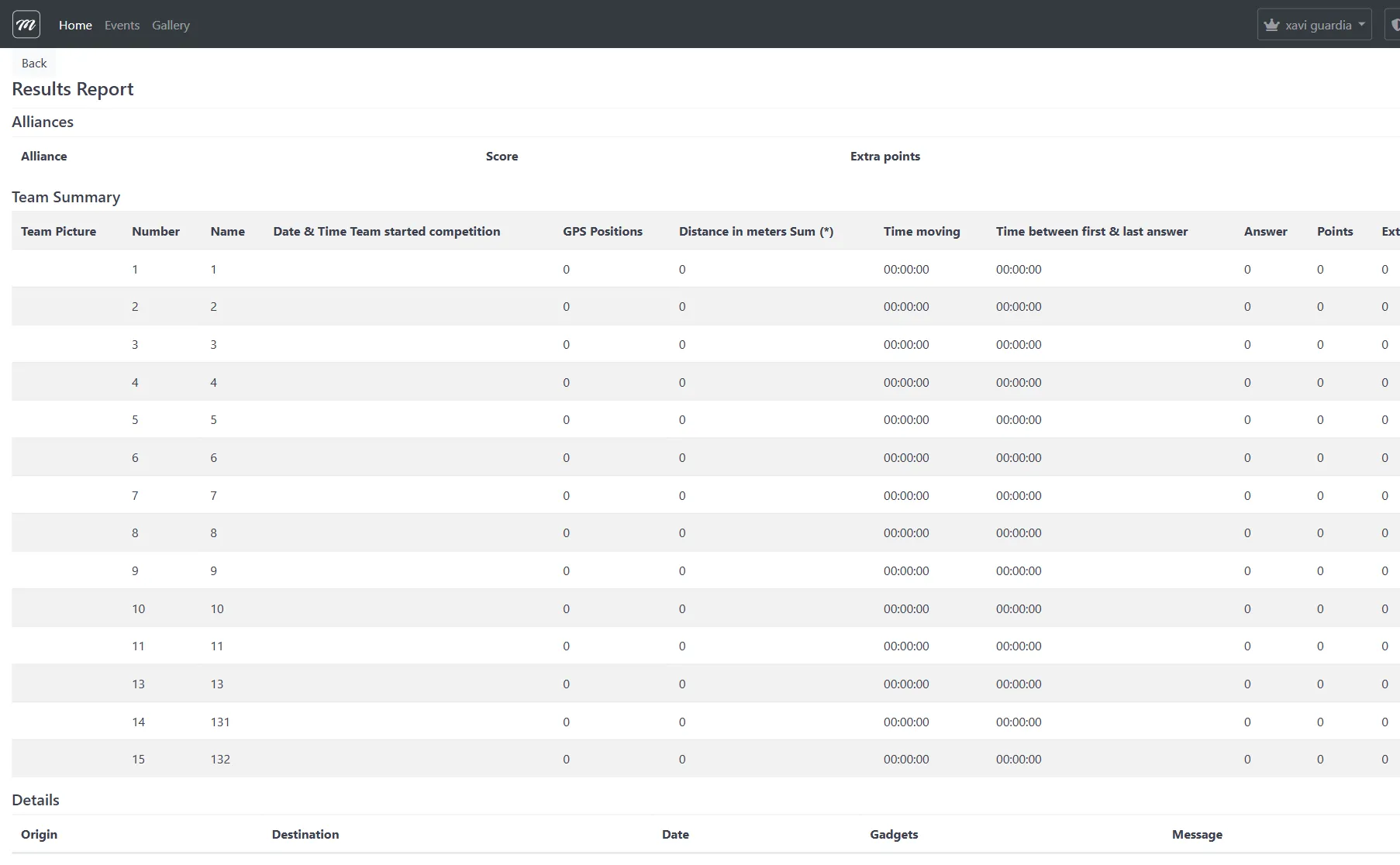
Includes:
- Alliance summary — Total points and extra points per alliance
- Team summary — Team photo, start time, GPS positions, distance traveled, time moving, total answers, total points
- Per-team detail — Individual results table with all challenge responses, plus submitted photos/videos
- Gadget inventory — Gadgets available and used per team
- Messages log — All team-to-team and team-to-organization communications
Distances report
Section titled “Distances report”
Navigate to: Events list → row dropdown → Distances report
A focused report showing only distance and movement metrics. Useful when physical movement is a scoring factor.
Print-friendly: Both reports include CSS page breaks between team sections, designed for printing or PDF export.
Step 6 — Export results as Excel
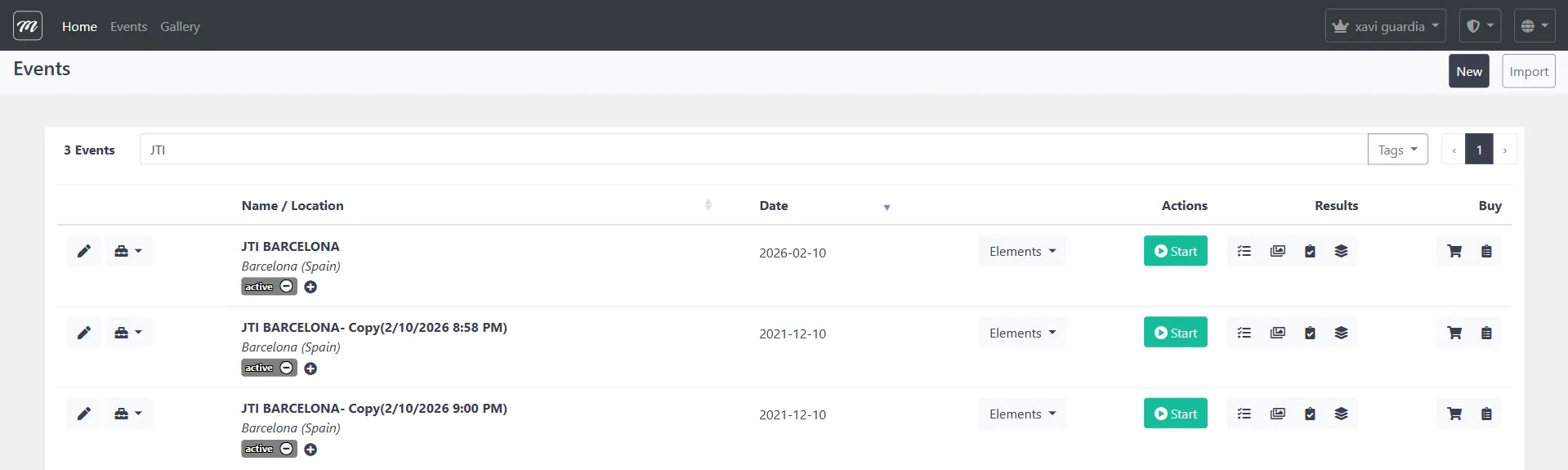
Section titled “Step 6 — Export results as Excel”Navigate to: Events list → row dropdown → Export results
The export generates an Excel workbook in a ZIP file:
- Click Export results from the row dropdown
- System validates the event exists and has results
- Excel workbook is generated with:
- “Results” sheet — Master table: Team, Test Number, Title, Right Answer, Chosen Answer, Points, Date/Time, Image
- Per-team sheets — Named “Images of Team: {name}” with embedded photos
- ZIP file downloads to your browser
Requires at least one result. If the event has no results, an error is shown.
See: Event — Results for export details
Step 7 — Export event photos
Section titled “Step 7 — Export event photos”Navigate to: Events list → row dropdown → export photos form

Photo export is asynchronous (unlike the instant Excel download):
- Navigate to the export photos page
- System pre-fills email addresses from your company’s user accounts
- Edit the email list if needed (comma-separated)
- Click Export
- A background job is created
- The background processing service packages all photos and uploads them for download
- Recipients receive an email with download links
Check job status on the same page — it shows: Job Status, Last Time Active, Notification Emails, and Download links.
Step 8 — Archive the event (optional)
Section titled “Step 8 — Archive the event (optional)”After exporting all needed data, the event can be archived.
Navigate to: Events list → row dropdown → Clear results or delete event
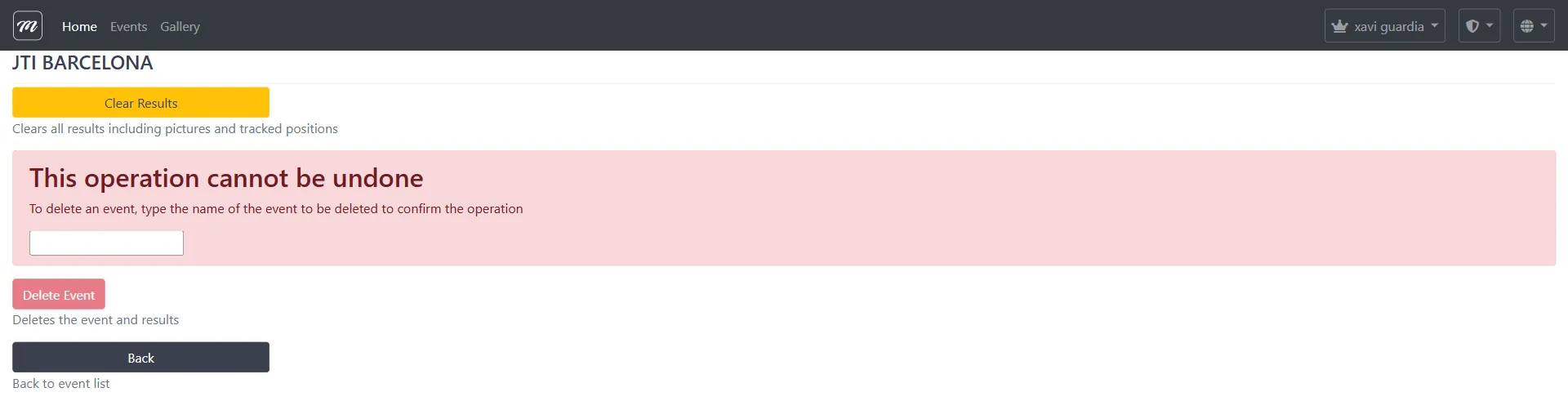
Two options:
| Action | Effect | Reversible? |
|---|---|---|
| Clear Results | Removes all results, photos, and GPS positions. Event configuration (teams, challenges, routes) is preserved. | No |
| Delete Event | Permanently removes the entire event and all data. Requires typing the event name to confirm. | No |
Archived result files remain accessible from the Admin menu (managed by MooveTeam).

Step 9 — Restart the event (if needed)
Section titled “Step 9 — Restart the event (if needed)”If the event needs to run again (e.g., second group of participants, next-day event):
Use the Restart action from the Live Control panel. Restart calls the same start logic as a fresh start.
Complete post-event checklist
Section titled “Complete post-event checklist”| Step | Action | Done? |
|---|---|---|
| 1 | Stop the event | |
| 2 | Score all photo and free-text responses | |
| 3 | Generate and review the results report | |
| 4 | Generate the distances report (if GPS event) | |
| 5 | Export results as Excel ZIP | |
| 6 | Export event photos (if photo challenges exist) | |
| 7 | Verify photo download links arrived via email | |
| 8 | Archive or clear results as needed |
Related flows
Section titled “Related flows”- Flow 2 — Start Event and Track — How the event was started
- Flow 3 — Event Execution — What happened during the event
- Flow 1 — Create a Complete Event — If you need to run a new event