

3D Objects on Map
What it does
Section titled “What it does”3D Objects are collectible items placed on the event map that teams can find and pick up during gameplay. Each object can optionally have a 3D model attached (from the Gallery 3D), making it appear as an augmented reality element that players interact with through their device’s camera. Objects add a treasure-hunt layer to events — teams walk to locations, collect items, and use them to unlock challenges.
Requirements
Section titled “Requirements”- You must be logged in with the Admin or Agency role
- An event must exist (created via Events)
- The event must not be currently running (creating/editing objects is blocked during active events)
- For 3D models: models must be uploaded to Gallery 3D first
How to access
Section titled “How to access”Events list → click event name → Objects / Gadgets tab → Objects section
Create object form
Section titled “Create object form”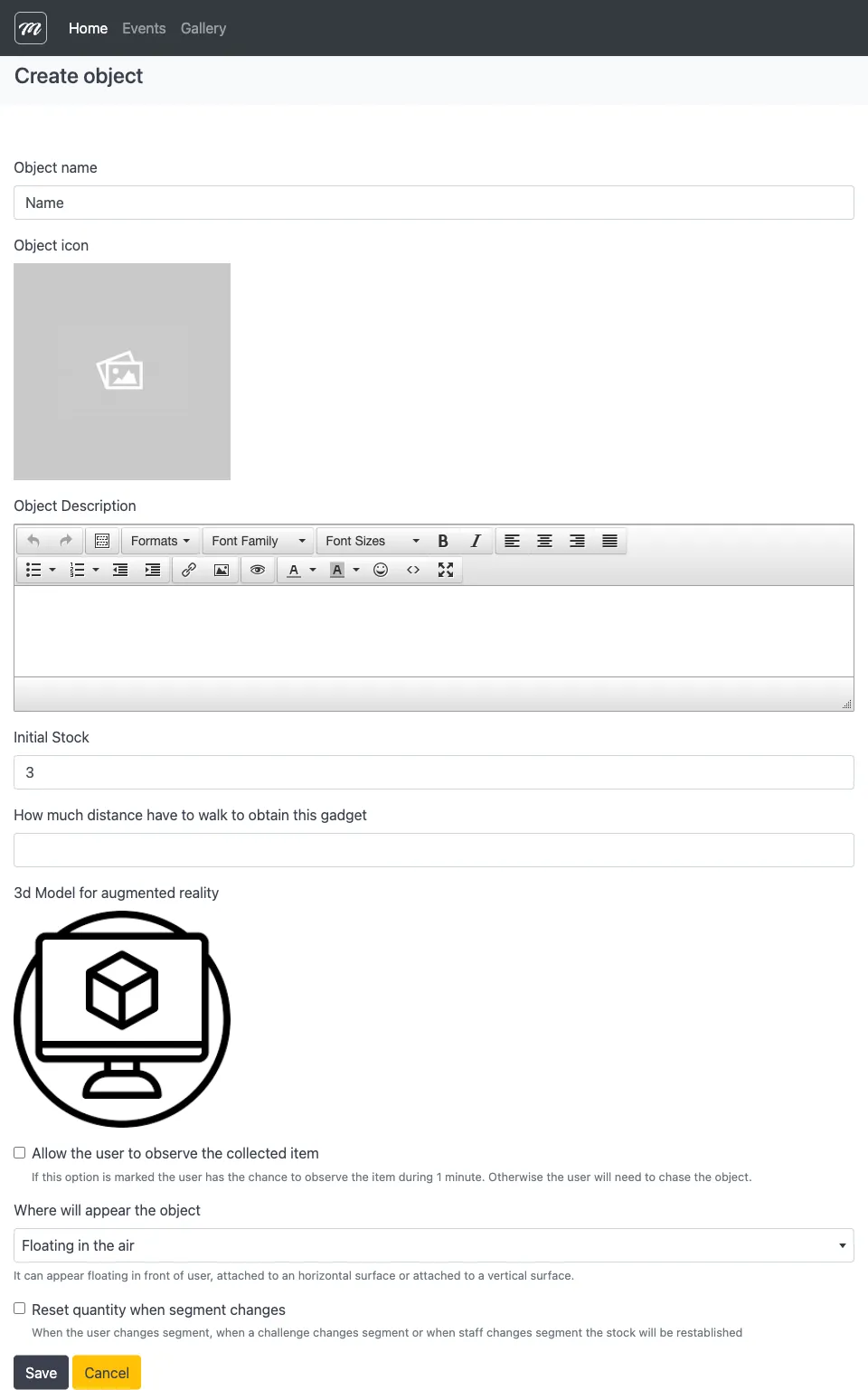
Fields / Options
Section titled “Fields / Options”| Field | Type | Description | Required |
|---|---|---|---|
| Object name | Text | Display name shown to players | Yes |
| Object icon | Image selector (Gallery) | 2D icon representing the object on the map and in inventory | No |
| Object Description | Rich text editor | HTML description shown to players. Supports custom fonts (Pirata, Mayas, Crystal, Christmas) and gallery image insertion. | No |
| Initial Stock | Numeric | Starting quantity available to each team (default: 3) | Yes |
| How much distance to walk to obtain | Numeric | Distance in meters a player must walk to trigger object pickup | No |
| 3D Model for augmented reality | 3D model selector | Selects a model from Gallery 3D. The selector loads available models automatically. | No |
| Allow user to observe collected item | Checkbox | When enabled, players can inspect the 3D model for up to 1 minute after collecting it. When disabled, players must chase the object to collect it. | No |
| Where will appear the object | Dropdown | Controls how the object spawns in AR view: Floating in the air (0), Horizontal surface (1), Vertical surface (2) | No |
| Reset quantity when segment changes | Checkbox | Resets the object stock to its initial value when the active segment changes | No |
Actions
Section titled “Actions”| Action | Description |
|---|---|
| Save | Creates or updates the object and returns to the Objects / Gadgets tab |
| Cancel | Discards changes and returns to the list |
How 3D objects work on the map
Section titled “How 3D objects work on the map”Placement
Section titled “Placement”Objects do not have their own map coordinates. Their position is inherited from the challenges they are linked to. Each challenge has latitude/longitude coordinates, and the object appears at that challenge’s location.
AR presentation
Section titled “AR presentation”The “Where will appear the object” setting controls the AR rendering mode:
| Value | Mode | Description |
|---|---|---|
| 0 | Floating in the air | The 3D model hovers at eye level, visible when the player looks around through the camera |
| 1 | Horizontal surface | The model is anchored to a detected horizontal surface (floor, table) |
| 2 | Vertical surface | The model is anchored to a detected vertical wall or vertical surface |
Collection flow
Section titled “Collection flow”- Player approaches the challenge location (GPS-based proximity detection)
- The 3D model becomes visible through the device camera (if a 3D model is assigned)
- If “distance to walk” is set, the player must walk the specified meters to trigger pickup
- The object is added to the team’s inventory
- If “observe” is enabled, the player can inspect the 3D model after collection
Stock system
Section titled “Stock system”- Each team receives
Initial Stockcopies when the event starts - Completing challenges can award additional copies
- Stock resets to
Initial Stockwhen segments change (if the reset checkbox is enabled) - Restarting an event resets all team inventories
Behavior and rules
Section titled “Behavior and rules”- Objects share storage with gadgets. Objects and gadgets are managed together in the Objects / Gadgets tab but serve different purposes. Objects are always marked as collectible (can be picked up).
- 3D model is optional. An object can work without a 3D model — it still appears on the map and can be collected, but without the AR visualization.
- Delete protection. Objects linked to challenges cannot be deleted. The confirmation page shows how many challenges reference the object and hides the Delete button if the count is > 0.
- 3D model loading. The model selector loads available 3D models from the Gallery 3D library.
Related pages
Section titled “Related pages”- Gallery 3D — Source of 3D models used by objects
- AR Scenes — AR scenes used in AR-type challenges
- Event — Objects / Gadgets — Full documentation of the Objects / Gadgets tab including gadget effects and stock system
- Event — Challenges — Challenges define the map positions where objects appear
- Event — Segments — Segment changes can reset object stock