

Event — General Data
What it does
Section titled “What it does”The Event tab is the first configuration tab when editing an event. It controls the event’s core settings: name, duration, location, gameplay options, visual theme, and background color. These settings determine the fundamental behavior of the event in the mobile app.
How to access
Section titled “How to access”Events list → click event name → Event tab (selected by default)
Event tab
Section titled “Event tab”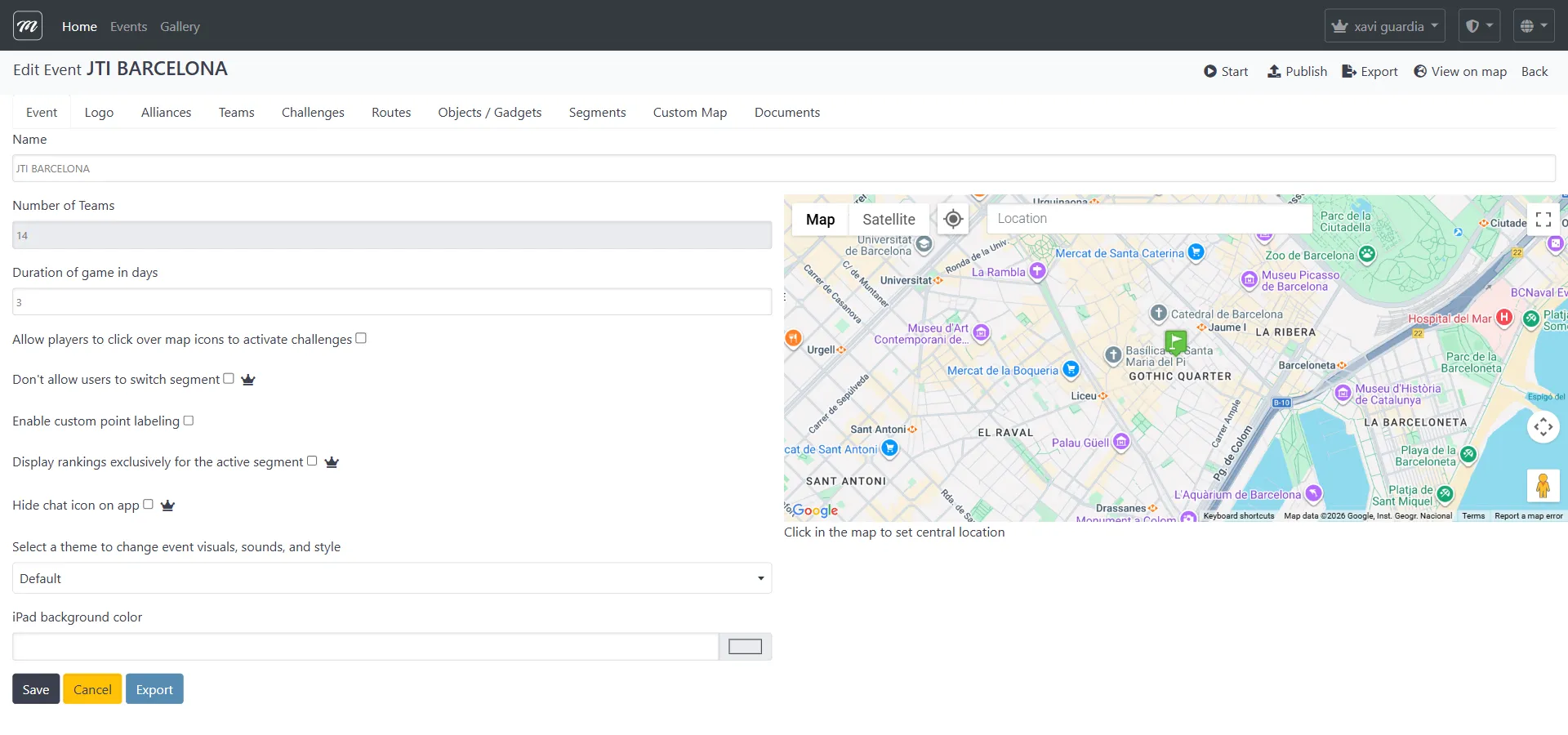
Fields / Options
Section titled “Fields / Options”| Field | Type | Description | Required |
|---|---|---|---|
| Name | Text | Event display name — visible to participants in the app and to admins in the list | Yes |
| Number of Teams | Text (numeric) | Maximum number of teams for this event. This field becomes read-only once sales (credit purchases) exist for the event | Yes |
| Duration of game in days | Text (numeric) | How many days the event window stays open after starting. Default: 15, minimum: 3, maximum: 120 | Yes |
| Allow players to click over map icons to activate challenges | Checkbox | When enabled, teams can tap challenge pins on the map to start them. When disabled, teams must physically walk to the GPS location | No |
| Don’t allow users to switch segment | Checkbox (Premium) | Locks teams to their assigned segment — they cannot manually switch between segments | No |
| Enable custom point labeling | Checkbox | Allows custom text labels on challenge map pins instead of default numbering | No |
| Display rankings exclusively for the active segment | Checkbox (Premium) | Shows only the leaderboard for the team’s current segment, hiding the global ranking | No |
| Hide chat icon on app | Checkbox (Premium) | Removes the team-to-team chat feature from the mobile app | No |
| Quiz Mode | Checkbox | Enables quiz/indoor mode for this event — optimized for presentation-style activities without GPS navigation | No |
| iPad background color | Text (hex) | Background color for the iPad app version. Enter a 6-digit hex value (e.g., ffffff for white) | No |
| Location | Text + Map | Geographic center of the event — type an address in the search box or click the map to place a pin. Uses Google Maps Places autocomplete | No |
| Event Theme | Select | Visual theme applied to the participant app: Default, Christmas, Pirates, Halloween | No |
Actions
Section titled “Actions”| Action | Description |
|---|---|
| Save | Saves the current tab settings and stays on the Edit page |
| Cancel | Discards changes and returns to the events list |
| Start | Opens the pre-start confirmation (see Live Control) |
| Publish | Marks the event as published — makes it visible to MooveGoXR self-service players browsing available experiences. Does not activate gameplay (use Start for that) |
| Export | Exports the event as XML (see Events Overview) |
| View on map | Opens a full-screen map with all challenge pins plotted |
| Back | Returns to the events list |
Behavior and rules
Section titled “Behavior and rules”- Duration determines the time window during which the event is active. When started, the start date is set to now and the end date to now + duration days (minimum 3 days).
- Theme affects only the visual appearance of the participant app — it does not change any gameplay mechanics.
- The map widget uses Google Maps with Satellite toggle and keyboard shortcuts support.
Related pages
Section titled “Related pages”- Events Overview — List, create, delete, copy, export
- Event — Logo — Next tab: logo and branding
- Flow 1 — Create a Complete Event — Step-by-step creation walkthrough
- How to create an event — Quick creation guide
- How to copy an event — Duplicating an existing event