

Flow 3 — Event Execution
What this flow covers
Section titled “What this flow covers”This flow describes what happens during a live MooveTeam CMS event — from the participants’ perspective (connecting and solving challenges) and from your perspective as administrator (monitoring, scoring, and managing the event in real time). It covers challenge activation, gadget use, scoring, and staff monitoring.
Prerequisites
Section titled “Prerequisites”- Event started (see Flow 2 — Start Event and Track)
- QR codes distributed to teams
- Tracking dashboard open on a staff device
Step-by-step
Section titled “Step-by-step”Step 1 — Teams connect via the mobile app
Section titled “Step 1 — Teams connect via the mobile app”Each team scans their QR code using the MooveXR app (iOS/Android) on their phone or tablet. The QR code:
- Opens the MooveXR app
- Registers the device to the team (device ID bound)
- Downloads the event package (challenges, map, assets)
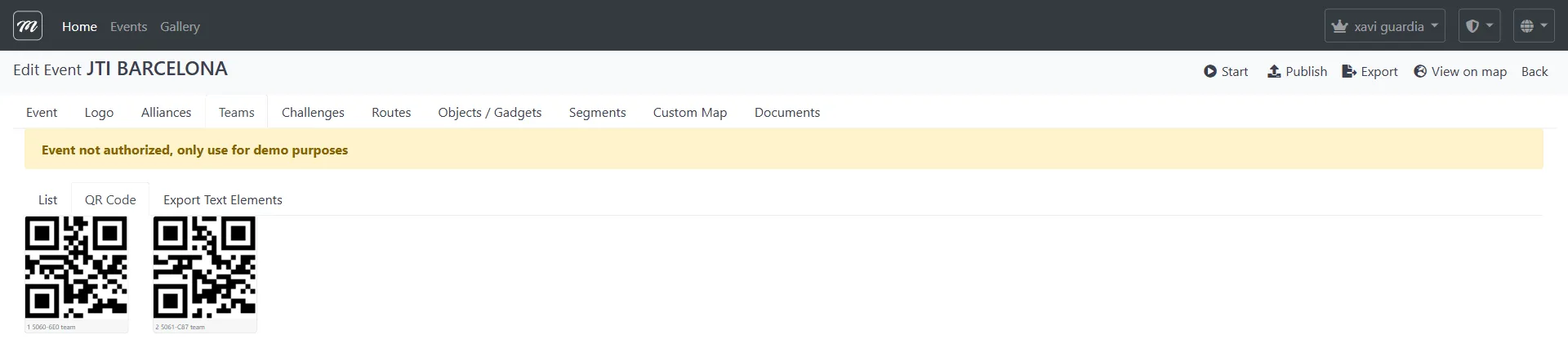
Admin view: As teams connect, their device registrations appear in the system. The tracking dashboard begins receiving GPS positions.
Step 2 — Teams see the event map
Section titled “Step 2 — Teams see the event map”Once connected, teams see the event map on their device:
- Standard map: Google Maps with challenge pins
- Custom map: If configured (see Flow 1 — Step 10), an illustrated overlay replaces the default map
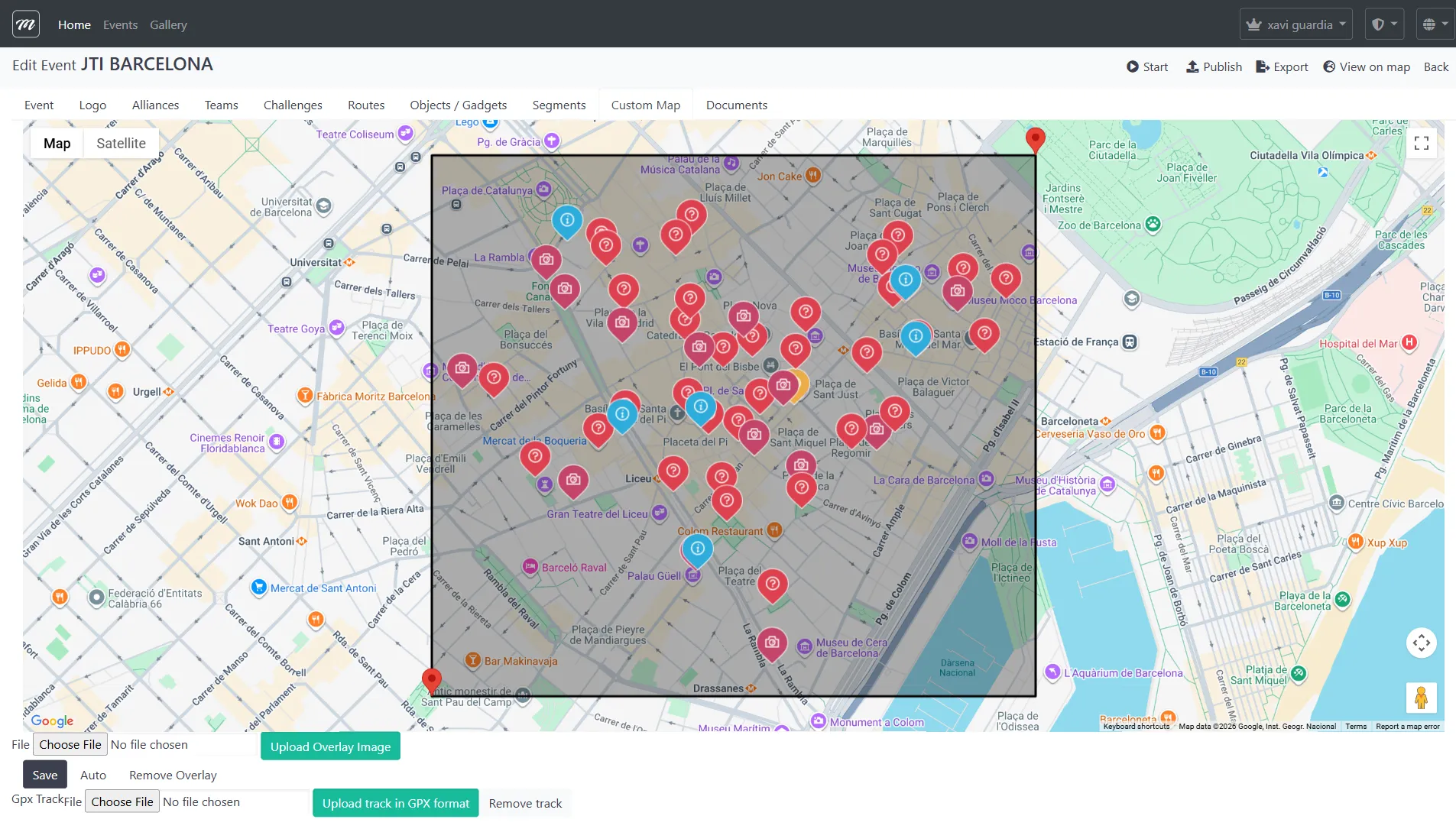
Challenge pins are visible according to their route visibility settings:
- Always visible — Pin shows from the start
- Sequential — Pin appears only after the previous challenge is completed
- Never show — Pin is hidden (triggered programmatically)
Step 3 — Challenges activate by GPS proximity
Section titled “Step 3 — Challenges activate by GPS proximity”When a team physically reaches a challenge location (GPS-based activation), the challenge activates on their device. The challenge type determines what happens next:
| Challenge Type | What the team does | How results are recorded |
|---|---|---|
| Questions | Multiple-choice answer | Auto-scored: correct/incorrect + points |
| Photo/Video | Take a photo or video | Submitted for manual scoring (see Step 6) |
| Hints | Read informational content | No scoring — context for the next challenge |
| Puzzle | Solve an image puzzle | Auto-scored on completion |
| Guess the Word | Guess from letter clues (includes hangman variant) | Auto-scored on completion |
| Find the Pairs | Memory card matching | Auto-scored on completion |
| Related Words | Word association game | Auto-scored on completion |
| Slot Machine | Spin to match symbols | Auto-scored on combination |
| AR Shell | Augmented reality shell game | Auto-scored on selection |
| Guess the Song | Identify a music clip | Auto-scored on answer |
| Robots | Robot-based interaction | Auto-scored on interaction |
| Physical Activity | GPS-tracked movement | Auto-scored on GPS data |
| Geolocated Video | Watch video at location | Auto-scored on completion |
Step 4 — Points accumulate in real time
Section titled “Step 4 — Points accumulate in real time”As teams submit challenge responses:
- The server records each result with: team, challenge, answer, points, timestamp, photo
- Points are calculated immediately (auto-scored) or set to 0 pending manual scoring (photo challenges)
- The live leaderboard updates on public displays
Admin view — Tracking dashboard:
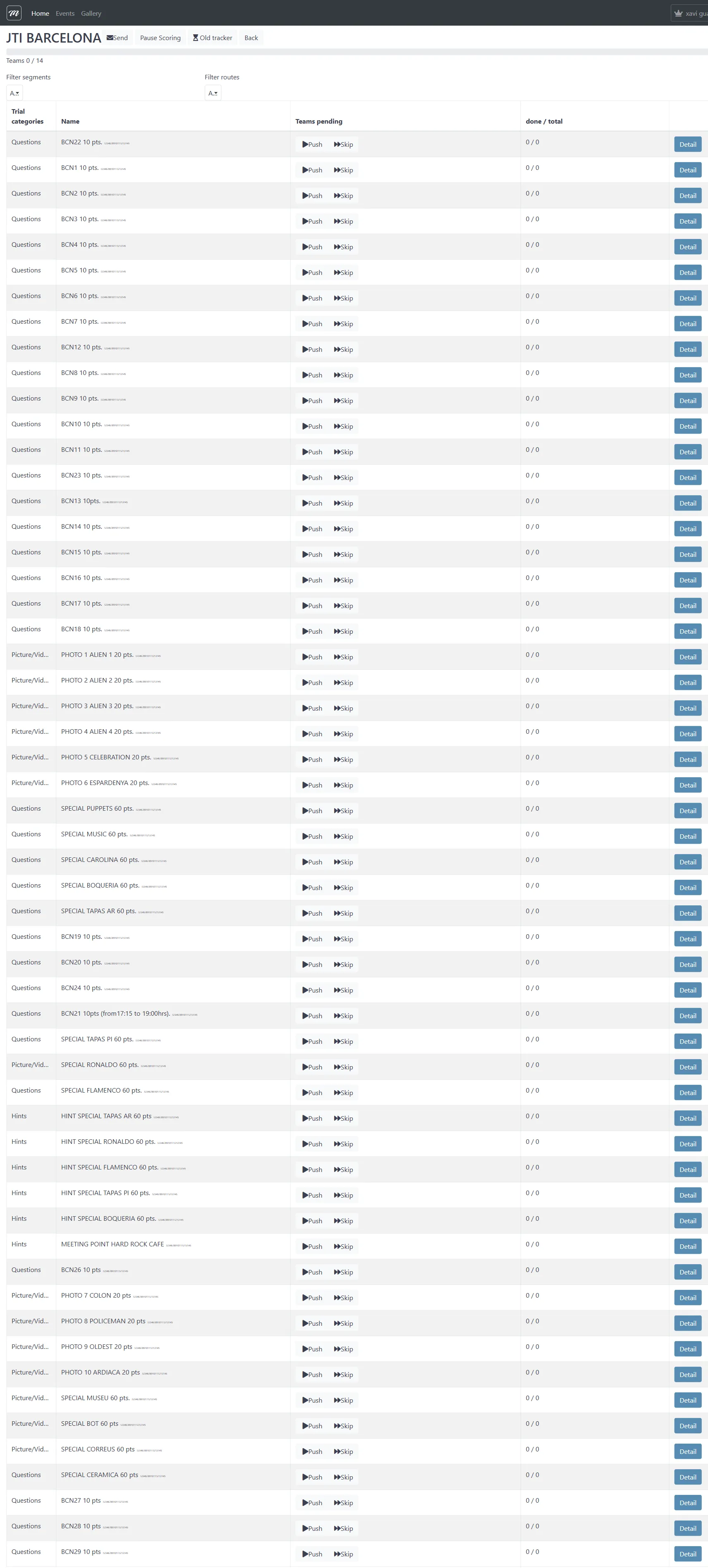
Watch the done / total column. When a challenge row shows “14 / 14”, all teams have completed it.
Step 5 — Teams use gadgets to sabotage rivals
Section titled “Step 5 — Teams use gadgets to sabotage rivals”During the event, teams can “send” gadgets to rival teams. The receiving team’s device displays the gadget effect.
| Gadget | Effect on target team’s device |
|---|---|
| Broken Screen | Cracked screen overlay (visual disruption) |
| X Ray | Reveals opponent team information |
| Love | Distracting hearts animation |
| Scaring Ghost | Jump-scare animation |
| Fart | Sound and visual effect |
| Fireworks | Visual animation overlay |
| Lock Screen | Temporarily locks the device interface |
| Inverted Screen | Inverts the display orientation |
| Bomb | Explosive animation effect |
| Drunk Screen | Visual distortion effect |
Each gadget has a limited stock per team (configured in Flow 1 — Step 8). Once used, a gadget unit is consumed.
Step 6 — Score photo and free-text challenges manually
Section titled “Step 6 — Score photo and free-text challenges manually”Some challenge types require manual scoring by you:
- Photo/Video challenges — Teams submit a photo; you decide how many points to award
- Free-text questions — Teams write an answer; you judge it
Navigate to: Results list → Score free text questions link

For each unscored response:
- Read the team’s answer or view their photo
- Enter a point value in the Points field
- Click Send to save
You can also score inline from the results list: the Points column for photo challenges is editable (click → type → save).
See: Event — Results for detailed scoring reference
Step 7 — Monitor the event from the tracking dashboard
Section titled “Step 7 — Monitor the event from the tracking dashboard”Throughout the event, keep the tracking dashboard open to:
Track challenge completion:
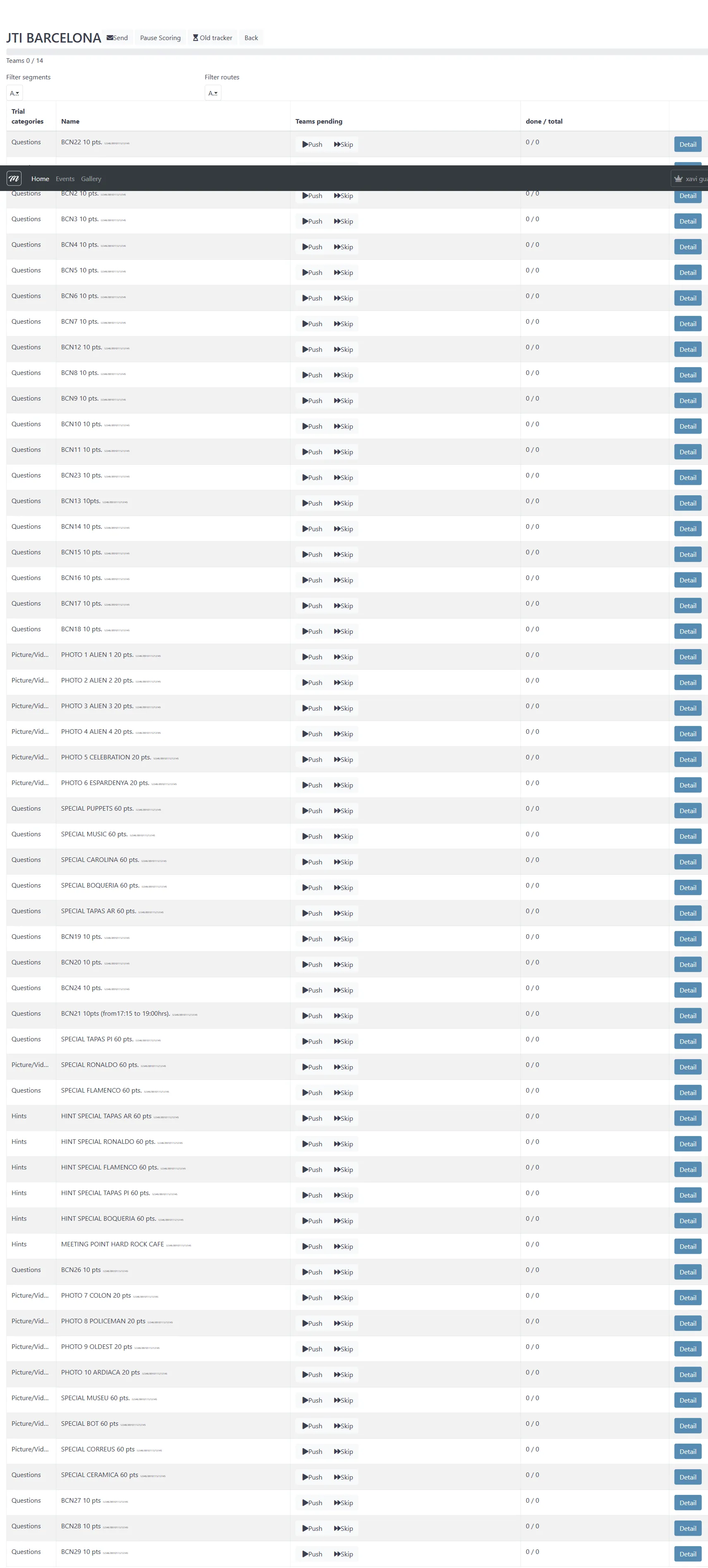
- Identify challenges with unusually high pending counts (teams may be confused or lost)
- Verify all challenge types are being attempted, not just easy ones
Track segments (if configured):

- See which phase each team is in
- Manually reassign teams to a different segment if needed (sends a push to their device)
Use public displays:
| Display | URL | Purpose |
|---|---|---|
| Results board | Available from the event’s action menu | Live leaderboard for venue screens |
| Control Panel | Available from the event’s action menu | Customizable live display |
| Photo slideshow | Via row dropdown → Photo slideshow | Cycles through team photo submissions |
Step 8 — Handle edge cases during the event
Section titled “Step 8 — Handle edge cases during the event”| Situation | Admin action |
|---|---|
| Team can’t connect | Verify QR code is correct; check device registration in the system |
| Team stuck on a challenge | View their responses in the results list; consider manually scoring or giving hints via message |
| Scoring needs to be hidden | Suspend scoring (see Flow 2 — Step 10) |
| Team needs to change segment | Use segment tracking → manual reassignment |
| Event needs to end early | Proceed to Flow 4 — Finalize |
What happens next
Section titled “What happens next”When the event reaches its natural end or you decide to stop it:
- See Flow 4 — Finalize, Results, and Export for how to stop the event, review results, generate reports, and export data.
Related flows
Section titled “Related flows”- Flow 2 — Start Event and Track — How the event was started
- Flow 4 — Finalize, Results, and Export — Ending the event and extracting value
- Flow 1 — Create a Complete Event — The configuration that defines this event