

How do I add teams?
Before you start
Section titled “Before you start”- The event must be stopped (you cannot add teams to a running event)
- Open your event (Events list → click the event name).
- Click the Teams tab.
- Click New.
- Fill in:
| Field | What to enter |
|---|---|
| Number | Team number (1, 2, 3…) |
| Name | Team name (“Blue Sharks”, “Team Alpha”) |
| Email Address | Contact email (optional — used for sending activation links) |
| Route | Which route this team follows (leave empty if you have not created routes yet) |
| Alliance | Which alliance this team belongs to (optional) |
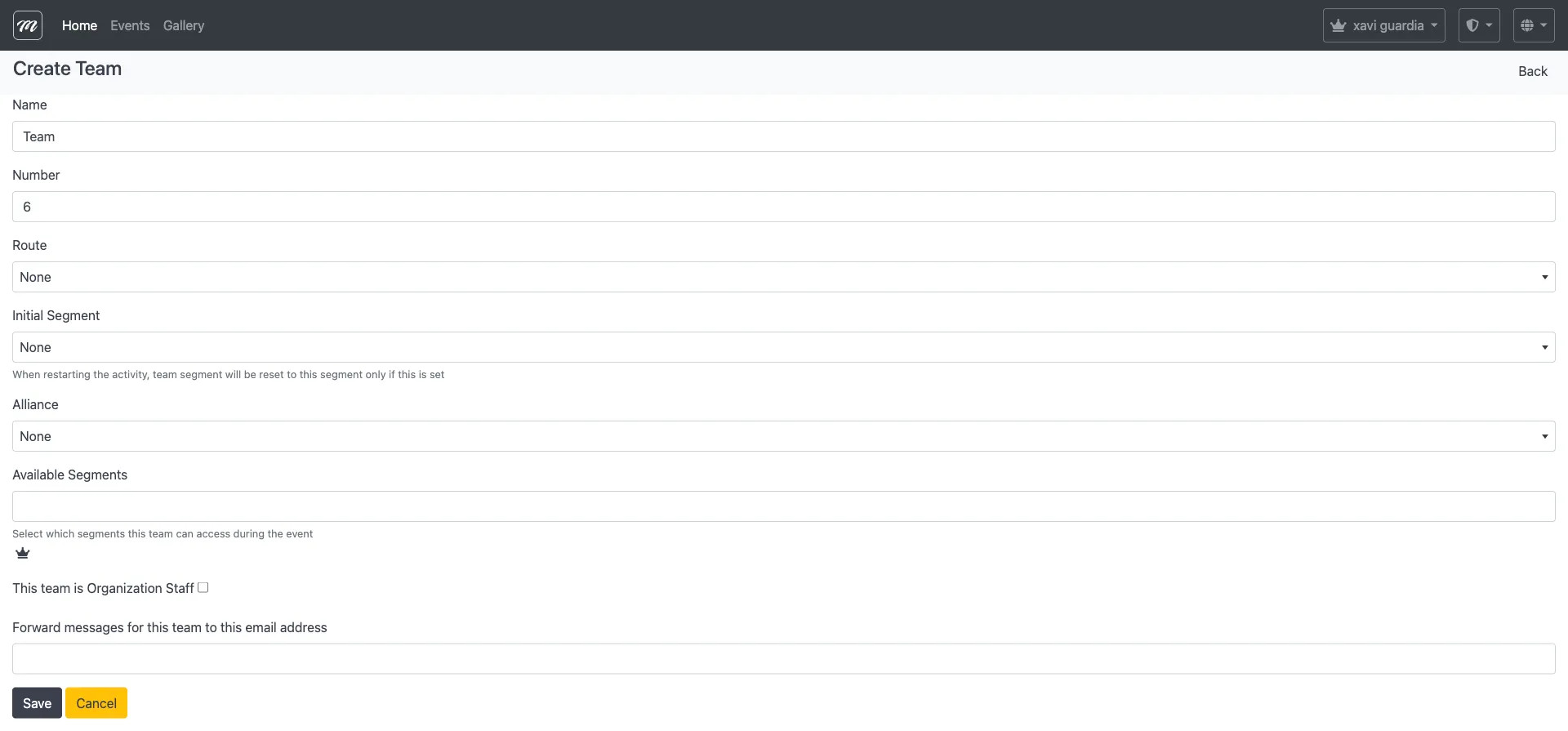
- Click Save.
- Repeat for each team.
Result
Section titled “Result”Teams appear in the Teams tab list. Each team can now be assigned a route, sent a QR code, or marked as staff.
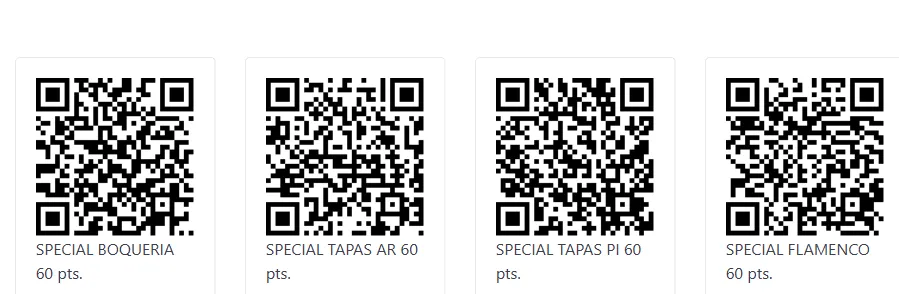
After creating all teams, use the QR Code sub-tab to generate activation codes for distribution:
Need many teams? See Import teams from CSV to add them all at once.
For field-level detail, see the Teams reference.