

How do I import teams from a CSV file?
Before you start
Section titled “Before you start”- The event must be stopped
- A CSV file with your team data (see format below)
- Open your event → Teams tab.
- Click Import.
- Select your CSV file.
- Review the imported teams in the list.
CSV format
Section titled “CSV format”The CSV file must follow this format:
| Column | Required | Description |
|---|---|---|
| Team Name | Yes | Display name for the team |
| No | Team contact email (used for message forwarding) | |
| Alliance | No | Name of the alliance to assign the team to |
| Route | No | Name of the route to assign the team to |
- Separator: Semicolon (
;) or comma (,) - Encoding: UTF-8 recommended (to handle accented characters)
- Header row: Optional — if present, it is skipped automatically
- One team per row
Example:
Team Alpha;alpha@example.com;Red Alliance;Route NorthTeam Beta;beta@example.com;Blue Alliance;Route SouthTeam Gamma;;;Result
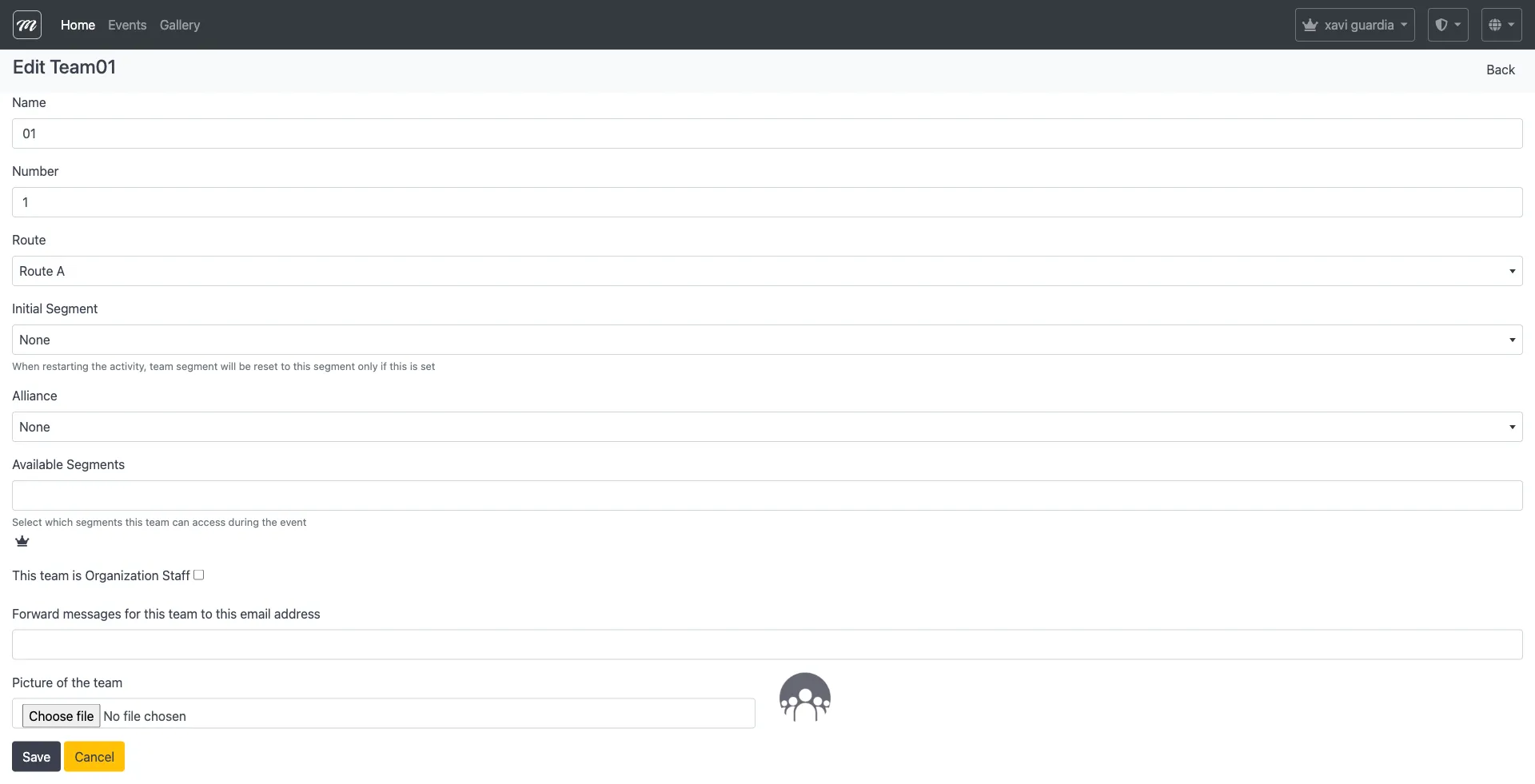
Section titled “Result”All teams from the file appear in the Teams tab. You can edit any team individually after import to assign routes, alliances, or upload photos.
If something goes wrong: If some rows fail, check for special characters or empty fields in your CSV. Fix the file and try again — importing does not create duplicates if the same team number already exists.
For adding teams manually, see Add teams.