

Run Your First Event
What you will need
Section titled “What you will need”- The event you created in the previous chapter
- A phone with the MooveXR app installed (optional — demo mode works without real players)
Start a demo
Section titled “Start a demo”Demo mode lets you test everything for free. It works exactly like a real event, but is limited to 2 teams and costs nothing.
- Go to the Events list.
- Click the green Start button on your event’s row (or open the event edit page and click Start in the top-right action bar).

- You will see two tabs: Demo and Real Game. Make sure the Demo tab is selected.
- Click Start.
Your event is now running.
What just happened behind the scenes: MooveTeam CMS set a start date, cleared any old test data, distributed gadgets to teams, and prepared the game for players to connect.
What players do (so you know what to expect)
Section titled “What players do (so you know what to expect)”When the event is running, players join by scanning a QR code or tapping a link. Here is what they experience:
- They open the MooveXR app on their phone.
- They scan the QR code you generated (from the Teams tab → QR Code sub-tab) or tap the activation link you emailed them.
- The app loads the event — they see a map with challenge icons.
- They walk toward a challenge location. When they are close enough, the challenge opens automatically.
- They complete the challenge (answer a question, take a photo, solve a puzzle).
- They earn points. The leaderboard updates in real time.
- They continue to the next challenge on their route.
For your demo test, you do not need real players walking around. The demo confirms that:
- Your challenges appear on the map at the right locations
- The routes make sense
- The scoring works
- The QR codes generate correctly
What staff teams see
Section titled “What staff teams see”If you marked a team as “Organization Staff,” their app experience differs from regular players:
- They see the same map with all challenge locations
- They can walk to challenges and view their content
- Their results are recorded but earn 0 points — they do not appear on the leaderboard
- They do not consume credits
- They can receive messages from the back-office
Use staff teams for on-site coordinators who need to see the map and challenges without affecting the competition.
Track teams live
Section titled “Track teams live”While the event is running, you can monitor everything from the tracking dashboard.
From the events list, click the  toolbox icon on your event’s row, then click Results (
 pencil icon). You will see:
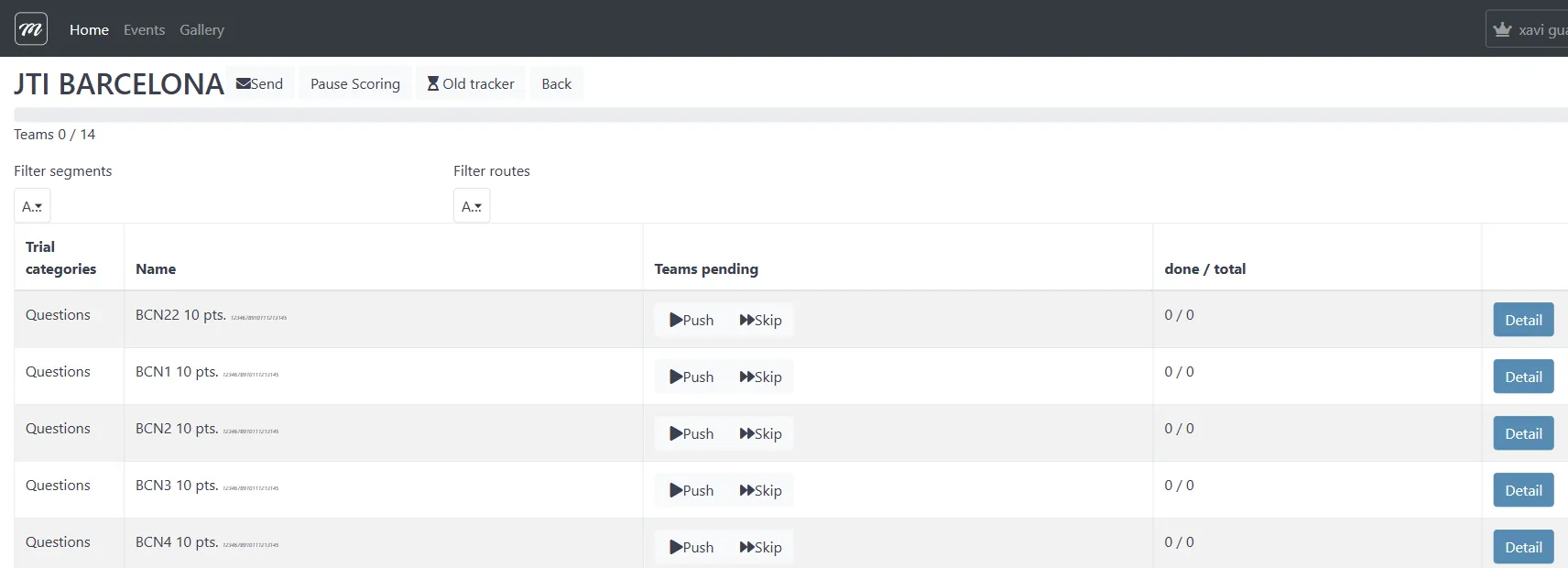
The tracker shows every challenge in your event as a row. Each row displays:
| Column | What it shows |
|---|---|
| Trial categories | The challenge type (Questions, PhotoVid, Hints, etc.) |
| Name | Challenge name and point value |
| Teams pending | Teams that have not completed this challenge yet, with Push and Skip controls |
| done / total | Completion count (e.g., “3 / 10” means 3 out of 10 teams finished it) |
| Detail | Opens the detailed view for that challenge |
What you can do during a live event
Section titled “What you can do during a live event”| Action | How | When to use it |
|---|---|---|
| Push a challenge | Tracker → click Push on the challenge row | A team is idle or stuck — forces the challenge to their device |
| Skip a challenge | Tracker → click Skip on the challenge row | A challenge is causing problems or a team cannot reach the location |
| Send a message | Teams tab → select a team → Send message | A team is lost, you need to give them a hint, or you want to announce something |
| Score a photo | Tracker → click a photo challenge → review submissions | A team submitted a photo that needs manual scoring |
| Check a team’s position | Tracker → team statistics | You want to know where a team is |
| Suspend the leaderboard | Action menu → Suspend scoring | You want to hide rankings before the final reveal |
| Reassign a segment | Segment tracking → move a team to a different segment | A team is stuck and needs to skip ahead |
Score photo challenges
Section titled “Score photo challenges”Photo and video challenges are not scored automatically — you decide how many points each submission deserves. During the event (or after):
- Open the tracker or results list.
- Find photo challenge results showing 0 points.
- Click the points field and type the score (e.g., 150 out of 200).
- Click Save.
The team’s total score updates immediately.
Handle common problems
Section titled “Handle common problems”| Problem | What to do |
|---|---|
| A team cannot connect | Check that the event is running (green Start button should now say the event is active). Regenerate the QR code from the Teams tab and have them scan again. |
| A challenge does not activate | Verify the GPS coordinates are correct. The player must be within range of the challenge location. Check if the challenge is assigned to the team’s route. |
| A team is on the wrong route | Edit the team in the Teams tab and change their route assignment. |
| You need to hide the leaderboard | Use Suspend Scoring to temporarily hide rankings from all public displays. Results still accumulate — they just are not shown. |
| A device crashes | The player can re-open the app and rejoin. Their progress is saved on the server, not on the device. |
Start a real event
Section titled “Start a real event”When you are ready to run the event with actual participants (after testing in demo mode), the process is almost the same:
-
Click Start on the event.
-
Select the Real Game tab.
-
Review the credit cost:
- Credit balance shows how many credits your company has
- Number of teams shows how many playing teams will consume credits (1 credit per playing team)
- Staff teams are free — they do not consume credits
- Credits remaining after shows your balance after the deduction
- Click Accept sale and play to start (this deducts credits from your balance — it is not a credit card charge).
Stop the event
Section titled “Stop the event”When the event is finished:
- Go to the Events list and find your event. The green Start button is now a red Stop button (because the event is running).
- Click Stop. A confirmation screen shows how many results and GPS positions were captured.
- Click Stop again to confirm.
The event stops immediately. All data is preserved — results, photos, GPS tracks, messages. Nothing is deleted when you stop. See Live Control for full details.
What you have learned
Section titled “What you have learned”You now know how to:
- Start an event in demo mode (free) or real mode (uses credits)
- Monitor teams using the tracking dashboard
- Score photo challenges manually
- Send messages to teams
- Handle common problems during a live event
- Stop an event safely
For field-level detail on live operations, see the Live Control Reference and Results Reference.
Next: Results and Export — review scores, generate reports, and export everything for your client.