

Icon Legend
Visual glossary of all icons, badges, and indicators used in the MooveTeam CMS back-office. Premium accounts may also see custom map icons uploaded from the Gallery.
Event list row — overview
Section titled “Event list row — overview”The event list row packs many controls into a single line. This annotated capture shows every button and icon in context:

From left to right: Edit (pencil), Actions toolbox (briefcase with dropdown arrow), Status tag (“active” badge with remove), Add tag (blue plus), event name and location, date, Elements dropdown, Start button, Results icons (four small buttons), Buy/Pay (shopping cart).
Navigation icons
Section titled “Navigation icons”Icons that appear in the top-right user dropdown menu and in sidebar/submenu navigation.
| Icon | Meaning | Where it appears |
|---|---|---|
 | Current user / User management | Top menu bar, Users admin |
 | Language selector / Current GPS position | Top menu dropdown, challenge map |
 | My Data (account settings) | User menu |
 | Downloads page / Export to Excel | User menu, event actions |
 | Accounting (credit purchases and billing) | User menu |
 | Events list / Ticket management | User menu, MooveGoXR tickets |
 | Characters (personajes / avatars) | User menu |
 | AR Scenes / Gallery 3D | User menu, admin menu |
 | End Users (usuarios finales) | User menu |
 | Admin tools submenu header | Admin submenu |
 | Jobs / Database utilization / Disk utilization | Admin submenu |
 | Control Panel / Credits list | Admin submenu, credits |
 | Challenge Types / Challenges | Admin submenu, element lists |
 | Error Log | Admin submenu |
 | Sales (ventas) / Special messages | Admin menu, Gamestation |
 | Result photos | Admin menu, results |
 | Companies (empresas) | Admin menu |
 | Log Off | User menu (bottom) |
Element icons
Section titled “Element icons”Icons used in the Elements dropdown on the event list and in element index pages. Each icon identifies a type of element within an event.
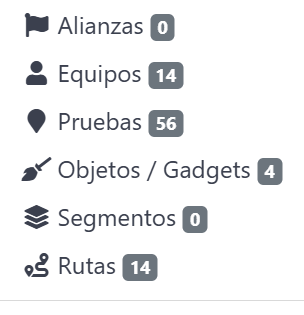
The Elements dropdown ( ) provides quick navigation to each element type with a count badge.
| Icon | Meaning | Where it appears |
|---|---|---|
 | Alliances / Segment tracking view | Event list dropdown, tracking |
| Teams | Event list dropdown |
| Challenges | Event list dropdown |
 | Objects and Gadgets / Segments | Event list dropdown |
 | Routes | Event list dropdown |
| Trophy image | Results column header (custom PNG, not a font icon) | Event list header, results column |
Map icons
Section titled “Map icons”Icons that appear on Google Maps views when editing challenges, routes, or tracking live events.
Default challenge pins
Section titled “Default challenge pins”Challenge locations use blue numbered pins (1, 2, 3…) to indicate their position and order on the map.
Static map icons (selectable per challenge)
Section titled “Static map icons (selectable per challenge)”Accounts can select a map icon from a predefined set of images.
| Icon | Description |
|---|---|
| (default) | Standard numbered pin |
 | Beer |
 | Bomb |
 | Box |
 | Find QR |
 | Flag |
 | Food |
 | Food (variant) |
 | |
 | Guess the Word minigame |
 | Find Pairs minigame |
 | Related Words minigame |
 | Puzzle minigame |
 | Hint |
 | Megaphone |
 | Moove logo |
 | Picture (Photo challenge) |
 | Question |
 | Question (green) |
 | Augmented Reality |
 | Star |
 | Stopwatch |
 | Team |
 | Video |
 | Zest |
 | Transparent (invisible marker) |
Custom map icons (Premium only)
Section titled “Custom map icons (Premium only)”Premium accounts see an additional Customized Icon dropdown that lists images from the company’s Gallery. Upload a square PNG to the Gallery, then select it as a custom challenge pin.
Tracking map pins
Section titled “Tracking map pins”During live tracking, team positions use blue lettered pins on the map.
Status indicators
Section titled “Status indicators”Visual cues that communicate the current state of an event or element.
| Indicator | Meaning | Where it appears |
|---|---|---|
 | Event is stopped — click to start | Event list, Actions column |
 | Event is running — click to stop | Event list, Actions column |
| MooveGoXR logo | Event is a MooveGoXR event (self-guided tourism mode) | Event list, next to event name |
| Blue badge with count | Number of child elements (e.g., “Teams 4”, “Challenges 12”) | Element dropdown items |
 | Challenge property values (points, time limit, radius, etc.) | Challenge list columns |
 | Correct answer / Feature enabled / Attribute is true | Challenge details, Multi-Edit, team list |
 | Incorrect answer / Feature disabled | Challenge details |
 | Loading spinner — operation in progress | Start Event button |
 | Premium-only feature indicator (crown icon) | Event actions dropdown, event settings |
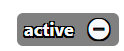 | Event status badge — removable tag (click minus to remove) | Event list row |
 | Company has premium subscription | Companies list |
Action icons
Section titled “Action icons”Icons on buttons that trigger create, edit, and delete operations.
Event actions toolbar
Section titled “Event actions toolbar”The actions toolbox button ( briefcase icon with dropdown arrow) opens the full event actions menu:
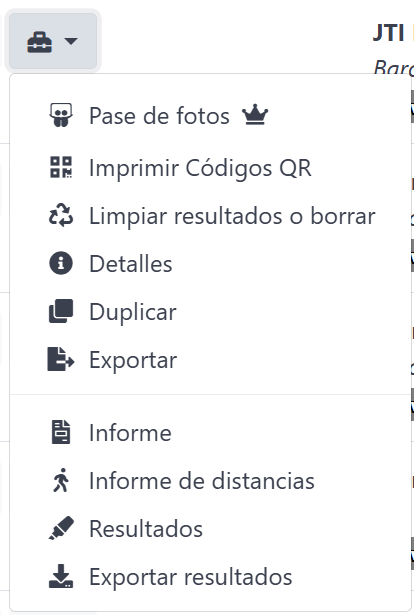
The menu is divided into two groups. Upper group (event management): Photo slideshow, Print QR Codes, Clear results / Delete, Details, Duplicate, Export. Lower group (results & reports): Report, Distances report, Results, Export results.
Results row icons
Section titled “Results row icons”The results column shows a compact row of four quick-access icons:
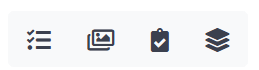
From left to right: Follow (tracking list), Photo slideshow, Results (clipboard), Segments (layers).
Complete icon reference
Section titled “Complete icon reference”| Icon | Meaning | Where it appears |
|---|---|---|
 | Edit this item | List rows (events, teams, challenges, etc.) |
 | Delete this item | List rows, challenge sub-items |
 | View event details (summary page) | Event actions dropdown |
 | Duplicate event / Export event | Event actions dropdown |
 | Generate printable report | Event actions dropdown |
 | Print QR codes / Ticket management | Event actions dropdown, MooveGoXR tickets |
 | Follow live (tracking view) | Event list, results column |
 | Confirm purchase / Buy credits | Event list, purchases column |
| View purchase details | Event list, purchases column |
 | Back / Return to parent list | All detail/edit pages (top-right) |
 | Start event | Event list, edit page |
 | Stop event | Event list |
 | Add image / Add item / Add tag | Challenge sub-item forms, tag creation |
 | Remove image / Remove item | Challenge sub-item forms |
| Export to Excel / Download data | Event actions dropdown |
 | Export results (download to tray) | Event actions dropdown |
 | Export pictures and videos | Event actions dropdown |
 | Distances report (walking person icon) | Event actions dropdown |
| Clear results (circular arrows) | Event actions dropdown |
 | View sub-item details | Challenge index (sub-item lists) |
 | Optimize images | Event edit page |
 | Manage event tasks | Indoor event list |
 | Authorize a sale | Distributor panel |
 | Transfer credits / Purchase details | Distributor panel, Indoor event list |
 | Messages | Gamestation results |
Tag management
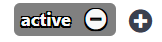
Section titled “Tag management”Events can have custom status tags displayed as colored badges on the event list row.
| Icon | Meaning | Where it appears |
|---|---|---|
| Create a new custom tag for this event | Event list row, next to status tags |
 | Remove this tag from the event | Inside status tag badge |
Related pages
Section titled “Related pages”- Events — Event list, creation, editing, and deletion
- Concepts — Overview of the MooveTeam platform and its architecture
- Glossary — Definitions of key terms used in MooveTeam CMS
- Limits and Capacities — Practical constraints for planning events
- Game Mechanics — Map mechanics, challenge types, and scoring