

Events
What it does
Section titled “What it does”Events are the central building block of MooveTeam CMS. Every team, challenge, route, and score belongs to an event. This page covers the event list, creating new events, and the management operations available for existing events: editing, deleting, duplicating, and exporting/importing as XML.
How to access
Section titled “How to access”Login → Events (main page after login, or sidebar → Events)
Events list
Section titled “Events list”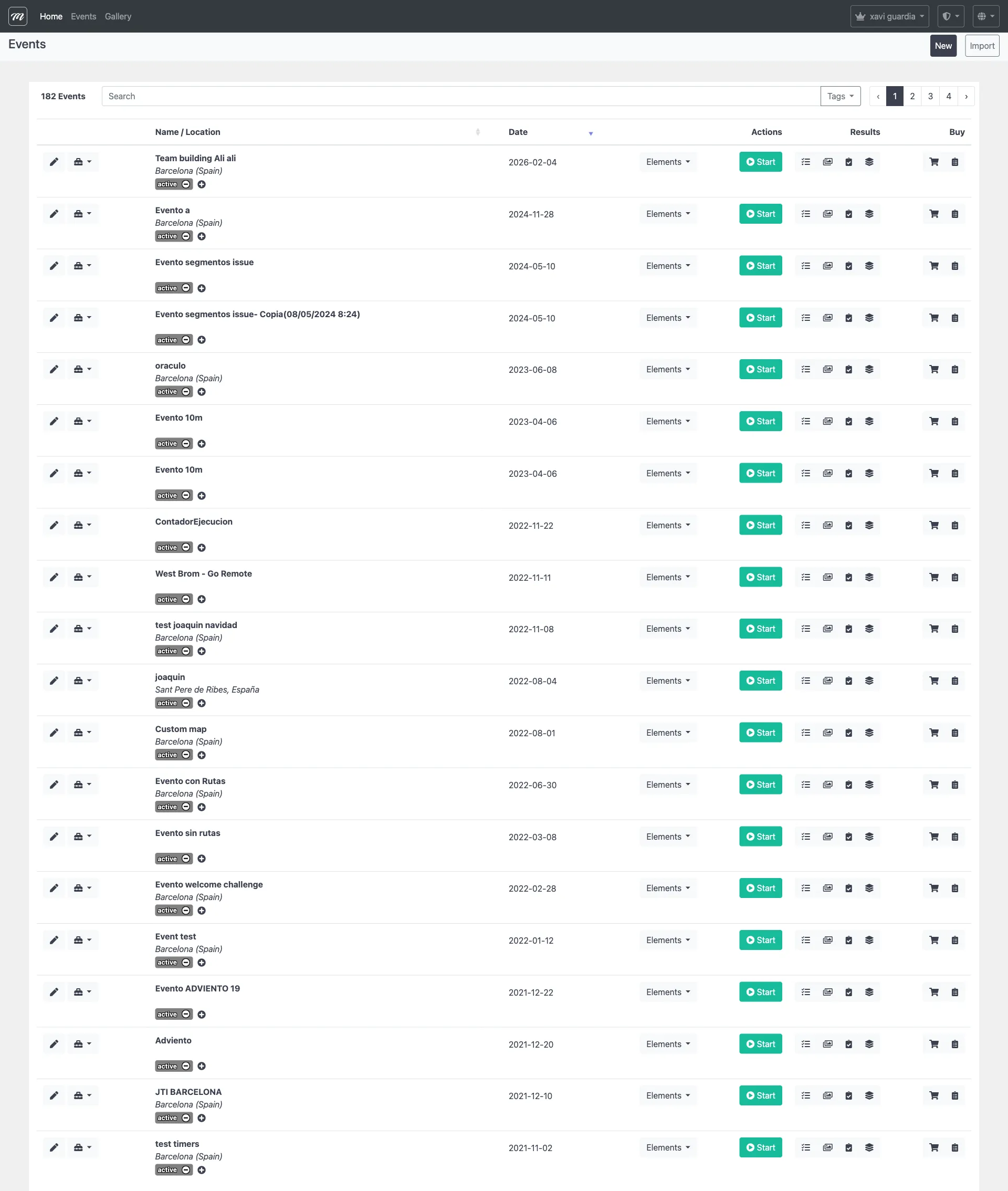
Event list
Section titled “Event list”The events list is the main landing page of the admin panel. It displays all events belonging to your company in a paginated, searchable table.
Columns
Section titled “Columns”| Column | Description |
|---|---|
 Start Start | Green button — starts the event (see Live Control) |
| Name | Event name (clickable — opens Edit view) |
| Date | Event creation date |
| Location | Geographic location set for the event |
| Teams | Number of teams assigned |
| Challenges | Number of challenges created |
| Actions | Row icons: results, details, dropdown menu |
Row dropdown menu
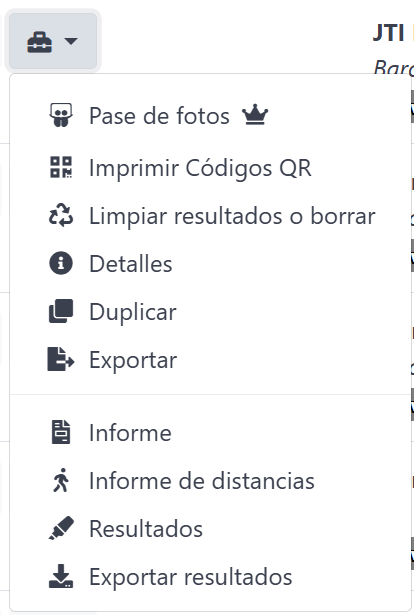
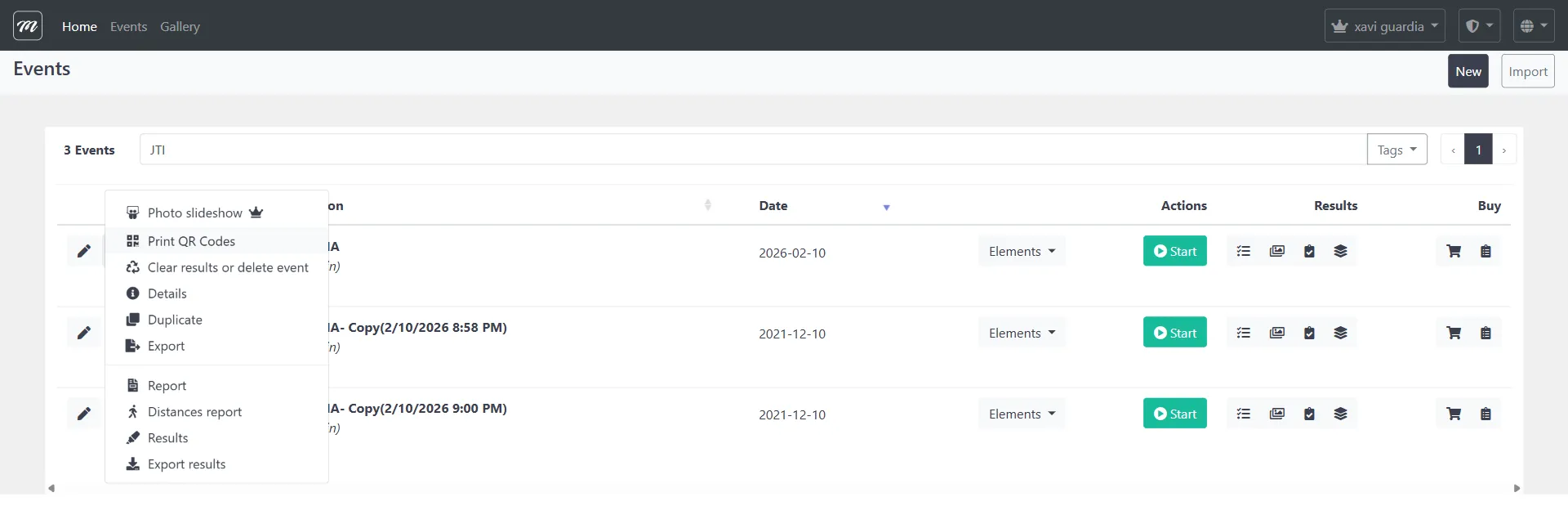
Section titled “Row dropdown menu”Each event row has a dropdown menu ( briefcase icon with dropdown arrow) providing quick access to operational actions:
| Action | Icon | Description |
|---|---|---|
| Photo slideshow |  | Opens the event photo slideshow display  |
| Print QR Codes |  | Generates printable QR codes for team registration |
| Clear results or delete event |  | Clears accumulated data or permanently deletes the event |
| Details |  | Opens the event details/statistics page |
| Duplicate |  | Creates a copy of the event (see Copy event) |
| Export |  | Exports the event as XML (see Export event) |
| Report |  | Generates the event performance report |
| Distances report |  | Generates team distance/movement report |
| Results |  | Opens the admin results table (see Results) |
| Export results |  | Exports results data for external analysis |
Filtering
Section titled “Filtering”Use the search box to filter across all columns, and the pagination controls to change page size (10, 25, 50, 100 entries per page).
Create event
Section titled “Create event”Events list → click New

Fields
Section titled “Fields”| Field | Type | Description | Required |
|---|---|---|---|
| Name | Text | Event display name (visible to participants and in the admin list) | Yes |
| Number of Teams | Text (numeric) | Maximum number of teams for this event | Yes |
| Duration of game in days | Text (numeric) | How many days the event window stays open after starting (default: 15, minimum: 3, maximum: 120) | Yes |
| Location | Text + Map | Geographic center of the event — type an address or click the map to place a pin | No |
| Event Theme | Select | Visual theme for the participant app: Default, Christmas, Pirates, Halloween | No |
Actions
Section titled “Actions”| Action | Description |
|---|---|
| Save | Creates the event and redirects to the Edit page with all 10 tabs |
| Cancel | Returns to the events list without creating |
Behavior
Section titled “Behavior”- After saving, you are redirected to the Event Edit page where the 10 configuration tabs are available.
- The event starts in a non-active state — it must be explicitly started via Live Control.
Edit event / tab navigation
Section titled “Edit event / tab navigation”Events list → click event name, or Events list → New → Save
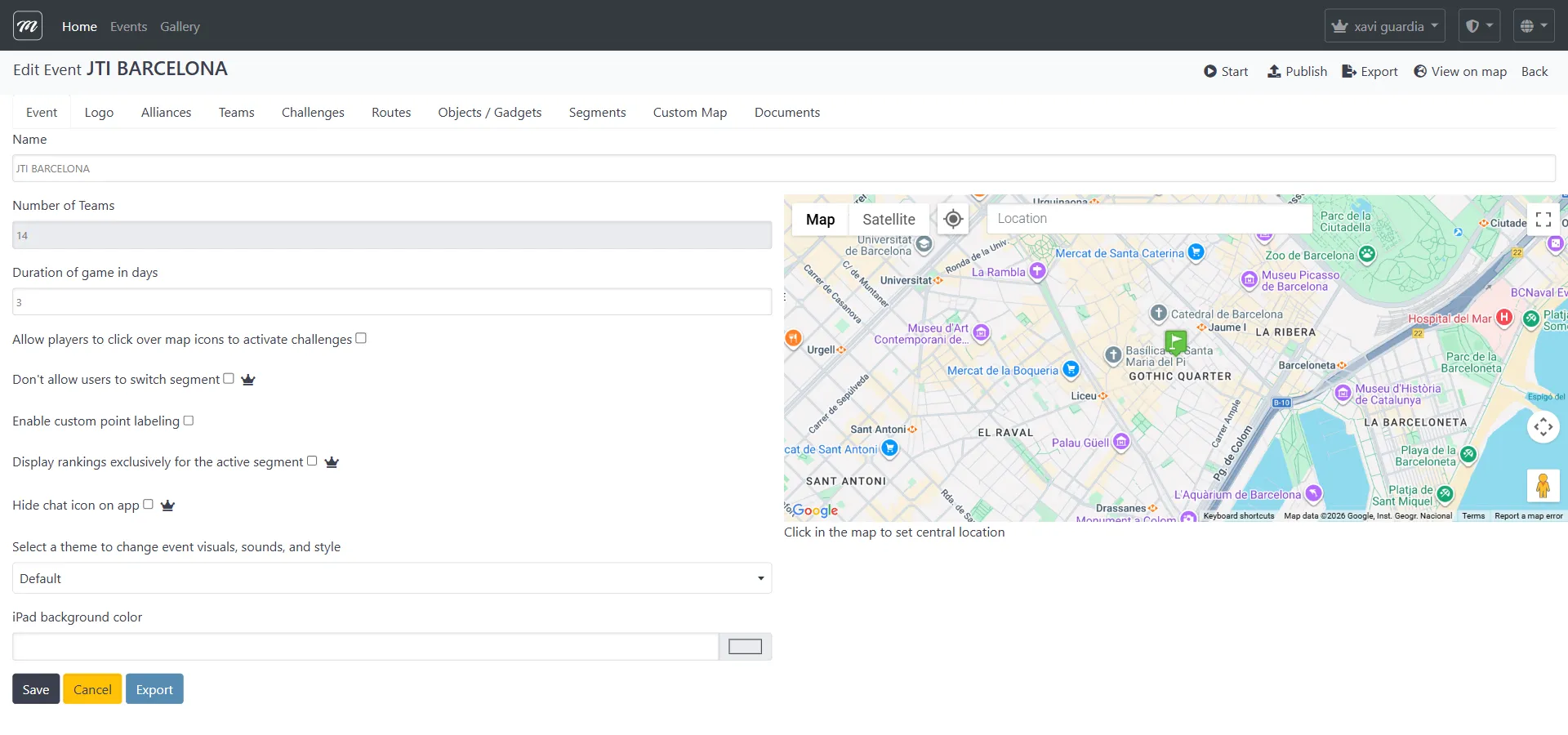
The Edit page is the main workspace for configuring an event. It displays 10 tabs across the top, each controlling a different aspect of the event:
| Tab # | Tab name | What it configures | Doc page |
|---|---|---|---|
| 1 | Event | General data, gameplay options, location, theme | Event — General Data |
| 2 | Logo | Event logo and custom bottom-bar logo | Event — Logo |
| 3 | Alliances | Team alliance groups | Event — Alliances |
| 4 | Teams | Team management with sub-tabs: List, QR Code, Export Text Elements | Event — Teams |
| 5 | Challenges | Challenge creation and the 14 challenge types | Event — Challenges |
| 6 | Routes | Route editor with map and ordering controls | Event — Routes |
| 7 | Objects / Gadgets | Collectible objects and sabotage gadgets | Event — Objects / Gadgets |
| 8 | Segments | Game phases and progressive unlocking | Event — Segments |
| 9 | Custom Map | Map overlay images and GPX tracks | Event — Custom Map |
| 10 | Documents | Attached files for teams, staff, and AR | Event — Documents |
Action bar
Section titled “Action bar”The top-right action bar is always visible across all tabs:
| Action | Description |
|---|---|
| Start | Opens the pre-start confirmation page (see Live Control) |
| Publish | Marks the event as published — makes the event visible to MooveGoXR self-service players who browse available experiences. Unlike Start (which activates gameplay), Publish only controls visibility in the public event listing. For staffed MooveXR events, you typically Start without publishing. |
| Export | Exports the event as XML |
| View on map | Opens a full map view showing all challenge locations as pins |
| Back | Returns to the events list |
Delete event
Section titled “Delete event”Events list → row dropdown → Clear results or delete event
The delete page provides two destructive operations:
Clear results
Section titled “Clear results”Removes all results, photos, GPS positions, gadget inventories, and team messages for the event. The event configuration (teams, challenges, routes, segments) is preserved.
Delete event
Section titled “Delete event”Permanently removes the entire event and all associated data. To prevent accidental deletion, type the event name exactly into the confirmation field before the Delete button becomes active.
| Field | Type | Description | Required |
|---|---|---|---|
| Event name confirmation | Text | Must match the event name exactly to enable the Delete button | Yes |
| Action | Description |
|---|---|
| Clear Results | Deletes results and operational data only. Event structure is kept |
| Delete Event | Permanently deletes the event and all associated data. Cannot be undone |
| Back to event list | Returns without making changes |
Behavior and rules
Section titled “Behavior and rules”- The Delete button remains disabled until you type the event name exactly as it appears.
Copy event
Section titled “Copy event”Events list → row dropdown → Duplicate
Copying creates a complete duplicate of an event, including all its configuration. This is a critical workflow for agencies that reuse event templates across clients or dates.
What gets copied
Section titled “What gets copied”| Element | Copied? | Notes |
|---|---|---|
| Event settings | Yes | Name appended with “(Copy DD/MM/YYYY HH:MM)“ |
| Routes | Yes | Including challenge ordering within routes |
| Segments | Yes | Including segment-challenge assignments |
| Challenges | Yes | Including images, GPS coordinates, and all type-specific fields |
| Gadgets | Yes | Including stock levels and effect types |
| Alliances | Yes | Including alliance names |
| Teams | Yes | Including route and alliance assignments |
| Results | No | The copy starts clean with no results |
| GPS positions | No | No tracking data carried over |
Actions
Section titled “Actions”| Action | Description |
|---|---|
| Duplicate | One-click action from the dropdown — no confirmation dialog |
After copying
Section titled “After copying”A confirmation page displays:
- The name of the copied event (with the “(Copy …)” suffix)
- The number of routes in the copy
- A Back button to return to the events list
The copied event appears in the events list. Open it to change the name and adjust any settings as needed.
Export / Import event as XML
Section titled “Export / Import event as XML”Export a single event
Section titled “Export a single event”Events list → row dropdown → Export, or Event Edit → action bar → Export
Exports the complete event configuration as an XML file. The browser downloads a file named Event_{eventName}.
On success: An XML file is downloaded directly to the browser.
On failure: If any gallery images referenced by challenges or segments are missing, MooveTeam CMS shows an error page listing each missing image. The error page links to the affected challenges and segments so you can fix the missing references before retrying.
Export all events
Section titled “Export all events”Exports all events belonging to your company as a single XML file.
Import event
Section titled “Import event”Admin menu → Import event
Imports an event from a previously exported XML file.
| Field | Type | Description | Required |
|---|---|---|---|
| File | File upload | The XML file to import (must be a valid MooveTeam CMS event export) | Yes |
| Action | Description |
|---|---|
| Upload | Reads the XML file and creates the event with all its configuration |
After importing, a confirmation page shows the import results including any errors encountered during the process.
Behavior and rules
Section titled “Behavior and rules”- The XML format preserves all event configuration: settings, challenges (with images), routes, segments, gadgets, alliances, and teams.
- If images are missing from the gallery during export, the export fails and shows which images you need to re-upload.
Related pages
Section titled “Related pages”- Event — General Data — The Event tab (first tab in edit view)
- Event — Live Control — Starting, stopping, and monitoring events
- Event — Results — Results management, scoring, and export
- Flow 1 — Create a Complete Event — Step-by-step event creation walkthrough