

How do I start an event?
Before you start
Section titled “Before you start”- The event should have teams, challenges, and routes configured
- For real mode: enough credits in your company account
Start in demo mode (free)
Section titled “Start in demo mode (free)”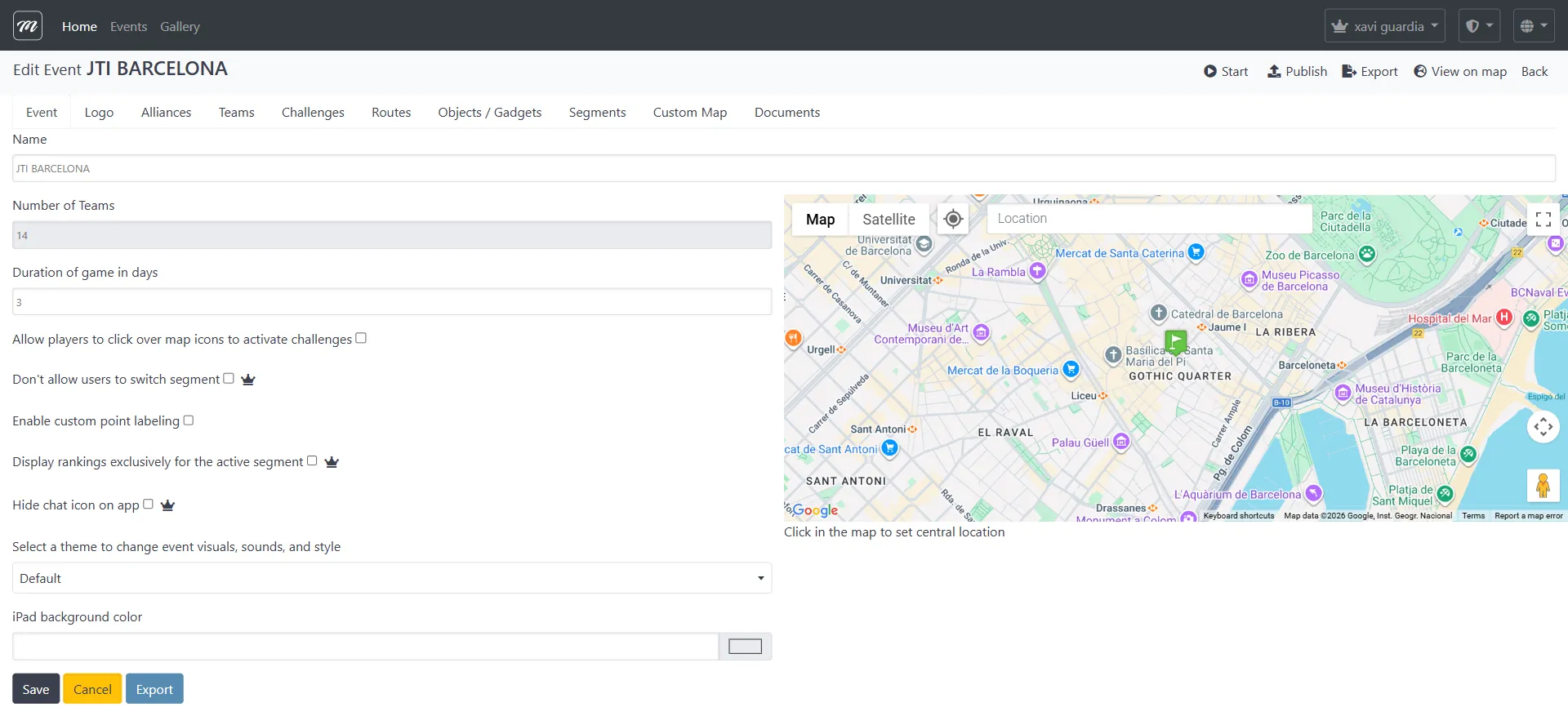
- Go to the Events list.
- Click the green Start button on your event’s row.
- On the confirmation page, select the Demo tab.

- Click Start.
Demo mode is free, unlimited, and limited to 2 teams. Use it to test everything before the real event.
Start in real mode (uses credits)
Section titled “Start in real mode (uses credits)”- Go to the Events list.
- Click the green Start button.
- Select the Real Game tab.
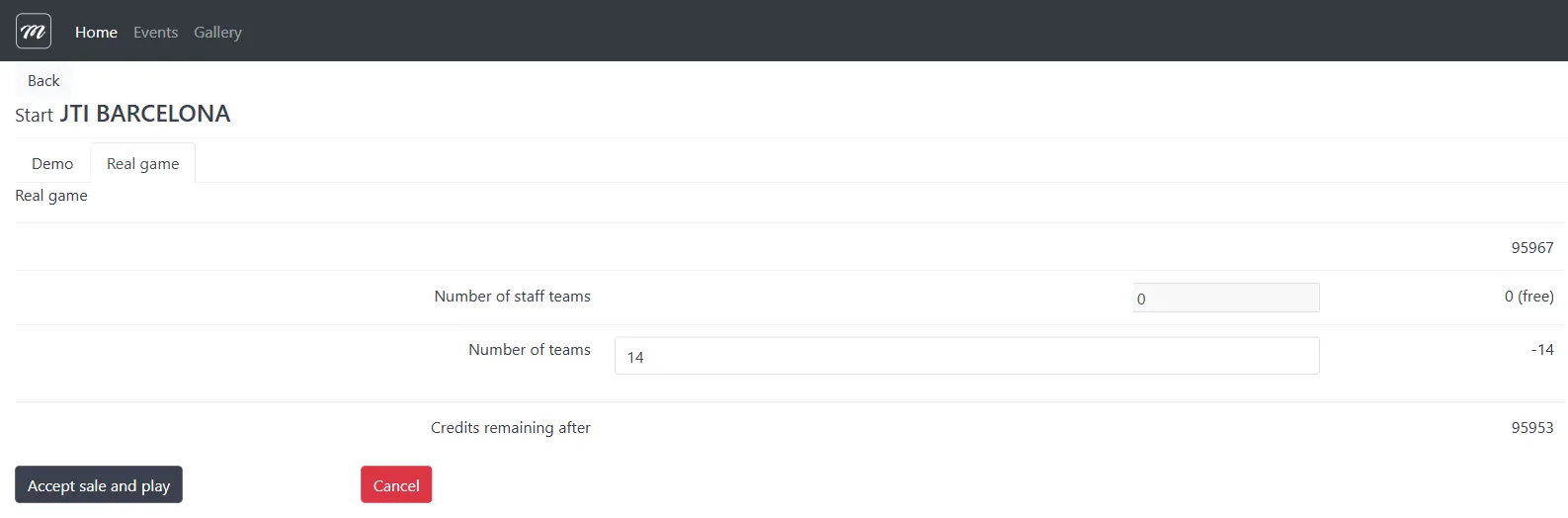
- Review the credit calculation:
- Your credit balance
- Number of playing teams (each costs 1 credit)
- Staff teams (free)
- Credits remaining after deduction
- Click Accept sale and play (this deducts credits from your balance — it is not a credit card charge).
Result
Section titled “Result”The event is now running. Teams can connect via QR codes or activation links. The tracking dashboard is available for monitoring.
For the complete walkthrough, see Run Your First Event.
Related pages
Section titled “Related pages”- Login (Player App) — How players join the event you just started
- Events & Teams (Player App) — What players see after logging in