

How do I set up routes?
Before you start
Section titled “Before you start”- The event must be stopped
- You should have created your challenges first
- Open your event → Routes tab.

- Click New.
- Enter a route name (e.g., “Route A — Gothic Quarter”).
- Save.
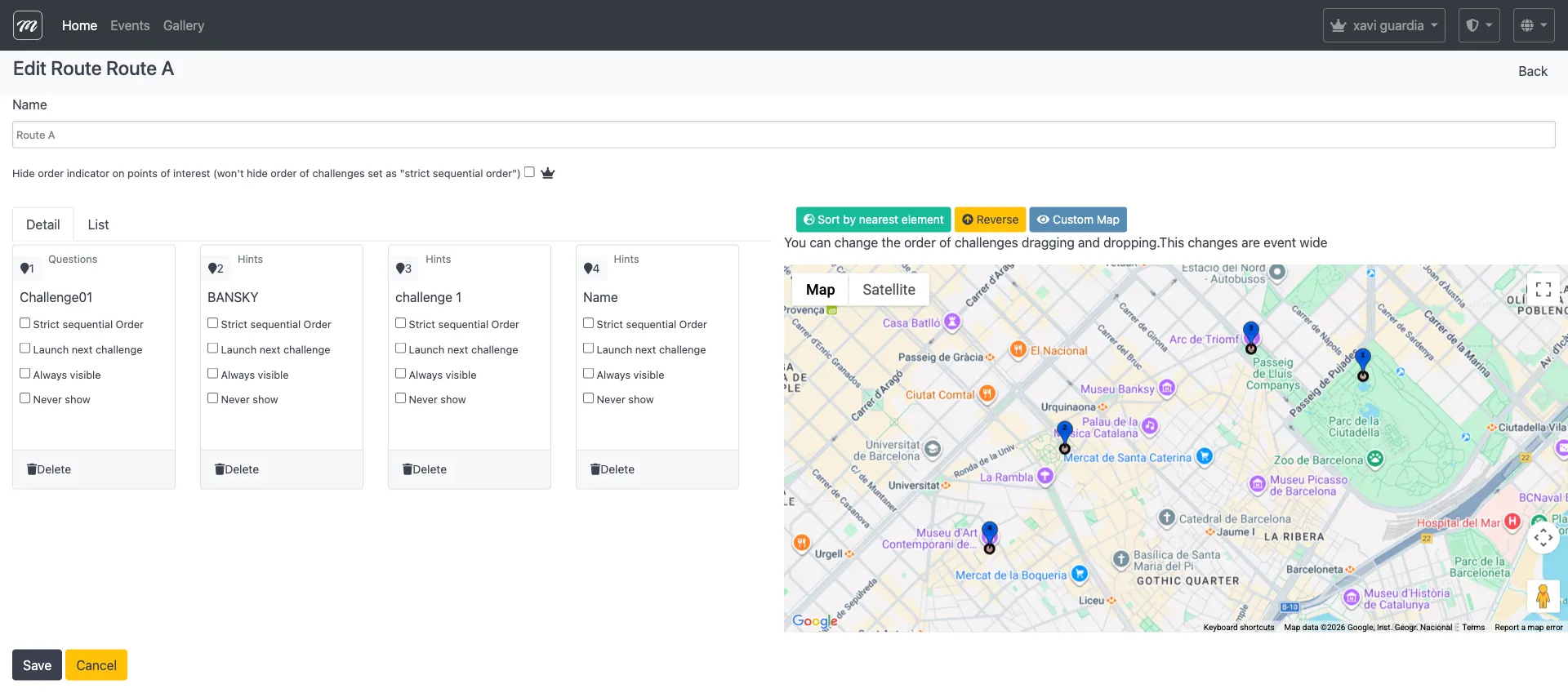
- On the route detail page, assign challenges to this route from the available challenge list.
- Order the challenges:
- Drag and drop to reorder manually, or
- Click Sort by nearest distance to arrange them by geographic proximity (a logical walking path)
- For each challenge in the route, set its visibility:
- Always visible — the icon shows on the map from the start
- Never show — hidden until triggered by completing a previous challenge
- Launch next challenge — completing this one automatically opens the next
- Repeat for additional routes.
- Go to the Teams tab and assign each team to a route.
Result
Section titled “Result”Each team follows their assigned route — they see only the challenges on their route, in the order you defined.
If something goes wrong: If a team reports missing challenges, check that their route includes the expected challenges and that the team is assigned to the right route.
For field-level detail, see the Routes reference.