

How do I set up email (SMTP)?
Before you start
Section titled “Before you start”- You need your SMTP server credentials (server address, port, username, password)
- Common providers: Gmail (
smtp.gmail.com, port 587), Outlook (smtp.office365.com, port 587)
- Click your name in the top-right corner to open the user menu.
- Click Mail Settings.
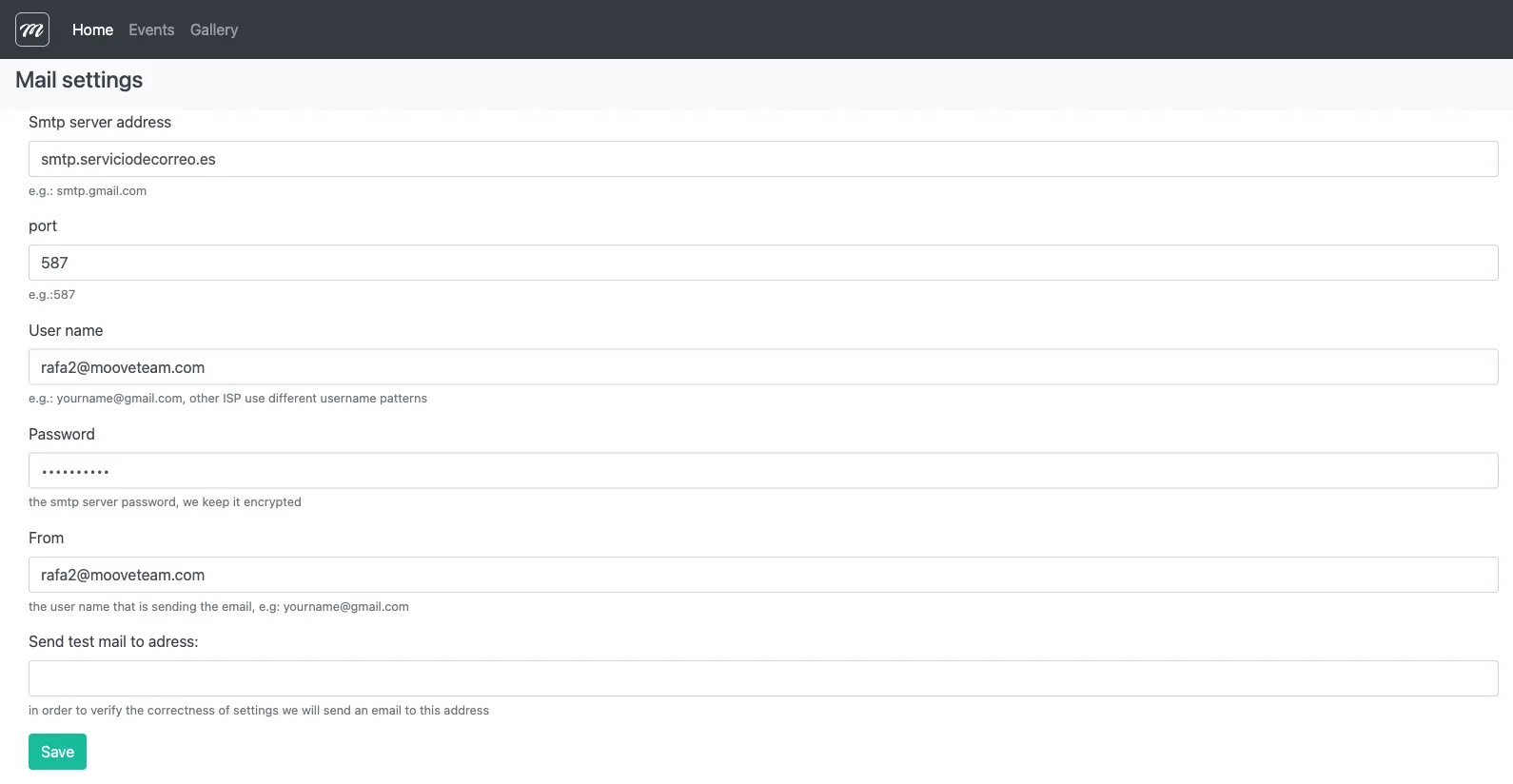
- Fill in the fields:
| Field | What to enter | Example |
|---|---|---|
| SMTP server address | Your mail server hostname | smtp.gmail.com |
| Port | SMTP port (587 for TLS, 465 for SSL) | 587 |
| User name | Your email login | events@yourcompany.com |
| Password | Your email password (stored encrypted) | — |
| From | The sender address recipients will see | events@yourcompany.com |
- In the Send test mail to address field, type your own email address.
- Click Save.
- Check your inbox for the test email. If it arrives, the configuration is correct.
If something goes wrong:
- No test email received — verify the server address and port. Gmail requires an App Password if 2-factor authentication is enabled.
- “Authentication failed” — double-check the username and password.
- Emails go to spam — ask your IT team to add SPF/DKIM records for the sender domain.
Result
Section titled “Result”All platform emails (notifications, results delivery, photo export links) are now sent from your configured address. This setting is per-company — it affects all users in your company account.
For field-level detail, see Mail Settings reference.