

Logging In
Getting your credentials
Section titled “Getting your credentials”MooveTeam CMS does not have a public sign-up page. You get access after a demo with the MooveTeam team:
- Request a demo at mooveteam.com — click “Request a Demo” or fill out the contact form.
- After the demo, MooveTeam creates your free account and sends you a username and password for the back-office.
- Start building — create as many games as you want and play unlimited demos at no cost. You only pay for credits when you run a real activity with paying clients.
Sign in
Section titled “Sign in”Open the MooveTeam CMS back-office in your browser at https://moove80.mooveteam.com. You will see the login page.
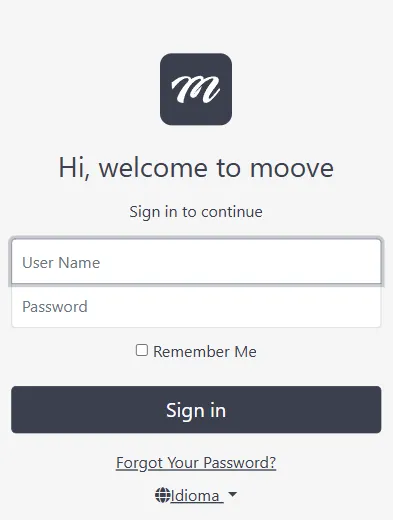
- Type your User Name.
- Type your Password.
- Check Remember Me if you want to stay signed in after closing the browser.
- Click Sign in.
If something goes wrong:
- “User Inactive” — your account exists but has not been approved yet. Ask your administrator to activate it.
- “User Locked” — too many failed login attempts locked your account. An administrator must unlock it.
- Forgot your password? Click Forgot Your Password? below the sign-in button to reset it by email.
Change the language
Section titled “Change the language”You can switch the interface language in two places:
- Before signing in: Use the “Idioma” dropdown at the bottom of the login page.
- After signing in: Click the globe icon in the top-right menu.
Available languages: English, Spanish, French, Dutch, Polish, and German. The language is saved in a cookie — you only need to set it once.
The dashboard
Section titled “The dashboard”After signing in, you land on the Home page — the dashboard.
The dashboard shows a table of all your events with key information at a glance:
| What you see | What it means |
|---|---|
| Total possible teams | How many team slots exist across all your events |
| Logged in teams | How many teams have actually connected to the app |
| Event table | A row for each event showing dates, team counts, and the event name |
Click any event name to jump straight to its edit page.
Finding your way around
Section titled “Finding your way around”MooveTeam CMS has a fixed top bar that stays visible on every page. Here is what you see:
The main menu (top bar)
Section titled “The main menu (top bar)”| Menu item | What it does |
|---|---|
| Home | Returns to the dashboard |
| Events | Opens the events list — this is where you spend most of your time |
| Gallery | Your shared image library (photos, logos, illustrations) |
The user menu (top-right dropdown)
Section titled “The user menu (top-right dropdown)”Click your name in the top-right corner to open the user menu. Here you will find:
| Menu item | What it does |
|---|---|
| Language | Switch the interface language |
| PhotoCall | Manage PhotoCall frames and purchases |
| Downloads | Download links for the mobile apps |
| Accounting | Your sales and billing history |
| Characters | Manage custom avatars for events |
| AR Scenes | Manage augmented reality scenes |
| End Users | Manage end-user accounts |
| Log Off | End your session |
What you have learned
Section titled “What you have learned”You now know how to:
- Sign in and change the language
- Read the dashboard
- Navigate using the top bar and user menu
You are ready to create your first event.
Next: Create Your First Event — a complete walkthrough from an empty screen to a fully configured event.