

Login & Account
What it does
Section titled “What it does”The Login page is the entry point to MooveTeam CMS. Enter your username and password to authenticate, access password recovery if needed, and switch the interface language before signing in. Logging out ends the session and returns to this page.
Requirements
Section titled “Requirements”- No authentication required — this is the public entry point
- A valid MooveTeam CMS username and password (obtained via Registration or from your administrator)
How to access
Section titled “How to access”Direct — this is the first page unauthenticated users see
Login page
Section titled “Login page”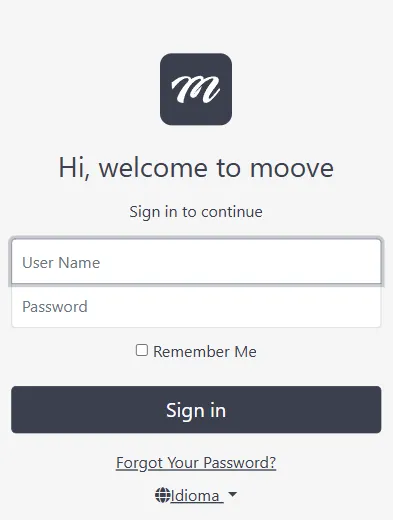
Fields / Options
Section titled “Fields / Options”| Field | Type | Description | Required |
|---|---|---|---|
| User Name | Text | Your login name | Yes |
| Password | Password | Your password (masked input) | Yes |
| Remember Me | Checkbox | When checked, the authentication cookie persists across browser sessions | No |
Actions
Section titled “Actions”| Action | Description |
|---|---|
| Sign in | Validates credentials and redirects to the Home dashboard on success |
| Forgot Your Password? | Opens the password reset form |
| Idioma (Language) | Dropdown to switch the interface language (see Language change below) |
Behavior and rules
Section titled “Behavior and rules”- Authentication method. On success, you are logged in. If Remember Me is checked, you stay logged in across browser sessions.
- Company auto-creation. On first login, the system checks whether you have an associated company. If not, one is automatically created with the name “Empresa de {username}” (“Company of {username}”).
- Return URL. If you were trying to access a page that requires login, you will be redirected back to that page after signing in.
Logout
Section titled “Logout”Logging out clears the authentication cookie and redirects to the Home page (which in turn redirects to the login form for unauthenticated users).
- Navigation: User dropdown (top-right) → Log Off
- Immediate action — clicking Log Off signs you out immediately with no confirmation dialog
Language change
Section titled “Language change”The interface language can be changed in two places:
- Login page — the “Idioma” dropdown at the bottom of the login form (available without authentication)
- User menu — the globe icon dropdown in the top-right navigation bar (available after authentication)
Changing the language sets a browser cookie to remember your preference. The change takes effect immediately on the next page load.
Supported languages
Section titled “Supported languages”| Language | Notes |
|---|---|
| English | Default views use English |
| Spanish | Translated labels on English layout |
| French | Translated labels on English layout |
| Dutch | Translated labels on English layout |
| Polish | Translated labels on English layout |
| German | Translated labels on English layout |
If no language is explicitly chosen, the system uses your browser’s language setting. If the browser language is not in the supported list, it defaults to Spanish.
Related pages
Section titled “Related pages”- Registration — Create a new account
- Change Password — Change password while logged in
- Reset Password — Recover access via email
- Fiscal Data — Company tax information
- Home (Dashboard) — The landing page after login