

Gallery
What it does
Section titled “What it does”The Gallery is the central media library for all images used across events, challenges, segments, gadgets, and AR scenes. From here you can upload images, browse them by aspect ratio, rename them, crop them to standard sizes, and delete unused or in-use items. Every image selector throughout MooveTeam CMS (challenge images, gadget icons, segment backgrounds, AR markers) pulls from this gallery.
Requirements
Section titled “Requirements”- You must be logged in with the Admin or Agency role
- Images must be PNG or JPEG format, maximum 3 MB per file
How to access
Section titled “How to access”Top menu → Gallery
Gallery main view
Section titled “Gallery main view”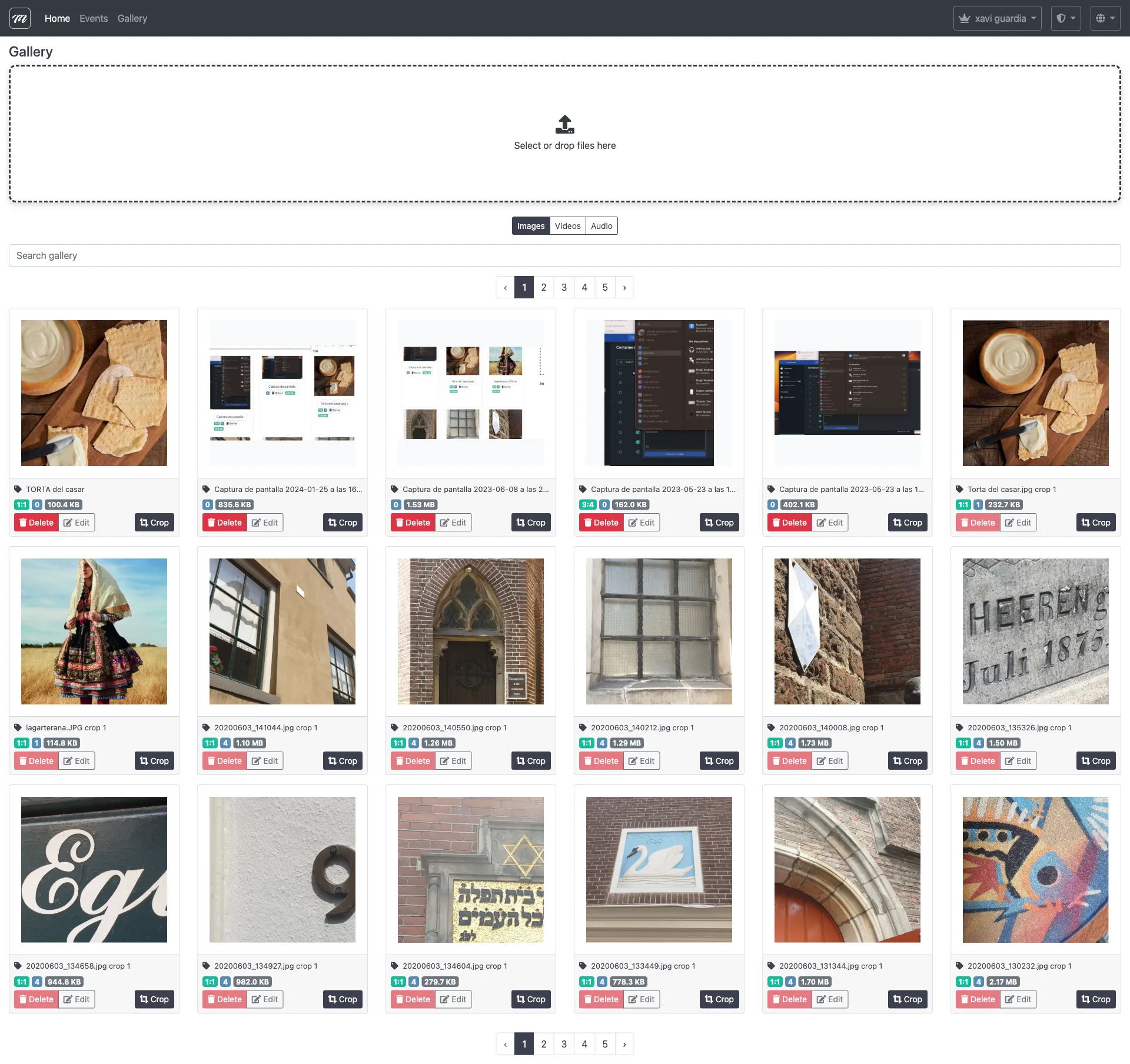
Layout
Section titled “Layout”The gallery page is split into two panels:
Left panel — Browse and manage (9 columns)
Section titled “Left panel — Browse and manage (9 columns)”| Element | Type | Description |
|---|---|---|
| Search filter | Text input | Live-filters images by description (filename). Triggers on each keystroke. |
| Aspect ratio filter | Buttons | Filter by ratio: All, 1:1, 3:4, Icon, or Unknown |
| Thumbnail grid | Image grid | 10 images per page. Each thumbnail shows the image, editable description, aspect ratio badge, usage count, and delete button. |
| Pagination | Navigation | Page forward/back by 1 or 10 pages. Displays current page and total records. |
Right panel — Upload and crop (3 columns)
Section titled “Right panel — Upload and crop (3 columns)”| Element | Type | Description |
|---|---|---|
| Upload area | File upload | Drag-and-drop or click to upload images. Supports batch upload (multiple files). |
| Crop tool | Image cropper | Appears when an image is selected. Three ratio presets: 3:4, 1:1, Icon. Crop creates a new gallery record (non-destructive). |
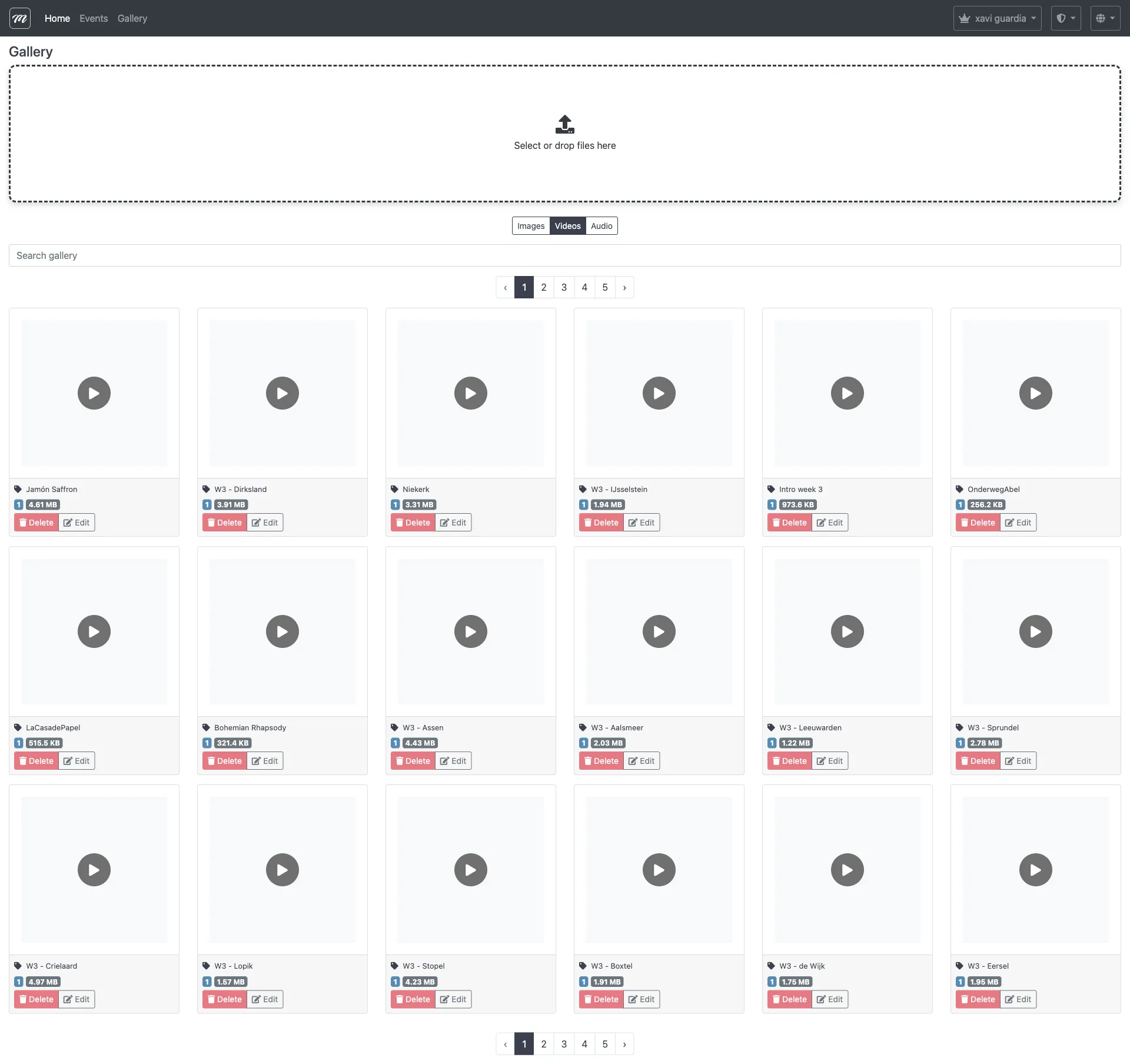
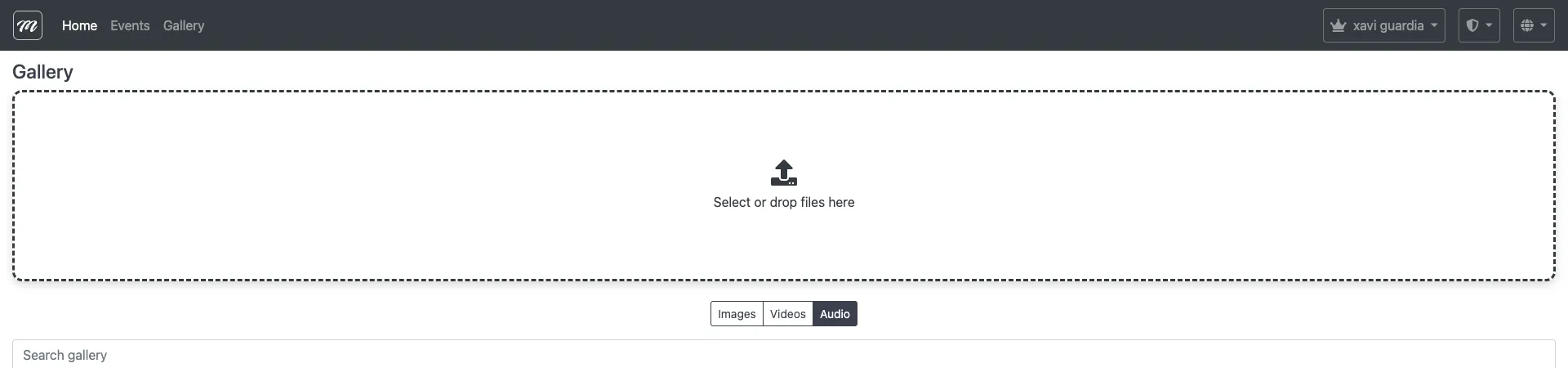
The gallery organizes media into three tabs:
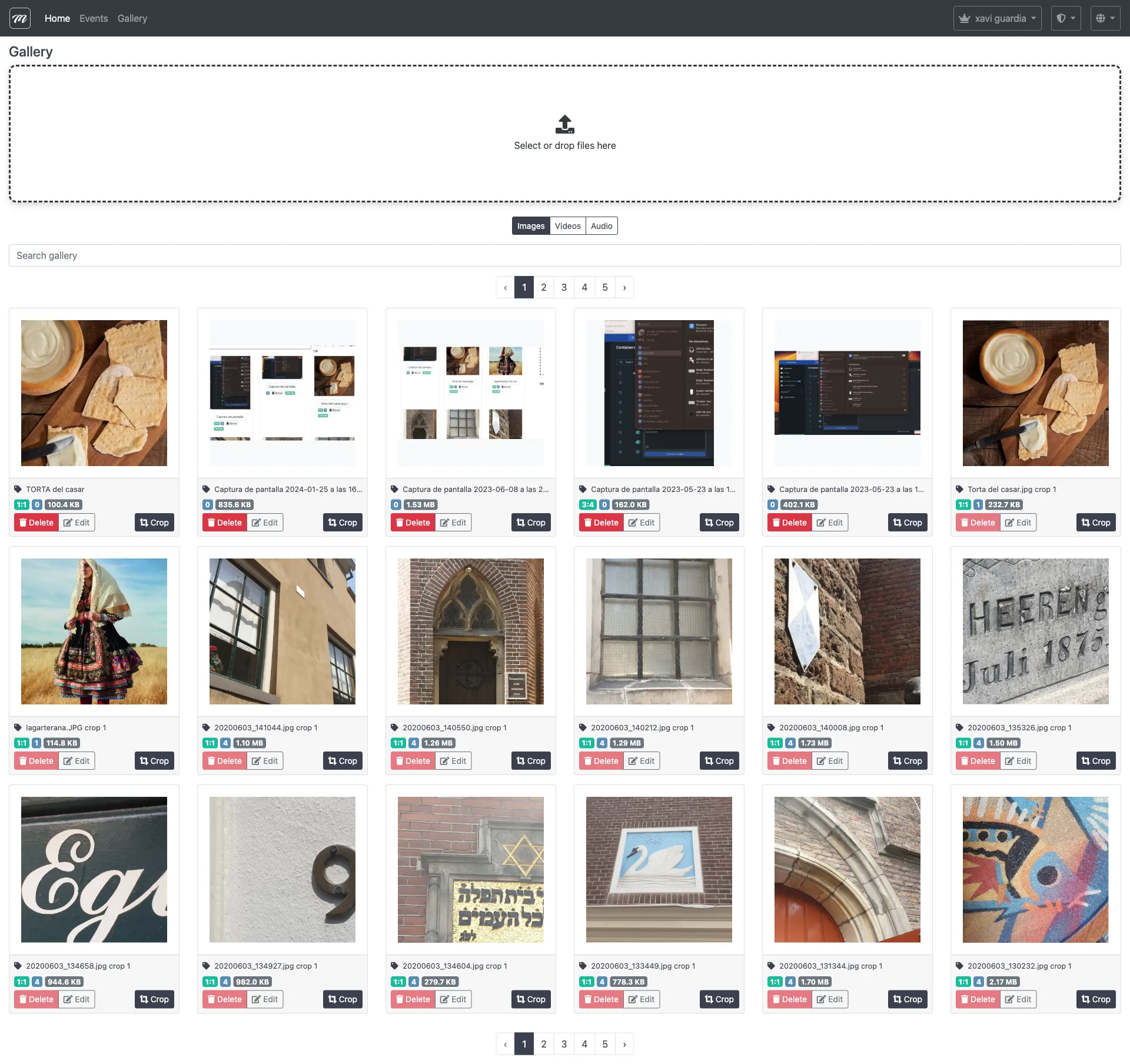
| Tab | Description |
|---|---|
| Images | Image files (PNG, JPG) used in challenges, segments, gadgets, and AR |
| Videos | Video files available for events and challenges |
| Audio | Audio files available for events |
Upload files
Section titled “Upload files”The upload area supports drag-and-drop file upload.
Upload constraints
Section titled “Upload constraints”| Constraint | Value |
|---|---|
| Max file size | 3 MB |
| Accepted formats | .png, .jpg, .jpeg |
| Auto-resize threshold | Images larger than 1500 x 1500 px are automatically resized to fit within that box, maintaining aspect ratio |
| Quality | JPEG: 90%, PNG: 100% |
Upload flow
Section titled “Upload flow”- Drop one or more image files onto the upload area (or click to browse).
- Each file is uploaded and validated (file size, format, and image integrity).
- If either dimension exceeds 1500 px, the image is automatically resized to fit within 1500×1500 while keeping aspect ratio.
- The aspect ratio is classified:
- 1:1 — square
- 3:4 — portrait
- Icon — 85:110 ratio (~0.77)
- Unknown — anything else
- The image appears in the thumbnail grid with the original filename as its description.
Validation errors
Section titled “Validation errors”| Error | Cause |
|---|---|
| File too large | Exceeds 3 MB limit |
| Invalid format | Extension is not .png, .jpg, or .jpeg |
| Corrupt image | File cannot be loaded as a valid image |
Crop image
Section titled “Crop image”Select an image in the grid to load it into the crop tool on the right panel.
Crop presets
Section titled “Crop presets”| Preset | Aspect ratio | Additional processing |
|---|---|---|
| 3:4 | 0.75 (portrait) | None — cropped at original resolution |
| 1:1 | 1.0 (square) | None — cropped at original resolution |
| Icon | 0.77 (85:110) | Auto-resized to 85 x 110 px after crop |
Crop flow
Section titled “Crop flow”- Click an image thumbnail to select it — the crop tool appears on the right.
- Choose a ratio preset (3:4, 1:1, or Icon).
- Drag the crop rectangle over the desired area.
- Click Crop to save.
- The server creates a new Gallery record — the original image is preserved.
- The new record’s description is set to
"{original description} crop {ratio}". - For Icon crops, the result is additionally resized to exactly 85 x 110 px.
Cropping is non-destructive: the original image remains in the gallery. Each crop creates a separate gallery entry.
Edit description
Section titled “Edit description”Each thumbnail in the grid has an editable description field (the original filename by default). Click the description text, modify it, and the change is saved immediately. Only the description can be updated — the image file itself is immutable after upload.
Delete files
Section titled “Delete files”| Step | Description |
|---|---|
| 1 | Click the trash icon on the image thumbnail |
| 2 | If the image is referenced elsewhere (challenges, segments, gadgets, AR scenes), the delete button is disabled |
| 3 | If no references exist, the image is deleted from the gallery and removed from disk |
Usage count
Section titled “Usage count”Each thumbnail displays a usage count badge showing how many items reference that image. The count includes references from challenges, segments, gadgets, and AR scenes. Images with a count greater than 0 cannot be deleted — you must first remove the image from all items that use it.
Aspect ratios
Section titled “Aspect ratios”Gallery images are classified by aspect ratio on upload. The classification determines where the image can be used effectively.
| Name | Ratio | Usage |
|---|---|---|
| Unknown | — | Images that don’t match standard ratios |
| 1:1 | 1.0 | Square images — challenge icons, thumbnails |
| 3:4 | 0.75 | Portrait images — challenge cards, segment backgrounds |
| Icon | 85:110 (~0.77) | Small icons — gadget icons, map markers |
The aspect ratio filter buttons above the grid let you view only images of a specific ratio.
Rich text editor integration
Section titled “Rich text editor integration”Throughout MooveTeam CMS, rich text editors include an image picker button that loads gallery images. The image list provides all gallery entries for the current company, with image titles and their full URLs for insertion into rich text content.
Behavior and rules
Section titled “Behavior and rules”- Company-scoped. Each company sees only its own gallery.
- Images only. The upload feature accepts only PNG and JPEG files. Video and audio content shown in the gallery tabs are managed through separate systems.
- Non-destructive crop. Cropping always creates a new gallery entry. The original image is never modified.
- Icon crop fixed size. Cropping with the Icon preset always produces an 85x110 px image, regardless of the original crop area size.
- Usage tracking. The gallery counts references across challenges, segments, gadgets, and AR scenes to display the usage badge per image.
- Pagination. The grid shows 10 images per page, ordered newest first.
Related pages
Section titled “Related pages”- Gallery 3D — 3D model gallery (USDZ files, separate from the media gallery)
- AR Scenes — AR scenes reference gallery images as markers and augmented content
- Event — Challenges — Challenges use gallery images for questions, puzzles, and cards
- Event — Objects / Gadgets — Gadgets and objects use gallery images as icons
- Event — Segments — Segments use gallery images as backgrounds