

Staff Mode
If you’re part of the event staff, the app gives you a set of management tools on top of the regular player features. Staff Mode activates automatically when you log in with credentials and select a team that the organizer marked as “staff.”
The navigation bar changes appearance so you can tell at a glance that you’re in staff mode.
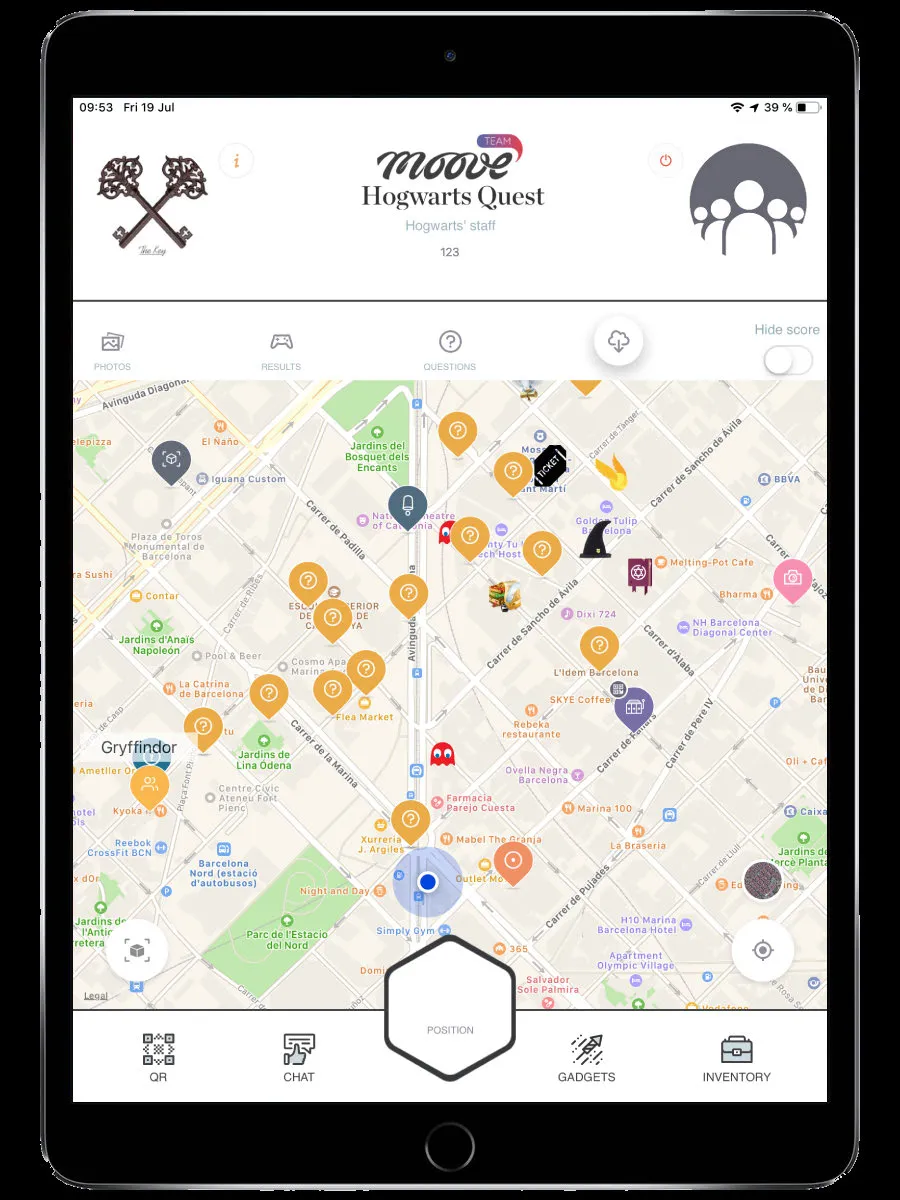
What you can do
Section titled “What you can do”Score photo and video submissions
Section titled “Score photo and video submissions”Teams submit photos and videos during Photo/Video challenges. As staff, you review and score them.
- Open the Pending Media screen
- You’ll see all unscored submissions from every team
- Tap a submission to view the photo or play the video
- Drag the score slider from 0 to the challenge’s maximum points
- Tap Submit
The team’s score updates immediately on the ranking.
Score free-text answers
Section titled “Score free-text answers”Some question challenges ask for a written answer instead of multiple choice. Staff review and score these.
- Open the Pending Questions screen
- Read the team’s answer
- Set the score on the slider
- Tap Submit
Use the “Show scored” toggle to hide already-scored submissions and focus on what’s still pending.
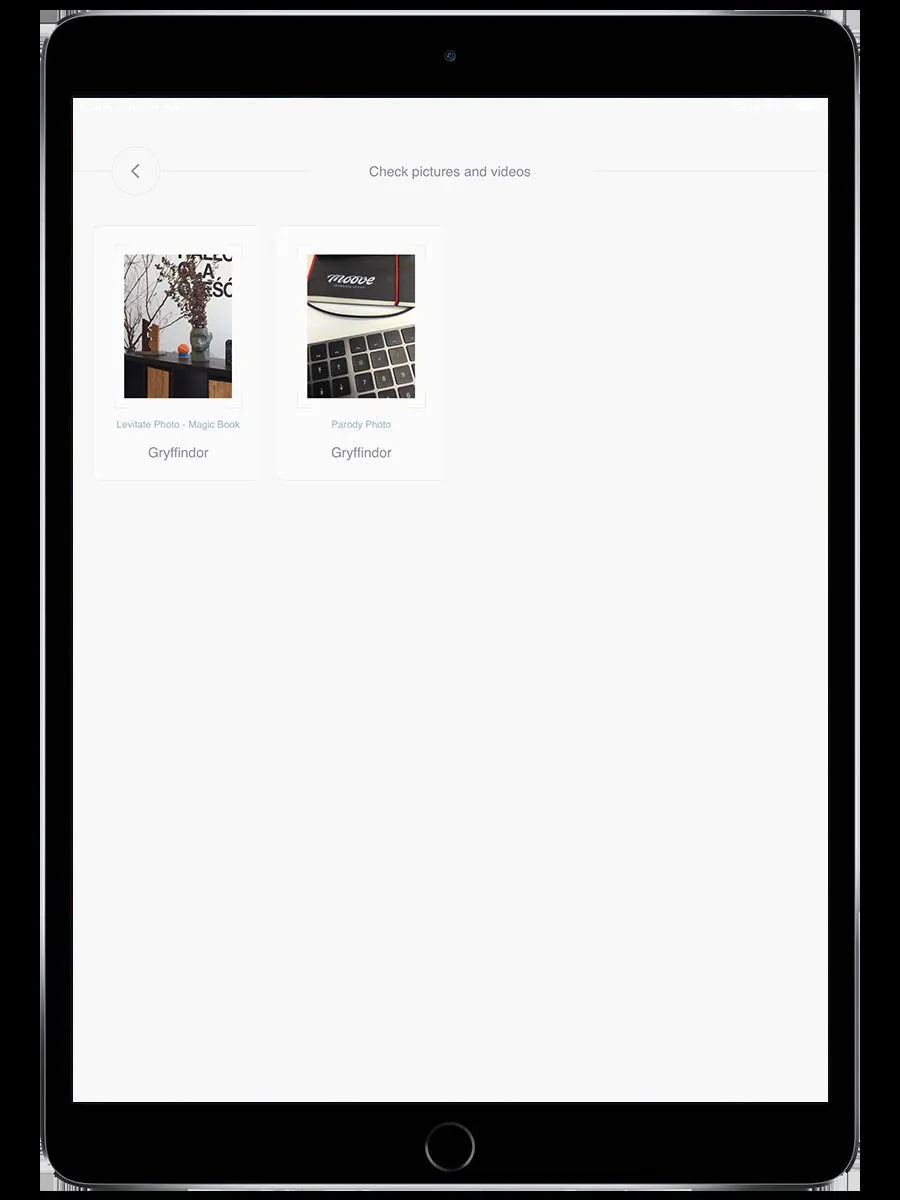
View full results
Section titled “View full results”See every team’s total score and a per-challenge breakdown. Tap a team to see exactly which challenges they completed, their answers, and their scores.
Move teams between segments
Section titled “Move teams between segments”If the event uses segments (phases or zones), you can reassign a team to a different segment manually.
- Open the Segments screen
- Select the team you want to move
- Choose the new segment
- Confirm
The team’s app immediately switches to the new segment. They’ll see different challenges on their map.
Award bonus points
Section titled “Award bonus points”Give extra points to a team outside the normal challenge scoring — for good sportsmanship, creative solutions, or any reason the organizer decides.
- Select the team
- Enter the number of points
- Tap Award
Suspend the ranking
Section titled “Suspend the ranking”Temporarily hide the ranking from all players. Useful for building suspense before announcing final results.
When you suspend the ranking, the Ranking tab disappears from every player’s navigation bar. Resume it when you’re ready to reveal scores.
Force-complete or skip challenges
Section titled “Force-complete or skip challenges”If a team is stuck on a broken or inaccessible challenge, you can push it through or skip it entirely from the staff screen. The challenge is marked as complete (or skipped) on the team’s device.
Staff can still play
Section titled “Staff can still play”Your team has access to all regular player features too — the map, challenges, chat, gadgets. Staff mode adds tools on top; it doesn’t replace the player experience.
Related pages
Section titled “Related pages”- Challenges — Photo/Video — The challenge type that generates submissions for staff to score
- Challenges — Questions — Open-text answers that staff score
- Ranking — The leaderboard that staff scores affect
- How to score photo challenges — Organizer-side scoring from MooveTeam CMS