

Map & Navigation
The Map is the main screen during an event. It shows where challenges are, where you are, and gives you access to everything through the navigation bar at the bottom.
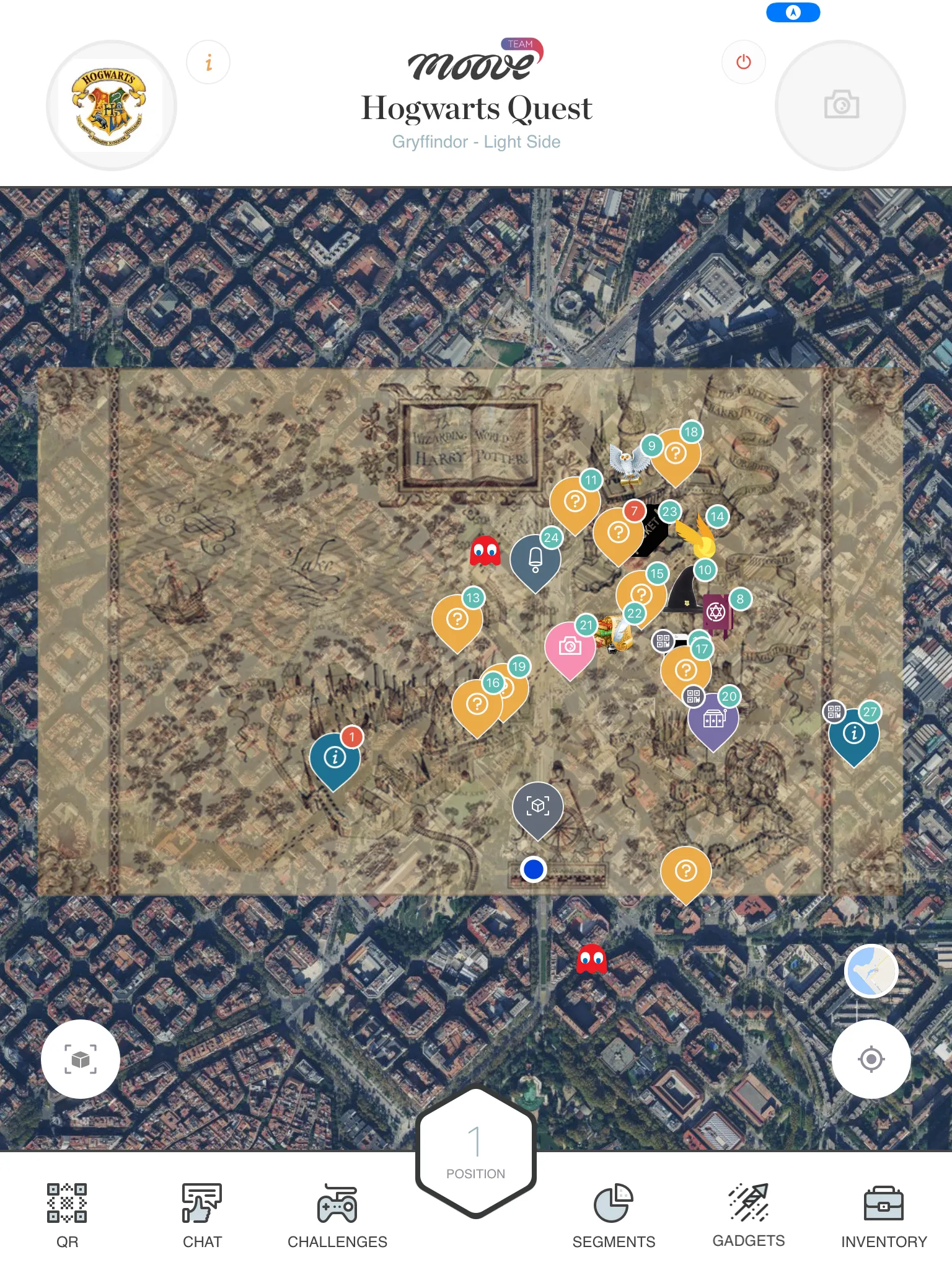
The map
Section titled “The map”The map shows your event area with challenge markers pinned at their locations. Your team’s position is tracked by GPS and shown as a dot on the map.
- Challenge markers — Numbered pins on the map. Each one is a challenge you can activate.
- Your position — A blue dot showing where you are right now.
- Custom map overlay — Some events replace the standard map with a themed image (pirate map, medieval map, illustrated city map). The overlay sits on top of the real map.
Challenge marker colors
Section titled “Challenge marker colors”| Color | Meaning |
|---|---|
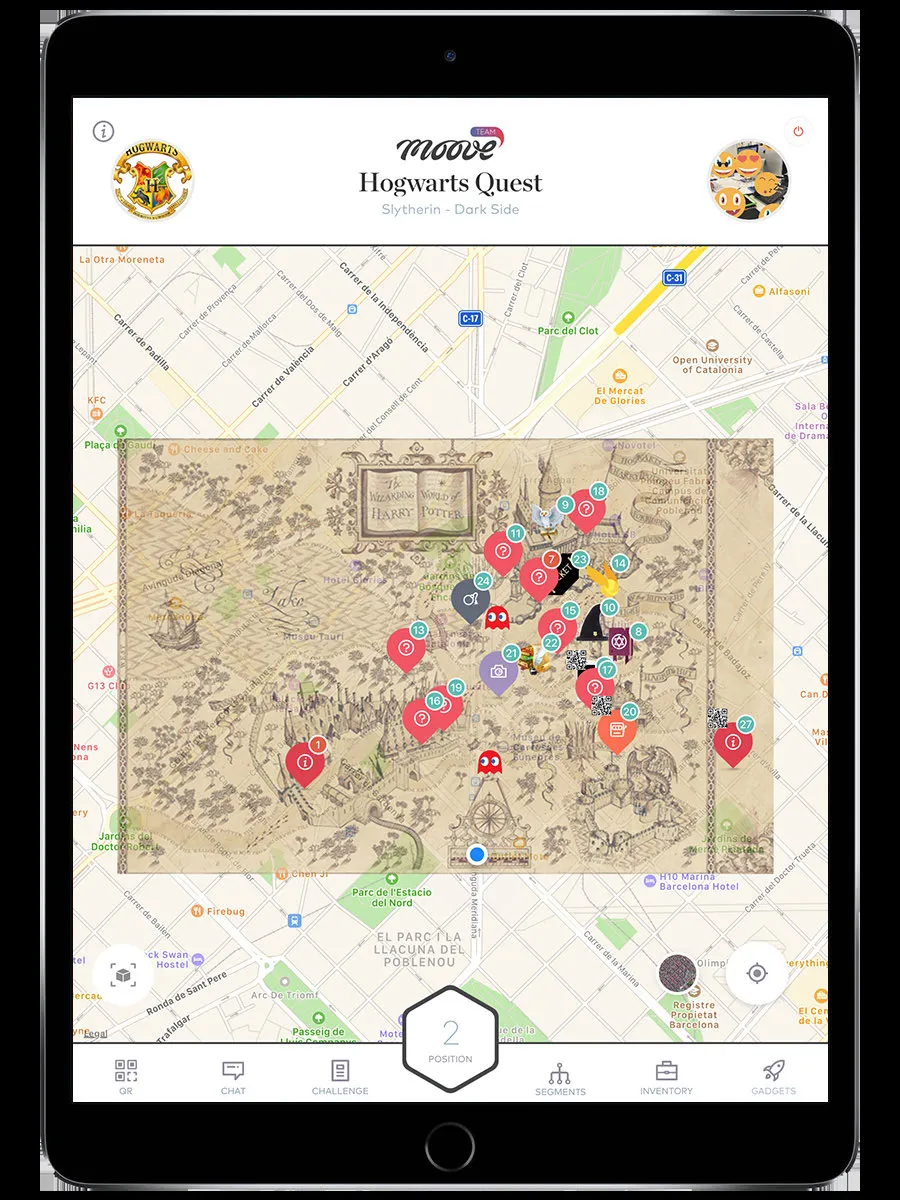
| Orange/numbered | Challenges in free order — do them in any sequence |
| Red/numbered | Challenges in strict route order — must be done in sequence |
| QR icon | Challenge activated by scanning a QR code, not by walking to it |
Tap a marker to see the challenge name and a preview. Walk to the marker to activate it (or tap it, if the organizer allows map-tap activation).
Navigation bar
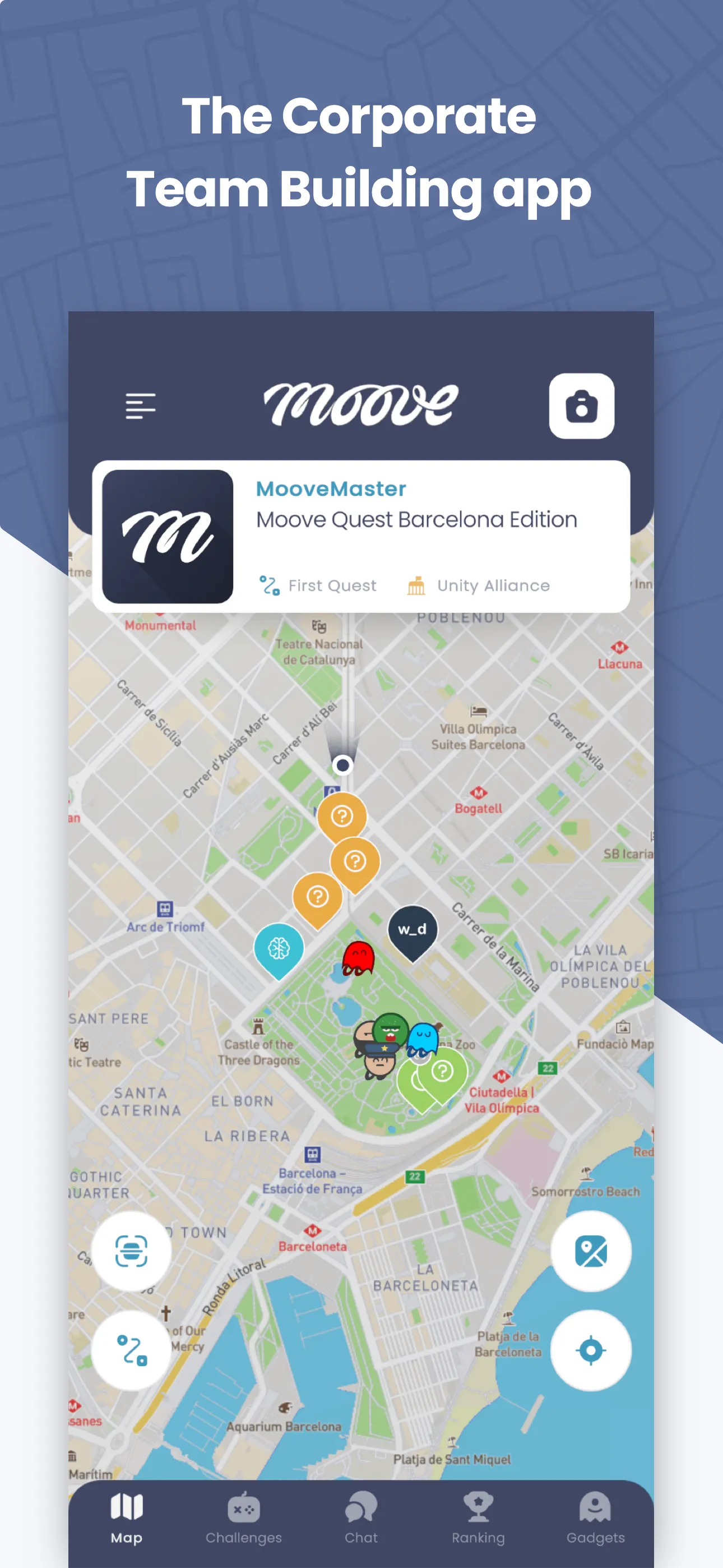
Section titled “Navigation bar”The bottom bar has up to 6 tabs. Not all are visible in every event — the organizer decides which features are enabled.
| Tab | What it does | When it appears |
|---|---|---|
| Map | The map view (this screen) | Always |
| Challenges | A list of manually-activated challenges | When the event has “floating” challenges |
| Gadgets | Power-ups you can send to rival teams | When the event includes gadgets |
| Chat | Messaging with other teams | When chat is enabled |
| Ranking | Live leaderboard | When ranking is not suspended |
| Inventory | Collectible items | When the event has collectible objects |
Some events show all 6 tabs. Others show just the Map. It depends on what the organizer configured.
GPS position tracking
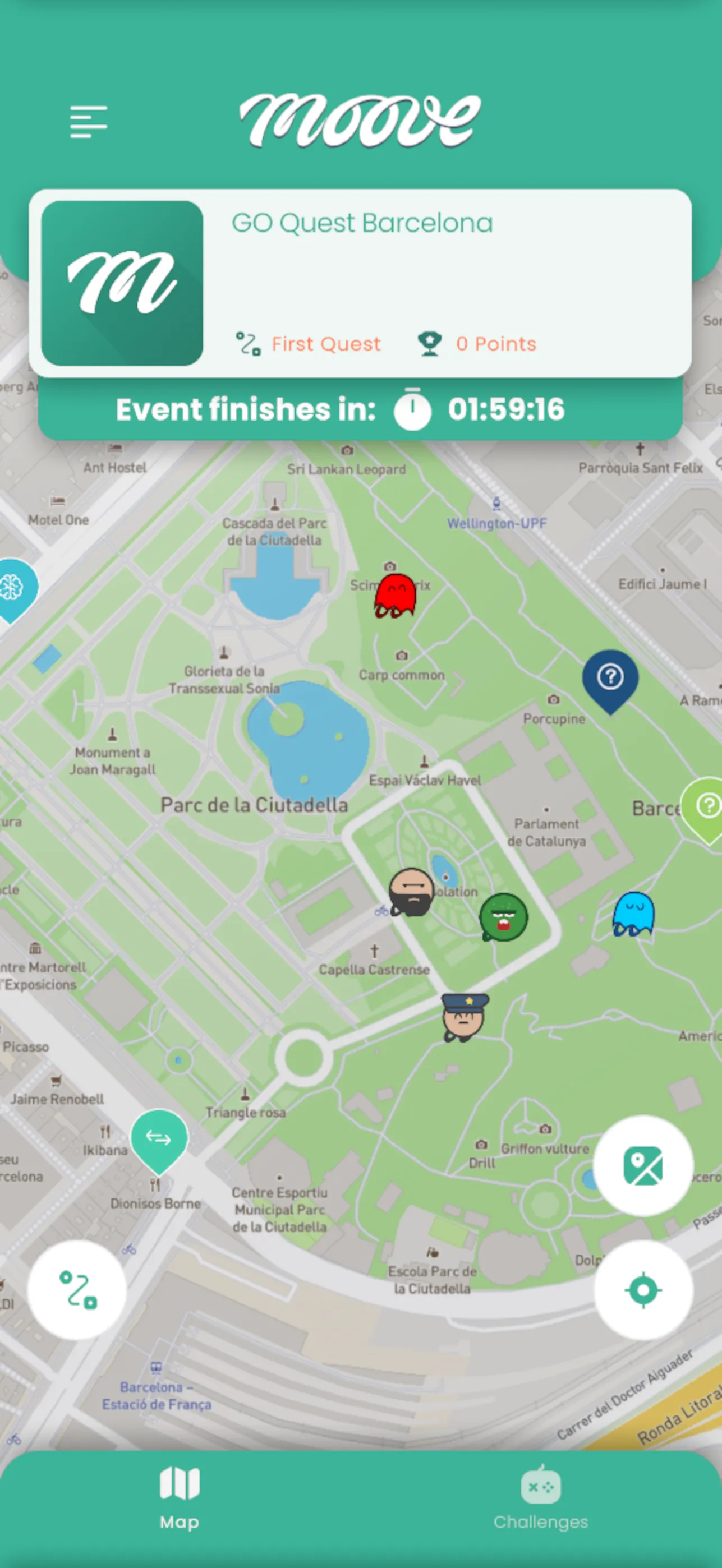
Section titled “GPS position tracking”The app sends your GPS position to the server periodically. This is how:
- Challenges activate when you walk close enough
- The organizer tracks team positions on their live dashboard
- Robot challenges know where you are
GPS tips:
- Keep GPS enabled and the app in the foreground for best accuracy
- Outdoors works best. Indoors, GPS can be unreliable — the organizer may enable QR or manual activation as a fallback
- If your position seems stuck, try moving to an open area away from tall buildings
Segments
Section titled “Segments”Some events are divided into phases or zones called segments. When segments are active:
- You only see challenges for your current segment on the map
- You can switch segments manually (if the organizer allows it) via a Segments button
- Or you move to a new segment automatically when you complete certain challenges
- Staff can also move your team to a different segment remotely
Challenge activation
Section titled “Challenge activation”Challenges can activate in different ways:
| Method | How it works |
|---|---|
| GPS proximity | Walk within range of the marker — the challenge starts automatically |
| Tap on map | Tap the marker directly (only if the organizer enabled this) |
| QR code | Scan a physical QR code at the venue |
| Manual from list | Open the Challenges tab and tap a challenge in the list |
| Bluetooth beacon | Walk near a Bluetooth iBeacon placed at the challenge location (indoor events) |
| Welcome | Starts automatically when you first join the event |
Top bar
Section titled “Top bar”The top of the screen shows:
- Event logo — The event’s custom logo (or the MooveTeam logo if none is set)
- Event name and team name — So you know which event and team you’re on
- QR scanner button — Opens the camera to scan QR codes for challenge activation
- Camera button — Quick access to take photos
Related pages
Section titled “Related pages”- Challenges — What happens when a challenge activates
- Ranking — The live leaderboard
- Chat — Team messaging
- Gadgets — Power-ups and sabotage