

Login
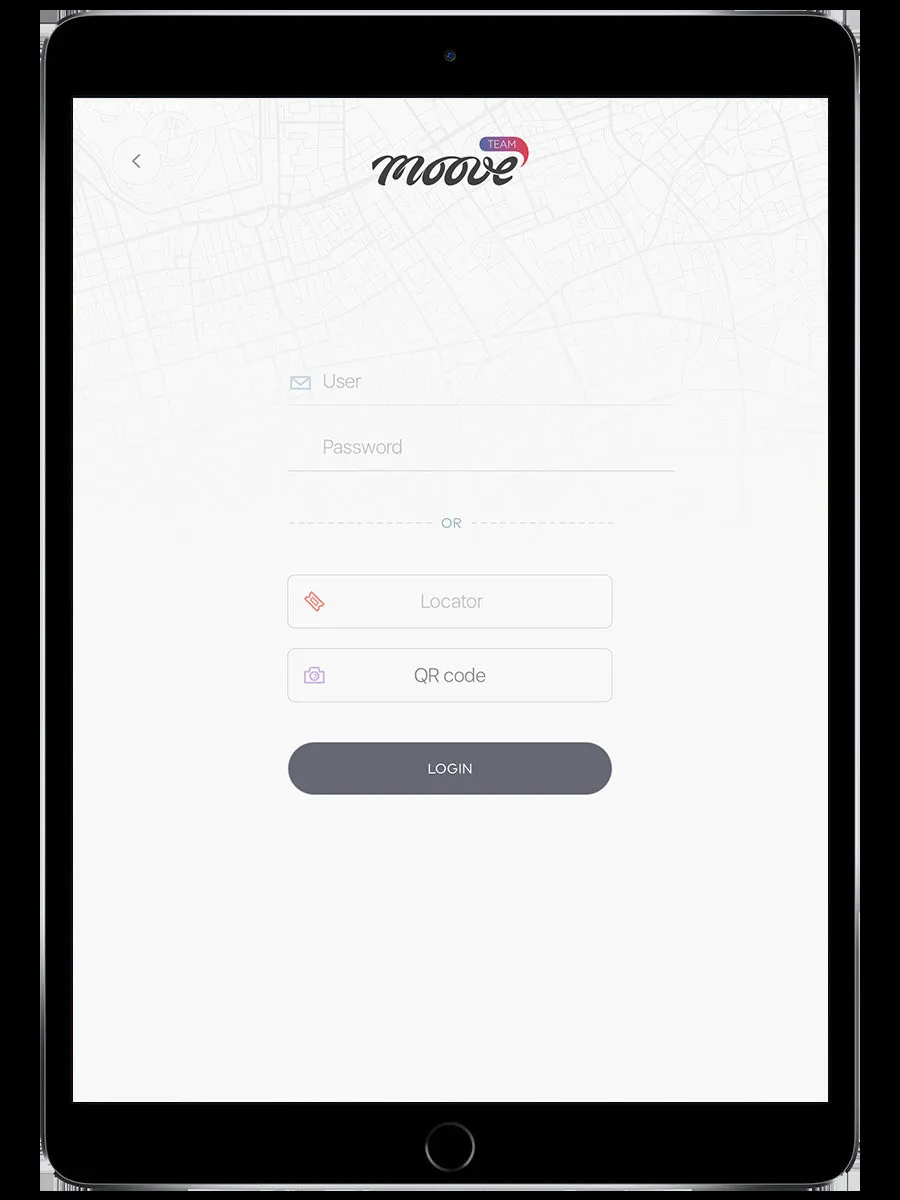
The Login screen is the first thing you see when you open the app. This is where you join an event.
How to join an event
Section titled “How to join an event”There are several ways to get into an event. Your organizer will tell you which one to use.
Locator code (most common)
Section titled “Locator code (most common)”You’ll receive a code — printed on a card, sent by email, or given to you by the organizer. This code links you to a specific team in a specific event.
- Open the app
- Tap the Locator field
- Type or paste your code
- Tap Login
The app connects to the server, assigns you to your team, and starts downloading the event content. You’ll land on the Event Ready screen.
QR code
Section titled “QR code”Same as the locator code, but faster. Your organizer prints QR codes on cards — one per team.
- Tap QR code on the login screen
- Point your camera at the QR code
- The app reads the code and logs you in automatically
No typing needed. The QR contains the same locator code — it just skips the manual entry step.
Deep link
Section titled “Deep link”Some organizers send a URL by email or messaging app. Tap it, and the app opens and joins the event directly. No code entry, no scanning — you just tap and you’re in.
Staff login (username and password)
Section titled “Staff login (username and password)”If you’re part of the event staff, log in with the credentials your organizer gave you.
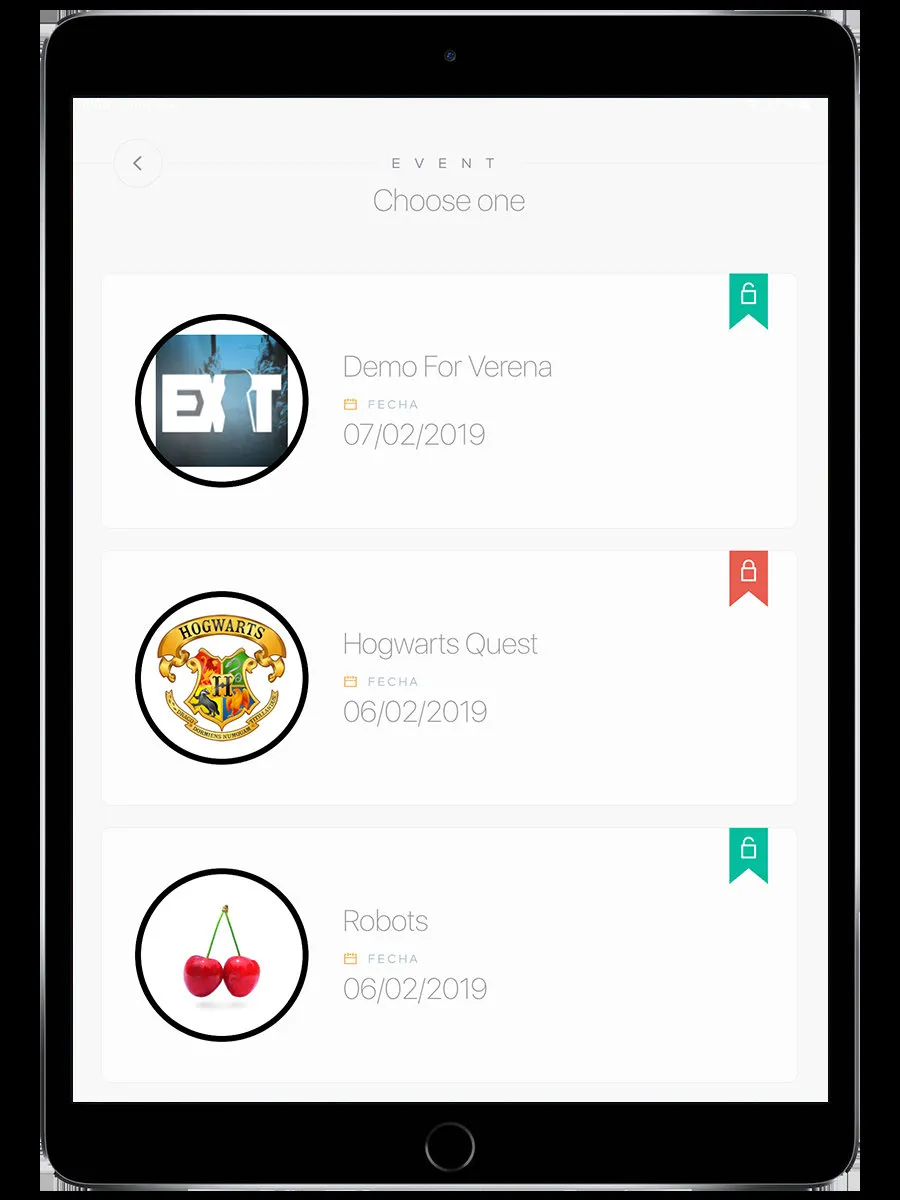
- Enter your username and password
- Tap Login
- You’ll see a list of available events — pick yours
- Choose your staff team from the team list
Staff teams have access to evaluation tools in addition to all regular player features.
What happens after login
Section titled “What happens after login”- The app checks that the event is active
- It downloads the event package — all challenge content, images, audio, AR assets
- You see the Event Ready screen with the event name, your team name, and a Play button
Tap Play to enter the event. The map loads and the game begins.
If something goes wrong
Section titled “If something goes wrong”| Problem | What you see | What to do |
|---|---|---|
| Invalid code | Error message | Double-check the code with your organizer |
| Event hasn’t started | Waiting screen | Wait — the organizer hasn’t pressed Start yet |
| Event already finished | ”Event finished” message | The event is over. Contact the organizer |
| Code used on another device | Device conflict error | Only one device per code. Ask the organizer to unassign the other device |
Session persistence
Section titled “Session persistence”If the app closes (you switch apps, your phone restarts, etc.), you don’t need to log in again. The app saves your session and picks up where you left off next time you open it.
Related pages
Section titled “Related pages”- Events & Teams — What you see after login
- Staff Mode — Staff-specific features after credential login
- How to join an event — Step-by-step guide