

How to join an event
Your organizer gave you a way to join the event — a code, a QR card, or a link. Here’s how to use each one.
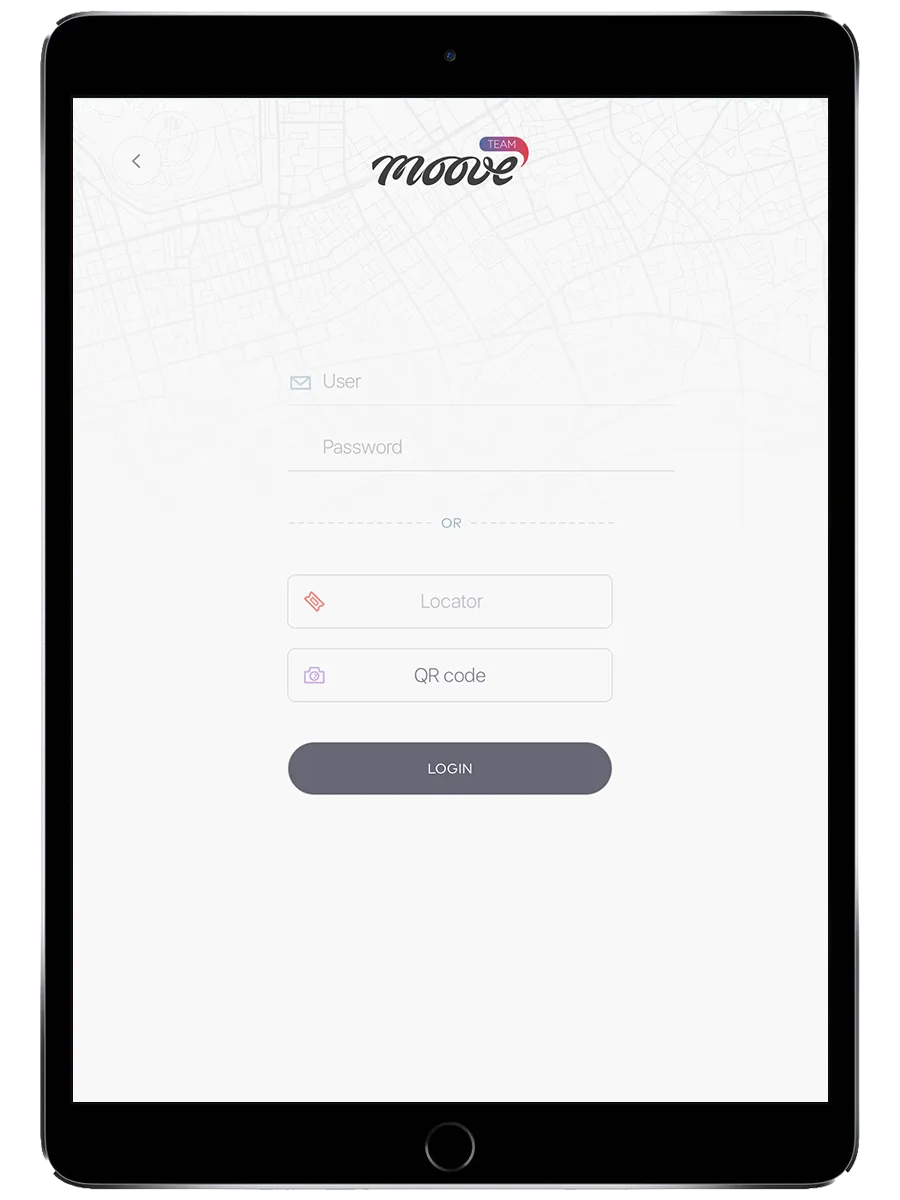
Option 1: Locator code
Section titled “Option 1: Locator code”You have a code (letters and numbers, like “5060-6E0”) printed on a card or sent to you by the organizer.
- Open the MooveXR or MooveGoXR app
- Tap the Locator field on the login screen
- Type the code exactly as it appears on your card
- Tap Login
- Wait for the event to download
- Tap Play when the Event Ready screen appears
Done. You’re in.
Option 2: QR code
Section titled “Option 2: QR code”You have a printed card with a QR code.
- Open the app
- Tap QR code on the login screen
- Point your camera at the QR code
- The app reads it and logs you in automatically
- Wait for the download, then tap Play
Option 3: Deep link (URL)
Section titled “Option 3: Deep link (URL)”You received a link by email, WhatsApp, or another messaging app.
- Tap the link on your phone
- The app opens (or the app store opens if you haven’t installed it yet)
- The app logs you in automatically — no code needed
- Wait for the download, then tap Play
If it doesn’t work
Section titled “If it doesn’t work”| Problem | What to do |
|---|---|
| ”Invalid code” error | Double-check the code. Ask your organizer to confirm it. |
| ”Event not started” | The organizer hasn’t started the event yet. Wait. |
| ”Device conflict” | Someone else already used this code on a different device. Ask the organizer to unassign the other device. |
| App not installed | Download MooveXR (or MooveGoXR) from the App Store or Google Play. Your organizer will tell you which one. |