

Gadgets & Inventory
Gadgets
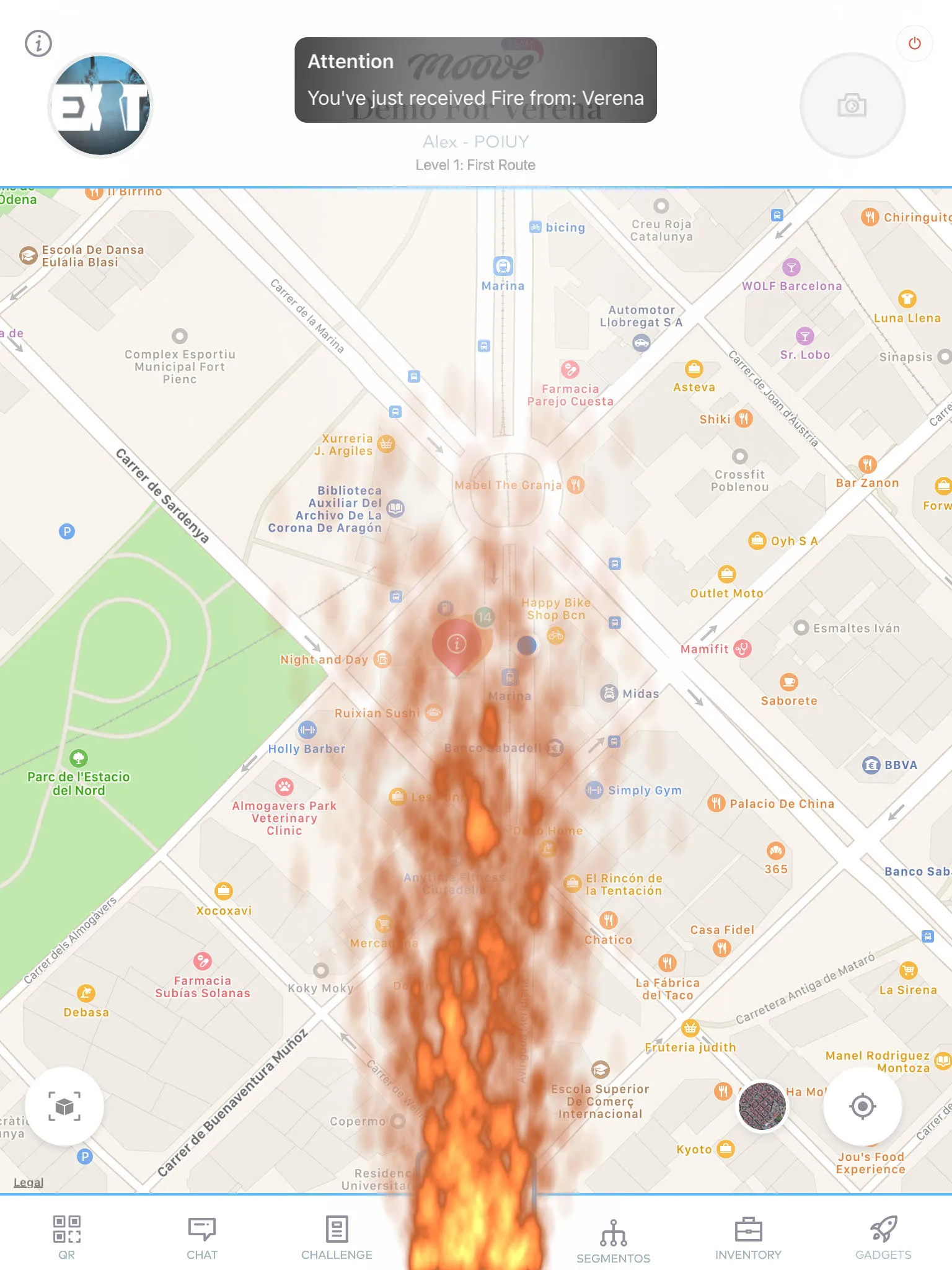
Section titled “Gadgets”Gadgets are power-ups that you can send to rival teams. When a team receives a gadget, a visual effect takes over their screen — an explosion, a shower of hearts, a cracked screen, and more. They’re temporary, harmless, and add a competitive twist to the game.
Gadget effects
Section titled “Gadget effects”| Gadget | What happens on the target team’s screen |
|---|---|
| Bomb | Fire erupts from the bottom of the screen with explosion sounds |
| Drunk Screen | The screen goes blurry and distorted |
| X-Ray | An X-ray filter shows you where other teams are on the map |
| Scaring Ghost | A terrifying image flashes with a loud noise |
| Fart | Sound effect and visual particles |
| Love | Hearts rain down across the screen |
| Fireworks | Fireworks burst on screen |
| Broken Screen | The screen appears shattered with cracking sounds |
| Inverted Screen | The display flips upside down |
| Lock Screen | The screen is temporarily blocked |
All effects last a few seconds and then disappear. They don’t affect your score or progress — they’re just for fun (and distraction).
How to get gadgets
Section titled “How to get gadgets”| Method | How it works |
|---|---|
| Challenge reward | Complete a challenge that has a gadget as a prize |
| Walking distance | Walk a certain distance (tracked by GPS) to unlock a gadget |
| AR pickup | Find and collect a 3D gadget floating in augmented reality |
How to send a gadget
Section titled “How to send a gadget”- Tap the Gadgets tab on the navigation bar
- You’ll see your gadgets with icons and remaining quantities
- Tap the gadget you want to send
- Choose the target team from the list
- Confirm
The effect appears on their screen immediately. Your quantity for that gadget decreases by one.
Inventory (collectible items)
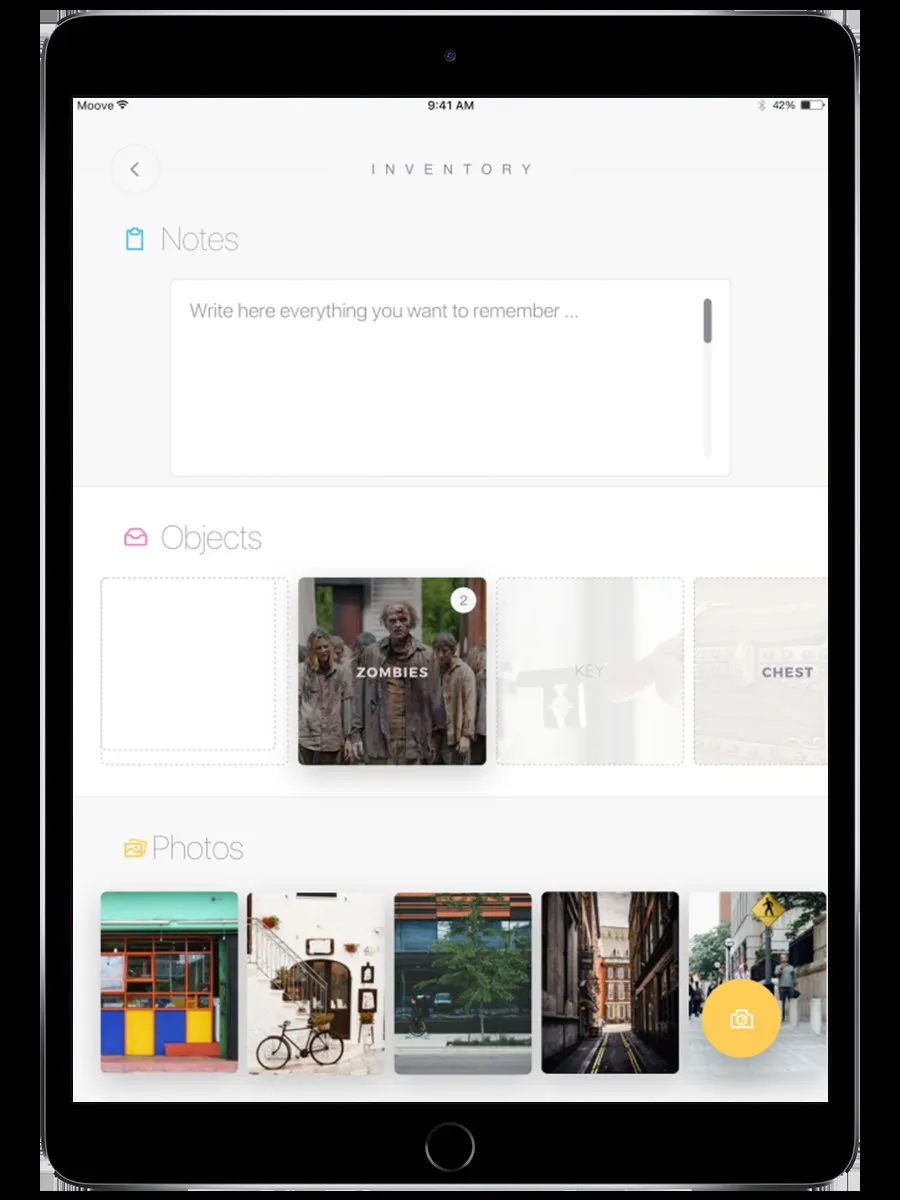
Section titled “Inventory (collectible items)”Some events include collectible items — keys, tokens, artifacts, or custom objects the organizer defined. These are different from gadgets: you collect them, but you don’t send them to other teams.
Items appear in the Inventory tab on the navigation bar.
How to get items
Section titled “How to get items”- Complete a challenge that awards an item
- Pick up a 3D object in AR space
- Walk a configured GPS distance
What items are used for
Section titled “What items are used for”Some challenges require you to have specific items before they’ll activate. If you try to start one of those challenges without the right items, a message tells you what you’re missing.
Items can also be part of the event’s storyline — the organizer uses them to create scavenger hunt mechanics where you must find certain things before unlocking the next phase.
Notes and photos
Section titled “Notes and photos”The Inventory screen also lets you take notes and photos during the event. Tap the camera icon to capture a photo for your own reference — useful for remembering clues or recording things you see along the way.
Related pages
Section titled “Related pages”- Map & Navigation — Where the Gadgets and Inventory tabs live
- Challenges — Challenges that reward gadgets and items
- AR Features — Picking up 3D gadgets and items in AR