

Events & Teams
After logging in, you’re assigned to a team and an event. For most players this happens automatically — your locator code already contains your team assignment. Staff members see an event list and team picker instead.
Event Ready screen
Section titled “Event Ready screen”This is the screen you see just before the game starts.
- Event name — The name of your event
- Team name — The team you’ve been assigned to
- Event info — Date, time, and a short description
- Play button — Tap to start
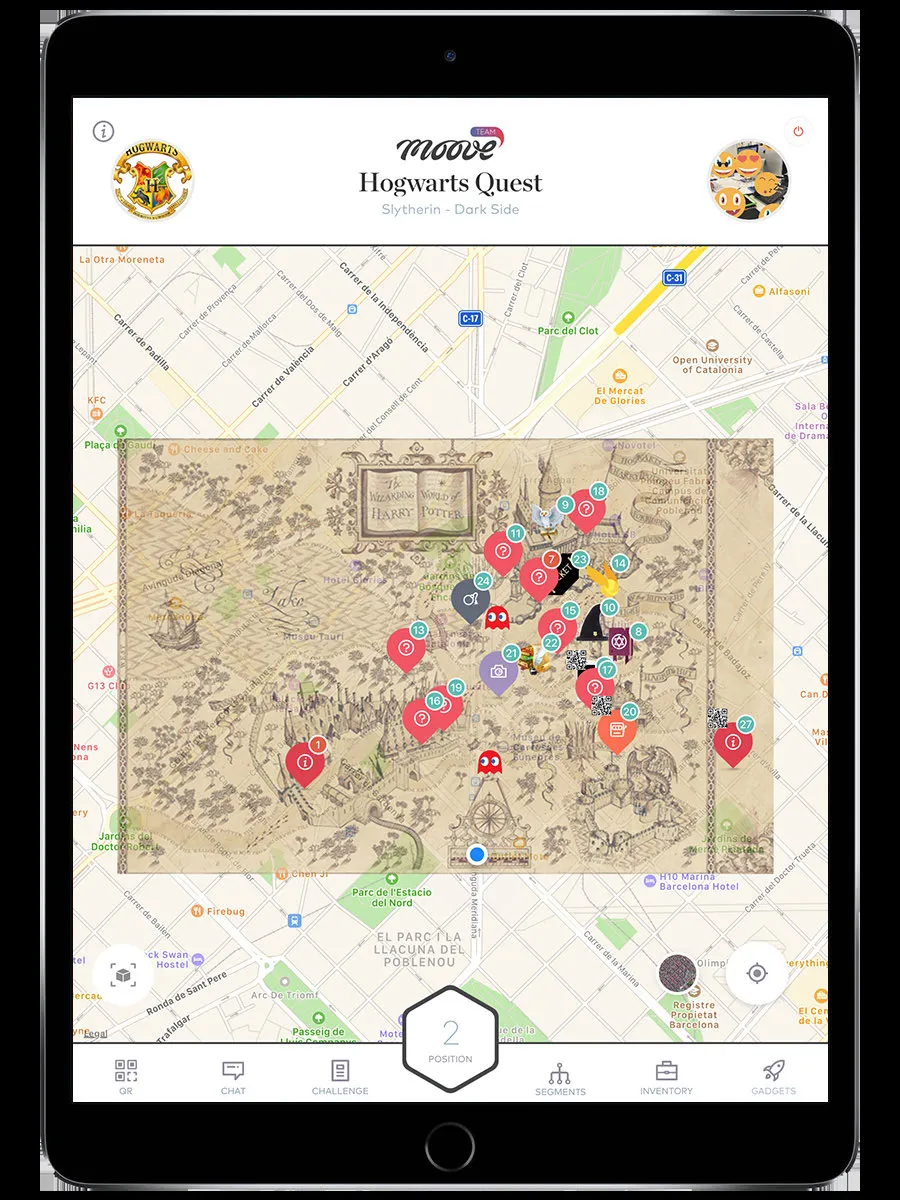
When you tap Play, the app:
- Checks that the event is currently running
- Downloads the event package (challenges, images, audio, AR content)
- Loads the map — the game begins
Event download
Section titled “Event download”The event package can be 50–200 MB depending on how much media the organizer included (challenges, images, audio, AR assets). A progress indicator shows the download status. If it gets interrupted (bad signal, app switch), it picks up where it left off next time — you do not need to start over.
Once the download completes, the Map loads and the game begins.
Event list (staff only)
Section titled “Event list (staff only)”If you logged in with username and password, you’ll see a list of events you have access to. Tap one to select it, then pick your team from the team list.
Team assignment
Section titled “Team assignment”- Locator login: Your team is assigned automatically. You never see a team picker.
- Staff login: You choose a team from the list. If the team is flagged as staff, Staff Mode activates with evaluation tools.
Event status
Section titled “Event status”After login, the app checks the event status before letting you play. For login-specific errors (invalid code, device conflict), see Login — If something goes wrong.
| Status | What happens |
|---|---|
| Running | The map loads and you can play |
| Not started yet | You see a waiting screen — the organizer hasn’t started the event |
| Finished | A message tells you the event is over |
| Restarted | The event data re-downloads (the organizer reset the event) |
App update check
Section titled “App update check”If your app version is too old for the event, a popup tells you to update from the app store. The organizer sets a minimum version for each event.
Related pages
Section titled “Related pages”- Login — How to get to this screen
- Map & Navigation — The main gameplay screen
- Staff Mode — Available when your team is flagged as staff