

Player Apps
MooveTeam events run on two mobile apps: MooveXR for staffed events and MooveGoXR for self-guided experiences. This section covers both.
What you’ll do
Section titled “What you’ll do”Every event follows the same flow:
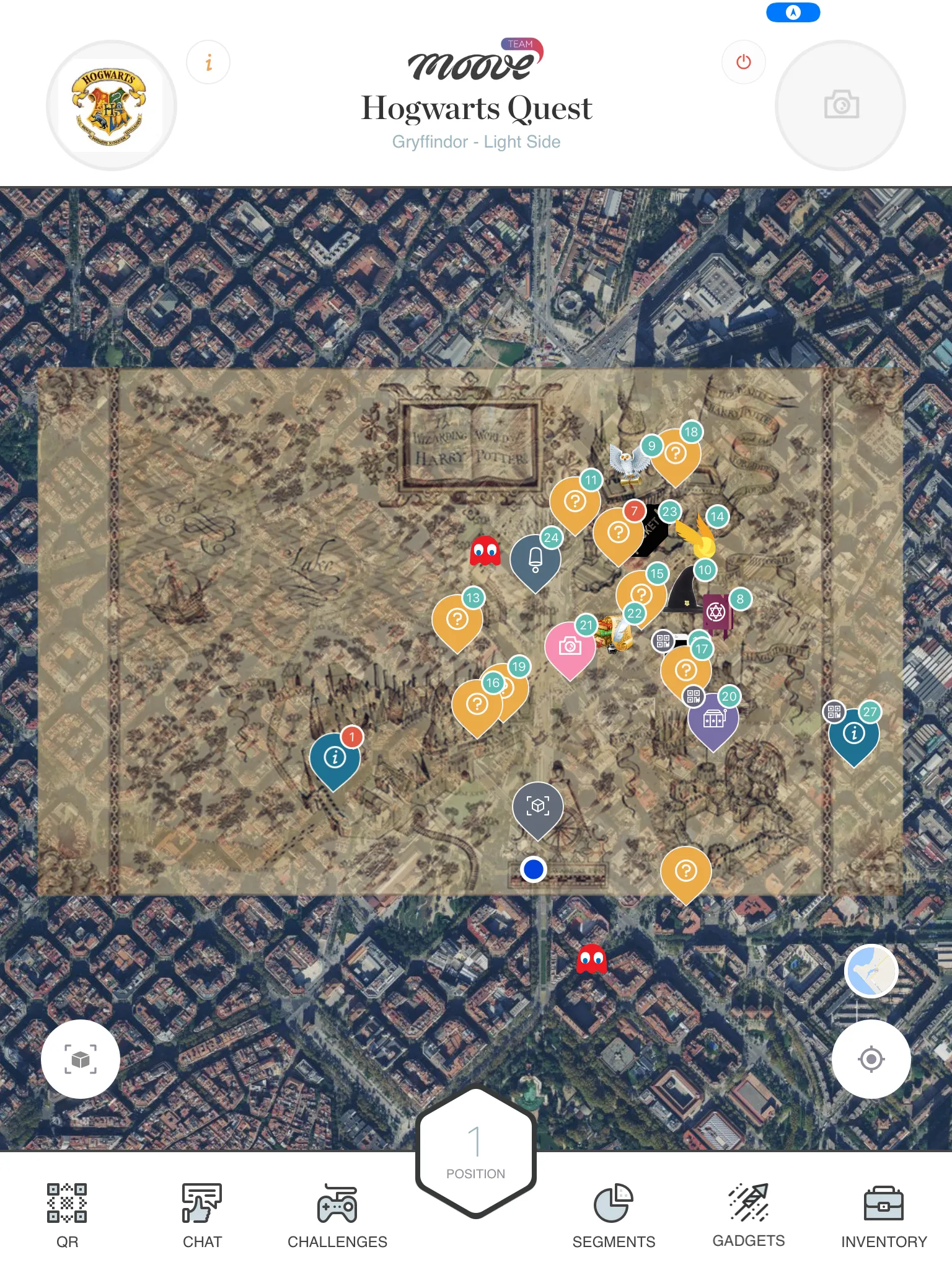
- Join — Enter a locator code, scan a QR, or tap a link to join your team
- Explore — Open the map, find challenge markers, and navigate to them
- Play — Complete challenges: quizzes, photo missions, puzzles, AR experiences, physical activities, and more
- Compete — Track your team’s score on the live ranking
- Collaborate — Chat with teammates, use gadgets to sabotage rivals, collect items
The organizer creates and controls the event from MooveTeam CMS. You just need the app and a locator code.
How-to guides
Section titled “How-to guides”Short answers to common player tasks.
- How to join an event — Enter your locator code, scan a QR, or tap a deep link
- How to complete a challenge — Walk to a marker, activate it, and submit your answer
- How to use a gadget — Pick a gadget from your inventory, choose a rival team, and send it
- How to read the ranking — Find your team’s position, check segment scores, and see challenge-level results
- How to fix GPS problems — Permissions, accuracy, and what to do when the map doesn’t track you
- How to rejoin after a crash — What happens when the app closes unexpectedly and how to resume your session
- How to prepare your device — Get your phone ready before the event — permissions, battery, storage
End-to-end journeys that walk you through the full experience.
- Your first event — From downloading the app to seeing the final ranking. The complete player journey.
- The challenge lifecycle — How a challenge activates, what you do inside it, how it scores, and what happens after.
- Staff evaluation workflow — How staff log in, review submissions, award points, and manage segments. (MooveXR only)
- Gadget collection and use — How you earn gadgets, send them to rivals, and what effects they trigger. (MooveXR only)
Screen reference
Section titled “Screen reference”Detailed documentation for every screen in the app.
Getting started
Section titled “Getting started”- Login — Join an event via locator code, QR scan, deep link, or staff credentials
- GoXR Onboarding — Privacy policy, welcome screen, and profile setup (MooveGoXR only)
- Events & Teams — Event selection, team picker, and event data download
During the event
Section titled “During the event”- Map & Navigation — The main screen: challenge markers, GPS tracking, navigation bar, and event timer
- Challenges — How challenges work: activation, timer, scoring, and all 15 challenge types
- Chat — Team and alliance messaging (MooveXR only)
- Gadgets & Inventory — Power-ups and collectible items (MooveXR only)
- Ranking — Live leaderboard and segment results
Special features
Section titled “Special features”- AR Features — Augmented reality challenges and object pickups (MooveXR only)
- Staff Mode — Evaluation tools for event staff (MooveXR only)
- Photo Editor — Filters, stickers, and drawing tools for photo challenges
- GoXR Event Results — End-of-event results screen, ticket errors, and session resume (MooveGoXR only)
- System & Settings — Themes, offline persistence, and demo mode
Device requirements
Section titled “Device requirements”| Minimum | |
|---|---|
| Android | 8.0 |
| iOS | 13.0 |
| Network | Internet connection required |
| GPS | Required for navigation and location-based challenges |
| Camera | Required for QR scanning, photo/video challenges, and AR |
| Storage | ~200 MB |
AR challenges (MooveXR only) require a device with ARCore (Android) or ARKit (iOS) support.
Which app do I need?
Section titled “Which app do I need?”Your event organizer will tell you which app to download. The choice depends on the type of event:
- MooveXR — For events with on-site staff who guide the experience and evaluate submissions. Supports AR, gadgets, and chat.
- MooveGoXR — For self-guided experiences you do on your own (city tours, permanent installations). No staff needed. Simpler interface — no AR, gadgets, or chat.
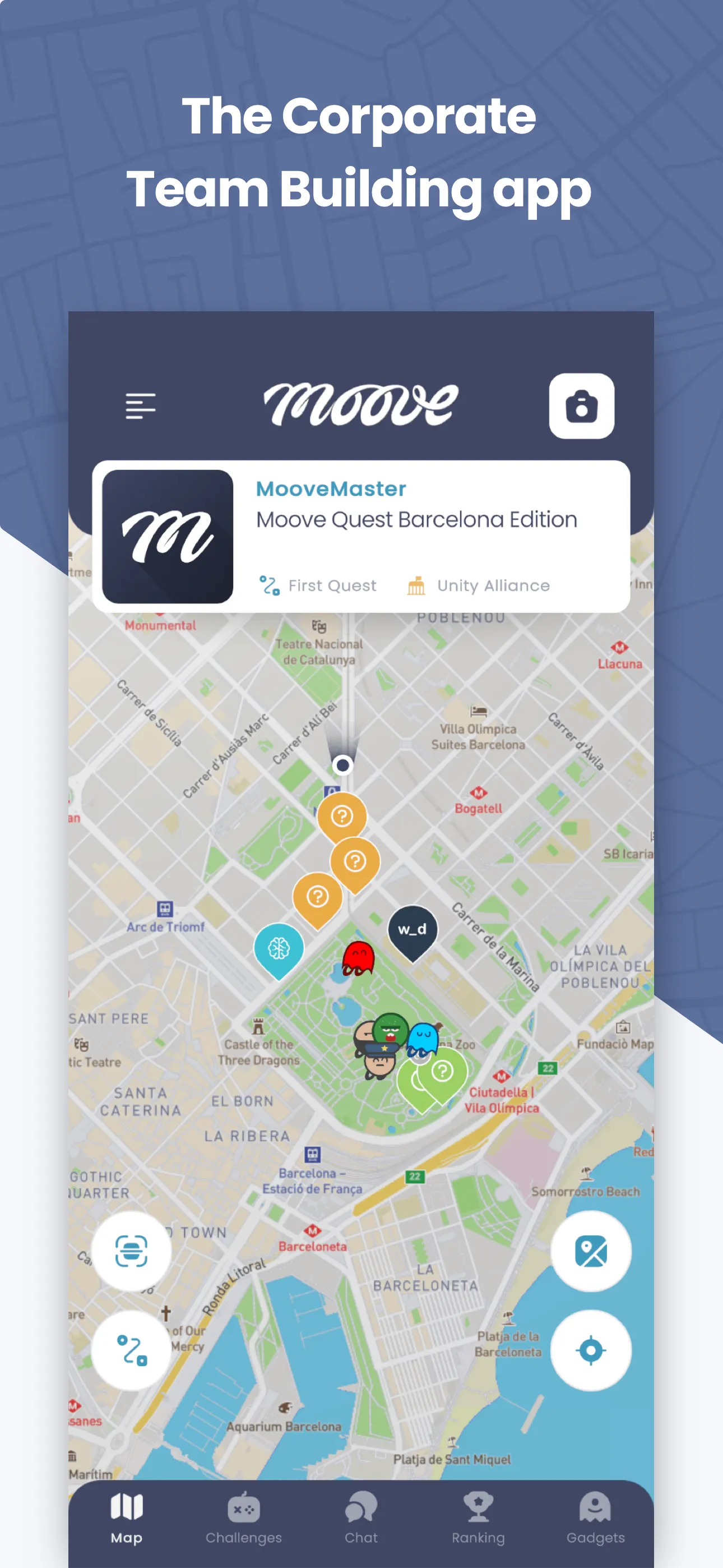
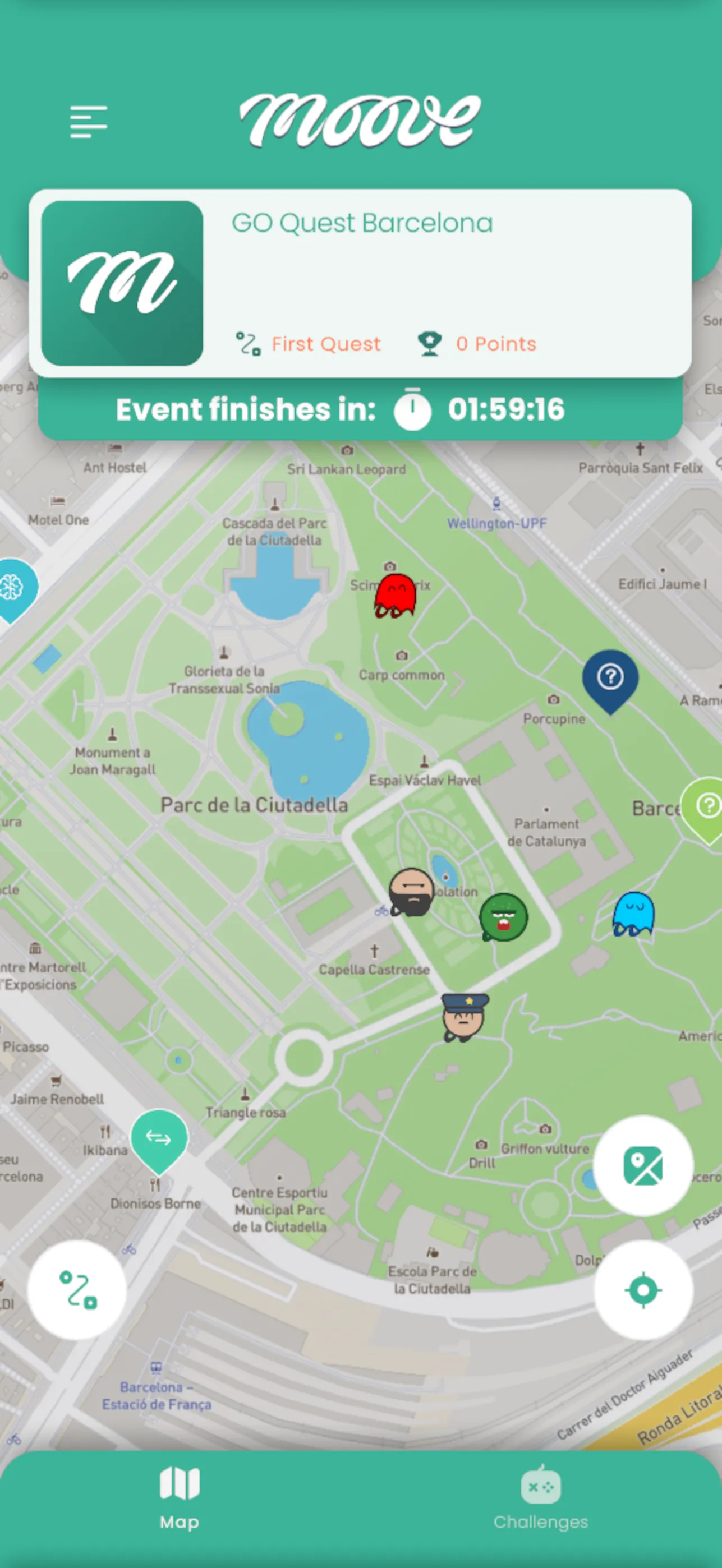
Most screens work the same in both apps. Where they differ, pages in this section use callouts to flag it.