

How do I upload images to the gallery?
Before you start
Section titled “Before you start”- Your images must be PNG or JPG format, maximum 3 MB each
Upload images
Section titled “Upload images”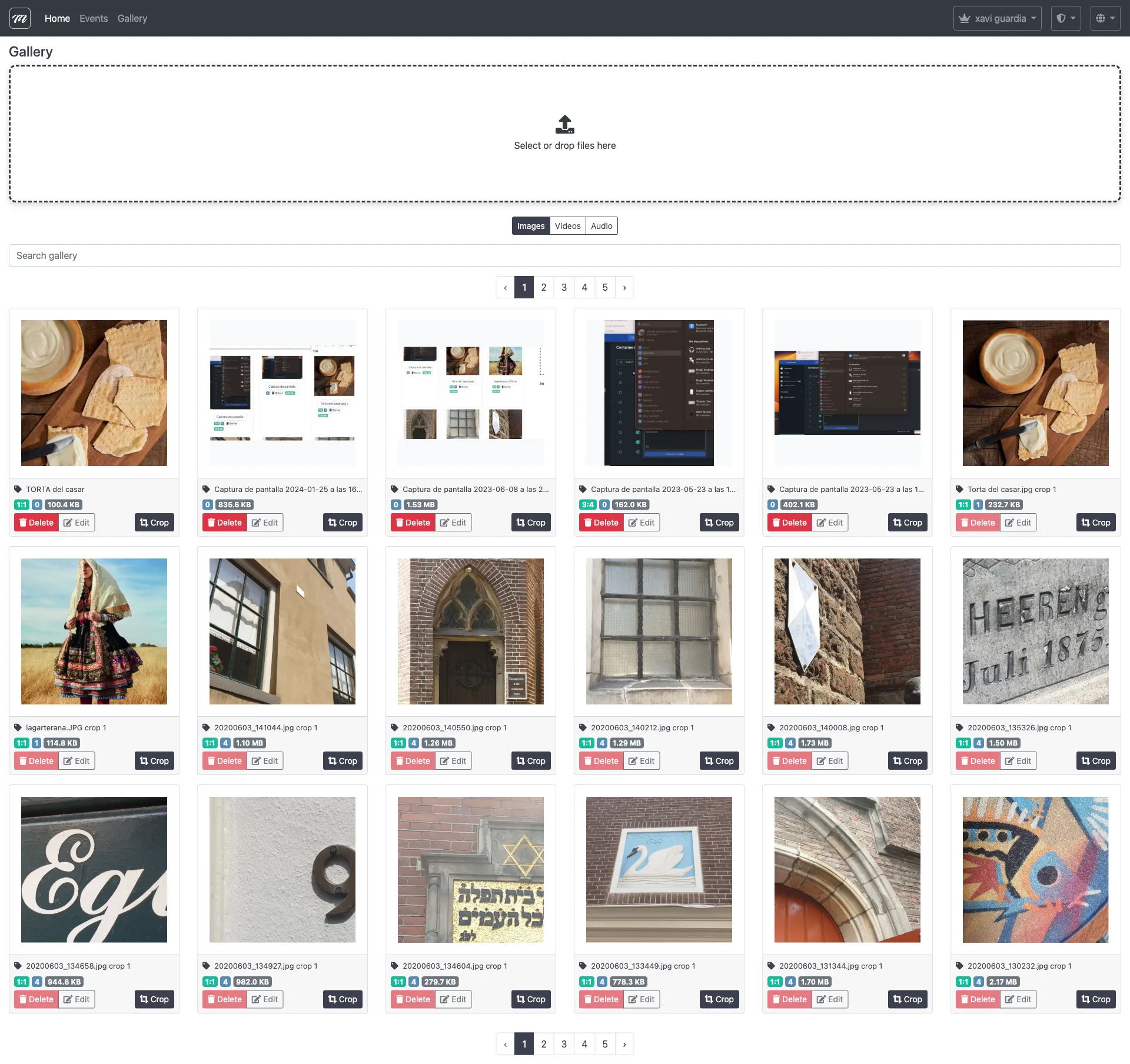
- Click Gallery in the top bar.
- Drag files into the upload area, or click it to browse your computer.
- Images upload and appear as thumbnails.
Images larger than 1500 pixels are automatically resized. The originals are preserved.
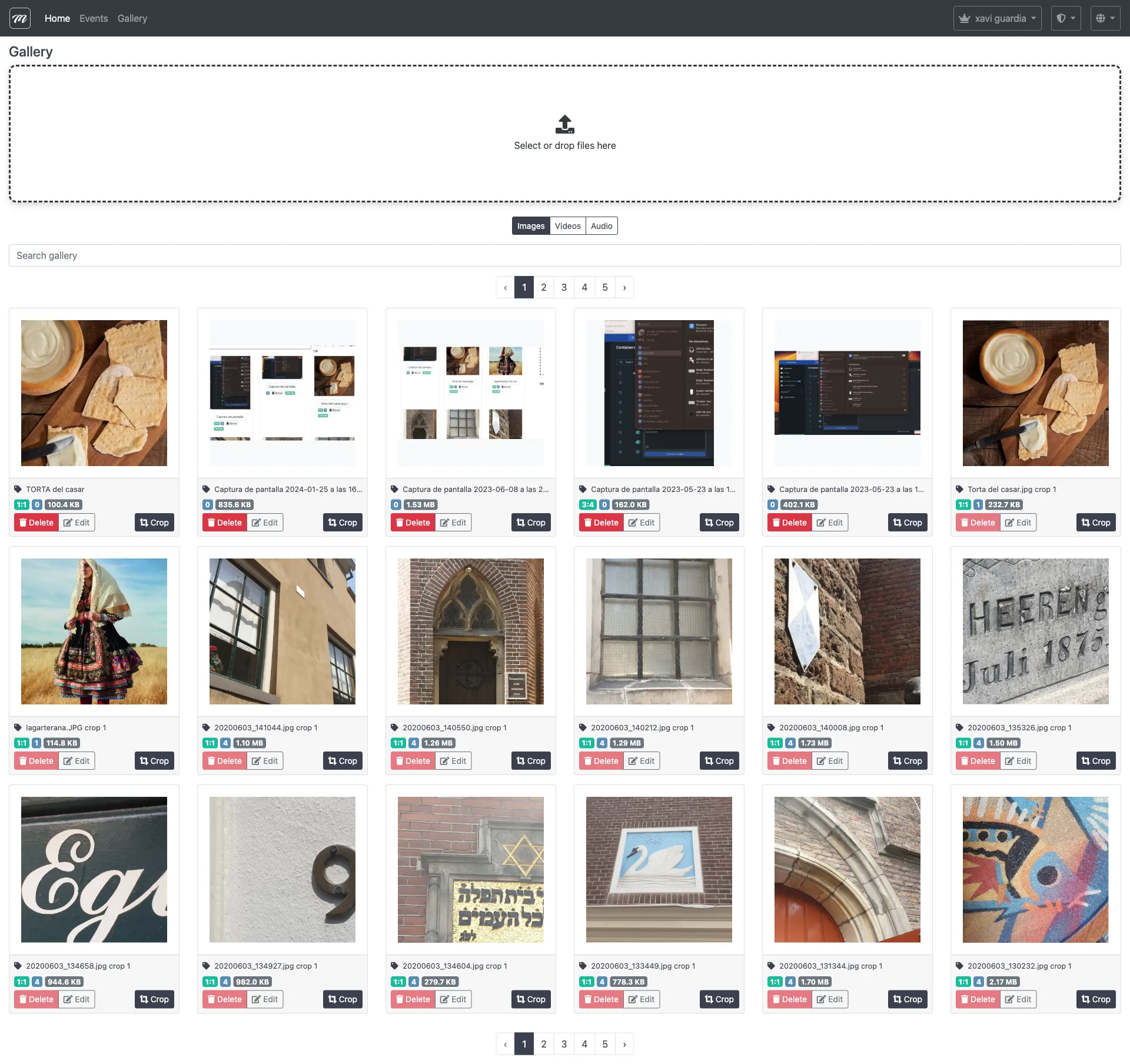
Crop an image
Section titled “Crop an image”- Click a thumbnail to select it.
- Choose a crop ratio: 3:4 (rectangular), 1:1 (square), or Icon (small icon size).
- Drag the crop box to select the area you want.
- Click Crop.
Cropping creates a new image in the gallery — the original is not changed.
Rename an image
Section titled “Rename an image”Click the description text under any thumbnail. Type a new name. It saves automatically.
Delete an image
Section titled “Delete an image”Click the trash icon on the thumbnail.
- If the image is not used anywhere, it is deleted.
- If the image is used by challenges, segments, or events, the delete button is disabled. Remove the image from all items that reference it first, then delete it.
Result
Section titled “Result”Your images are in the gallery and available to use in any event.