

How do I import or export an event?
Export a single event
Section titled “Export a single event”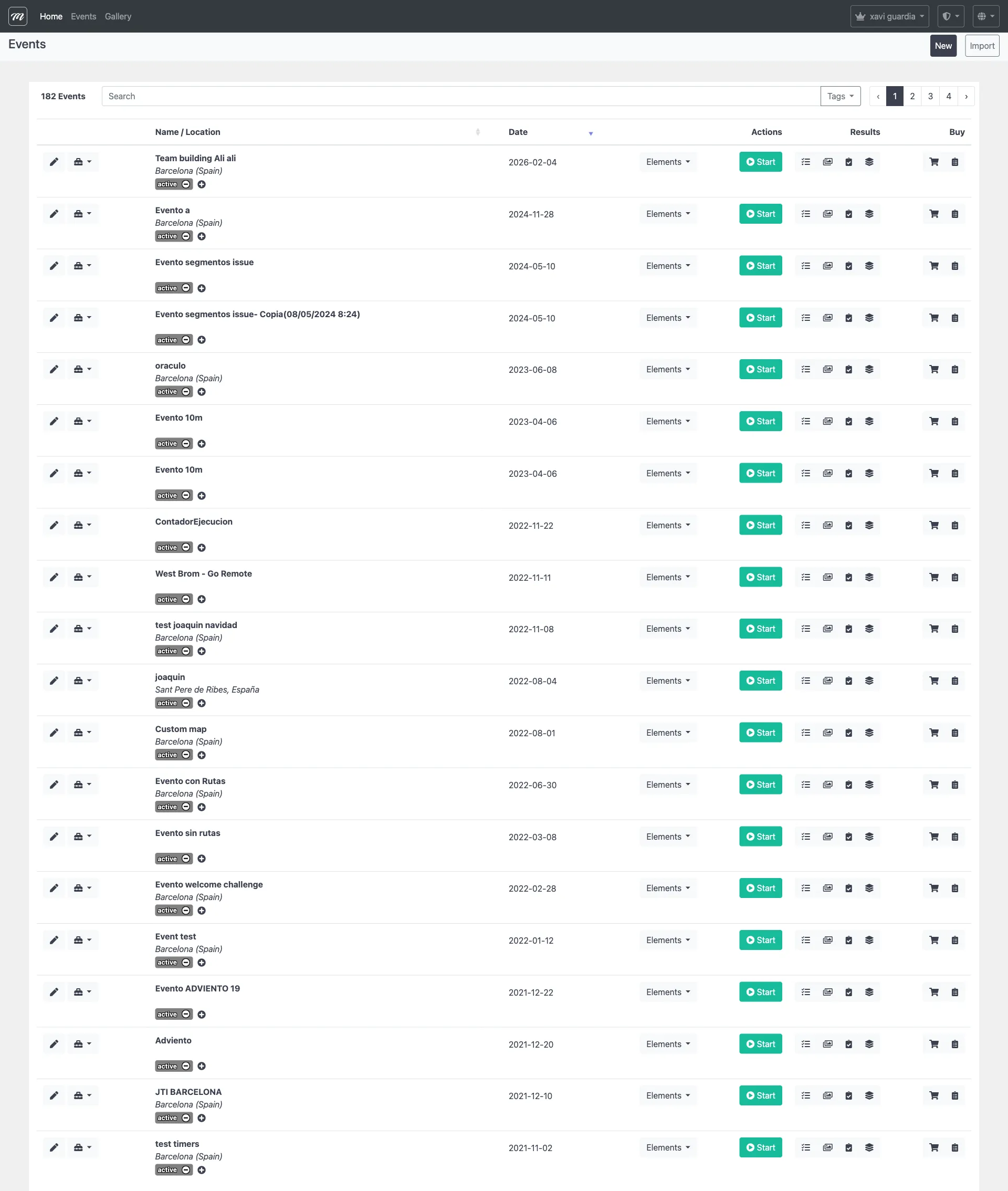
- Click Events in the top bar.
- Find the event and click the dropdown arrow.
- Click Export.
- An XML file downloads to your computer.
The file contains everything: settings, challenges (with images), routes, segments, gadgets, alliances, and teams.
If the export fails: MooveTeam CMS shows a list of missing gallery images. Some challenges reference images that no longer exist in your gallery. Re-upload the missing images and try again.
Export all events
Section titled “Export all events”Click Export from the action bar on the Event Edit page to export that single event. To export all your company’s events at once, ask your administrator — this is an admin-level function.
Import an event
Section titled “Import an event”- Go to the import page (Admin menu → Import event).
- Click Choose File and select the XML file.
- Click Upload.
A confirmation page shows what was imported and any errors.
For field-level detail, see the Events reference.