

How do I fix GPS problems?
Problem: Challenge does not activate when the team is at the location
Section titled “Problem: Challenge does not activate when the team is at the location”Check the coordinates. Open the challenge in the Challenges tab and verify the GPS pin is where you think it is. A common mistake: the pin is on the wrong side of the street or in a different building.
Check the route. Make sure the challenge is assigned to the team’s route. If the challenge is not on their route, they will not see it.
Check the device. Ask the team to:
- Make sure Location Services are enabled for the MooveXR app
- Stand outside — GPS works poorly indoors, near tall buildings, or underground
- Wait 10-20 seconds — GPS needs time to lock a position
- Close and reopen the app
Check the activation method. If the challenge uses QR code or Bluetooth beacon activation (not GPS), the team needs to scan a code or be near a beacon, not just at the GPS location.
Problem: Team position is wrong on the tracking map
Section titled “Problem: Team position is wrong on the tracking map”GPS accuracy varies by device and environment. Urban canyons (narrow streets between tall buildings), indoor spaces, and underground areas can shift positions by 10-50 meters.
Fix: There is no fix for GPS inaccuracy — it is a hardware limitation. Design your event with this in mind:
- Place challenges in open areas when possible
- Leave at least 20-30 meters between nearby challenges
- For indoor events, use QR code or Bluetooth beacon activation instead of GPS
Problem: “Allow players to click map icons” is off but the team cannot reach a challenge
Section titled “Problem: “Allow players to click map icons” is off but the team cannot reach a challenge”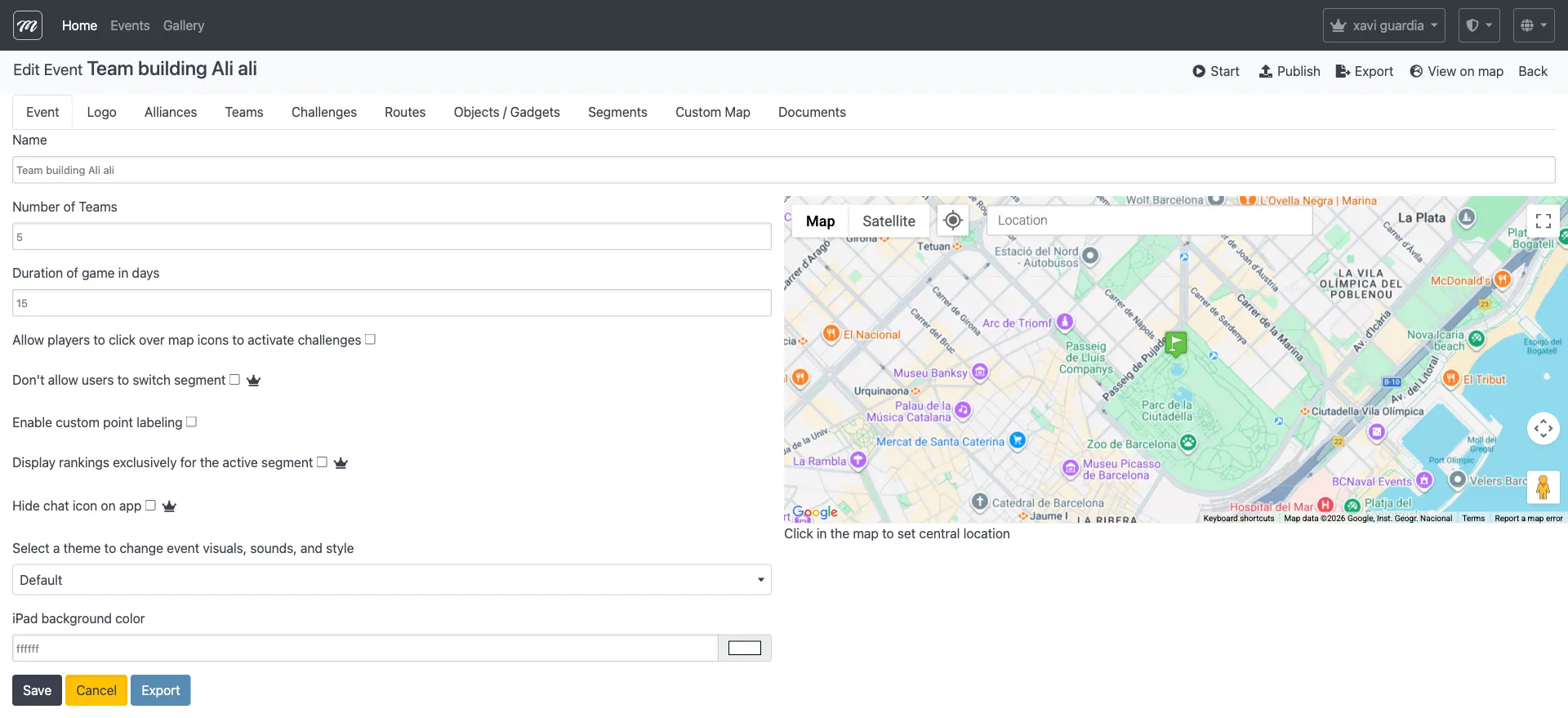
If this option is off (the default), teams must physically walk to the challenge location. If the location is inaccessible (inside a private building, across a river), the team cannot complete it.
Fix: Either:
- Move the challenge pin to an accessible location, or
- Turn on “Allow players to click map icons” in the Event tab settings (this lets teams tap the map instead of walking there)
Problem: No GPS data showing in the tracking dashboard
Section titled “Problem: No GPS data showing in the tracking dashboard”Check that the event is running. GPS data only accumulates while the event is active.
Check that teams have connected. Teams must open the MooveXR app and join the event. If no teams have connected, there is no GPS data.
Check device permissions. The MooveXR app needs Location Services permission. If a team denied it, the app cannot send GPS positions.